splitforms.com

HTML · ATTRIBUTE

HTML accept Attribute: Limit File Upload Types

Last reviewed

accept tells <input type="file"> which files to offer. It takes a comma-separated list of MIME types (image/png), wildcards (image/*, audio/*, video/*) or extensions (.pdf). It only filters the file picker: users can still switch to "All files", so your backend must check the file type and size. Select file types in the generator, choose whether to allow multiple files, and copy the attribute or labelled input. The local picker shows filenames and browser-reported MIME types without uploading files.

  • Live example
  • Copy-paste snippet
  • Attributes & common mistakes

Choose one or more file types, then copy the generated code. No files are uploaded.

File types
Accept attribute
accept=".pdf,application/pdf"
Labelled input markup
<label for="attachment">Choose a file</label>
<input type="file" id="attachment" name="attachment" accept=".pdf,application/pdf">

The picker is guided by accept; validate file type and size on the server too.

Minimal snippet

accept-example.html
<input type="file" name="resume" accept=".pdf,.doc,.docx,application/pdf">

Copy-paste code

HTML accept Attribute code you can paste today.

Replace YOUR_ACCESS_KEY with a key from your free splitforms dashboard. The form posts to one endpoint — submissions land in your inbox and dashboard with spam filtering built in.

Get free access key
accept-attribute.html
<form action="https://splitforms.com/api/submit" method="POST" enctype="multipart/form-data">
  <input type="hidden" name="access_key" value="YOUR_ACCESS_KEY">

  <label for="name">Name</label>
  <input type="text" id="name" name="name" required>

  <label for="email">Email</label>
  <input type="email" id="email" name="email" required>

  <!-- Files are stored on paid plans with Storage connected -->
  <label for="attachment">Photo or PDF</label>
  <input type="file" id="attachment" name="attachment" accept="image/*,.pdf" required>

  <!-- Honeypot: hidden from people, bots fill it in -->
  <input type="checkbox" name="botcheck" style="display:none" tabindex="-1" autocomplete="off">

  <button type="submit">Send</button>
</form>

Attributes · accept

Which attributes work with accept?

capture and multiple change the picker; the form's enctype decides whether the file is sent at all.

HTML accept Attribute attributes and what each one does
AttributeWhat it doesDocs
acceptA comma-separated list of MIME types (application/pdf), wildcards (image/*, audio/*, video/*) or extensions starting with a dot (.pdf). It filters the file picker only.MDN
captureOn phones, with an image or video accept, opens the camera directly: user for the front camera, environment for the rear. Desktop browsers ignore it.MDN
multipleLets the user pick several files. accept applies to each one.MDN
requiredBlocks the submit until a file is chosen. It does not check the file's type.MDN
enctype (on <form>)Must be multipart/form-data, with method="POST", or only the file's name is sent.MDN

Common mistakes

accept mistakes to avoid

Most problems come from treating accept as validation, or from a form that never sends the file.

  1. accept is not validation

    It only filters the file picker. Users can pick "All files", drag a file in, or send the form without the browser, and the submit is never blocked. Check the type and size on the server.

  2. List both extensions and MIME types

    Operating systems map extensions to MIME types differently, so one form can miss files on some devices. List both, like .jpg,.jpeg,image/jpeg or .pdf,application/pdf.

  3. No enctype means no file

    Without enctype="multipart/form-data" (and method="POST") on the form, the browser sends only the file's name, never its contents.

  4. image/* on iOS allows the camera and HEIC

    On iPhones, accept="image/*" offers the camera as well as the photo library, and photos can arrive as HEIC files. If your server only handles JPEG and PNG, list those types instead and check the file on the server.

Sources: WHATWG HTML Standard: Forms · MDN: accept

Copy-paste ready

The HTML accept Attribute example below is a complete, working form — paste it into any HTML page and it submits, no edits to the markup required.

No backend to build

Your html accept attribute form posts to one endpoint. No server, PHP, or API route — accepted submissions are saved to your dashboard before owner notification email is attempted; delivery time and inbox placement depend on provider and recipient settings.

Where do uploaded files go?

File uploads need a paid splitforms plan with Storage connected (up to 5 files of 5 MB per submission); on the Free plan, text fields are saved and files are dropped.

How it works

How to add HTML accept Attribute to any page.

Copy the html accept attribute example, drop in your free access key, and paste it into any page — submissions start landing in your dashboard.

Copy the code

Copy the HTML accept Attribute example below.

Add your access key

Replace YOUR_ACCESS_KEY with a free splitforms key from the dashboard.

Paste into your site

Drop the form into any HTML page. Submissions arrive in your dashboard.

How SplitForms works

What happens after someone submits your form?

splitforms receives the submission, filters spam, saves it to your dashboard and emails you — then, on paid plans, sends it on to your webhooks and integrations. No backend infrastructure to build.

A SplitForms contact form submission launching straight to your inbox

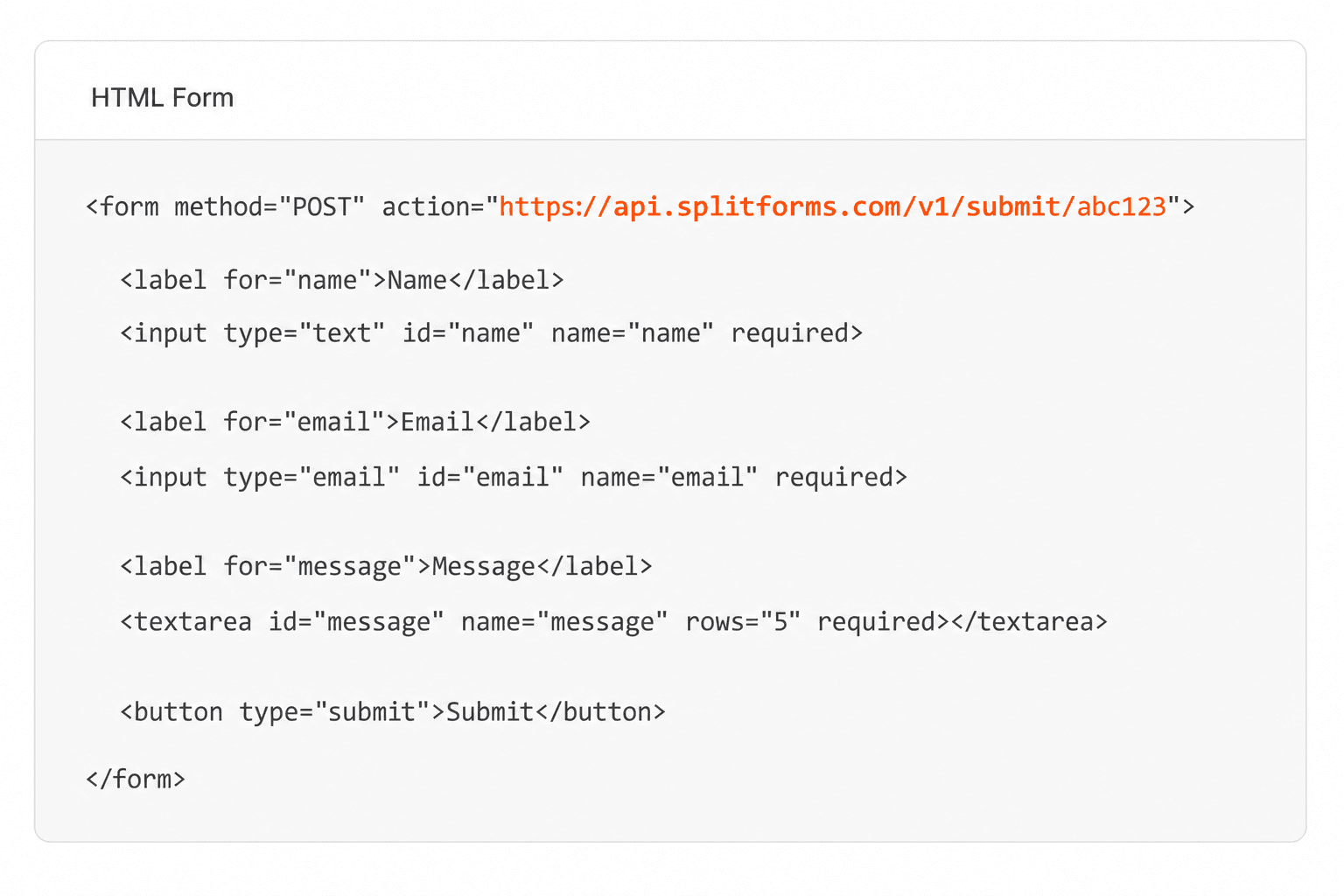
Add your endpoint

Point your form to your unique SplitForms endpoint. That's it.

HTML form pointing at a SplitForms submit endpoint

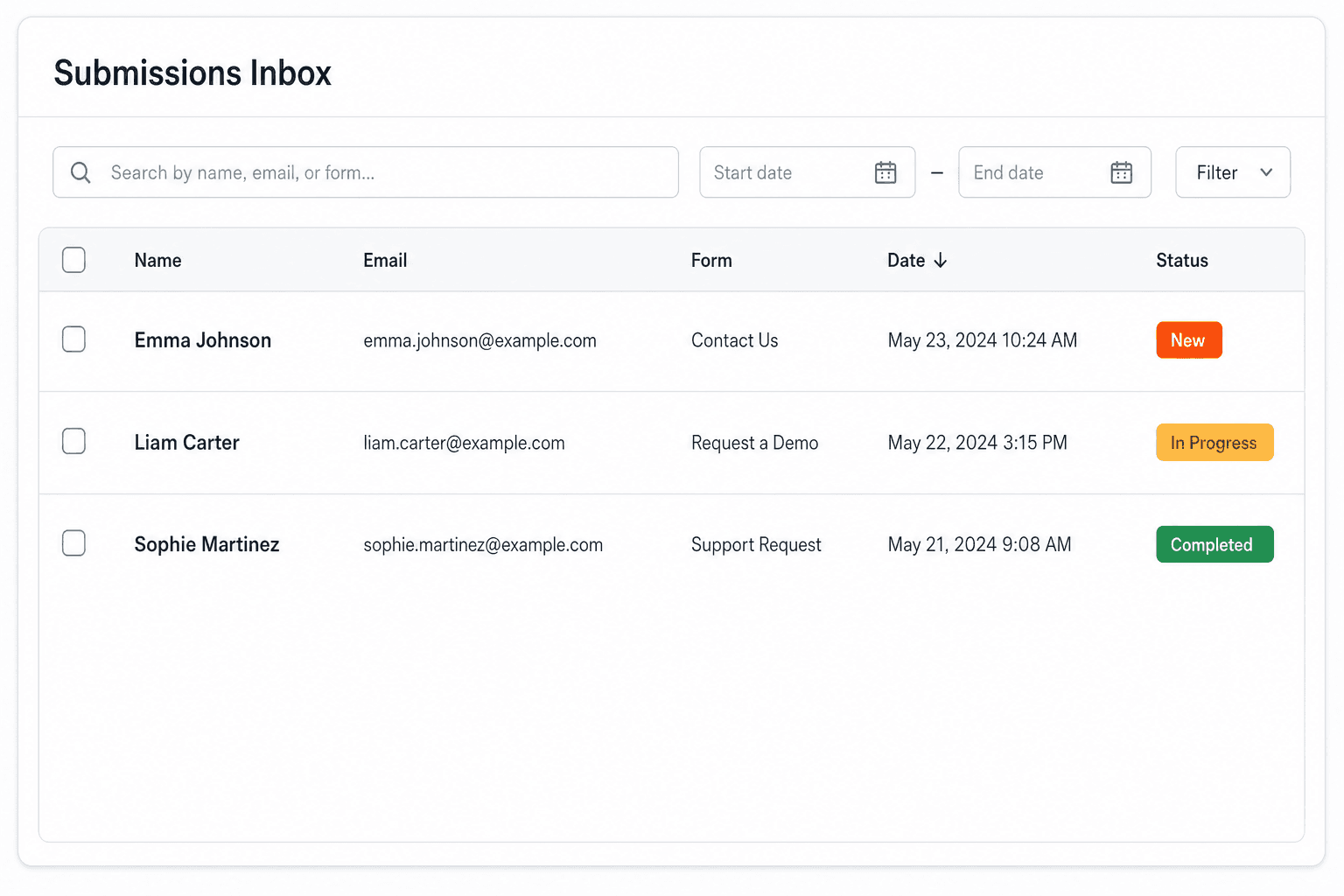
Receive submissions

We instantly capture and organize every submission in your inbox.

Submissions inbox with searchable leads and status pills

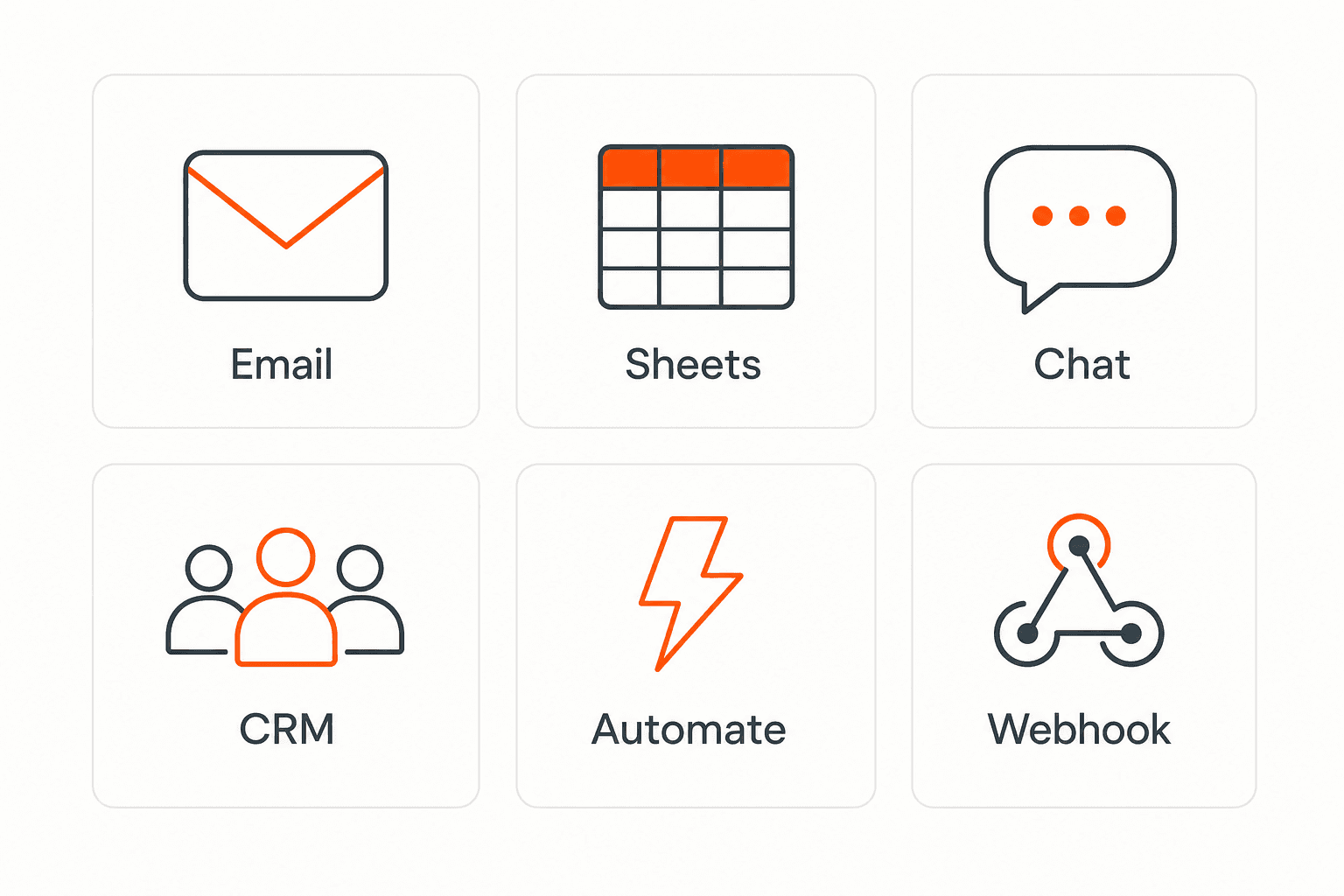
Route anywhere

Send data to email, spreadsheets, CRMs, webhooks, and 7,000+ apps.

Generic integration tiles for email, sheets, chat, CRM, automate, and webhook

No credit card required. Set up in under 60 seconds.

Connect & automate

Where can submissions go besides email?

On paid plans, submissions can also go to Slack, Discord, Google Sheets, Notion, Airtable, Zapier or any signed webhook — and splitforms works on the platforms you build on, from WordPress and Shopify to Next.js. With Stripe connected, your forms can take payments too.

Connect your SplitForms form to Slack, Google Sheets, Mailchimp, Zapier and more
NewTake payments on your formsDeposits, bookings, order forms — submitters check out through Stripe and the money goes straight to your Stripe account. Included on every paid plan.See payment forms →Need time slots? Online booking →

Setup guides for the stacks you use

Questions

HTML accept Attribute questions, answered.

View all FAQs
How do I accept only PDF files?

Use accept=".pdf,application/pdf" on the file input. This shows only PDFs in the picker, but users can still choose another file, so check the type on the server too.

How do I accept several file types?

Separate them with commas, like accept="image/*,.pdf" or accept=".pdf,.doc,.docx". You can mix MIME types, wildcards such as image/* and extensions in one list.

Does accept validate the file on submit?

No. accept only filters the file picker. The browser does not check the chosen file against it when the form is submitted, so a wrong file type is still sent.

How do I check the file type in JavaScript?

Read the files from input.files in a change handler. Each File has a type (the MIME type, like application/pdf, which can be empty) and a name you can check the extension of. Reject the file and clear the input if neither matches, then check again on the server.

How do I set a maximum file size?

There is no HTML attribute for it. Check File.size (in bytes) from input.files in JavaScript to warn the user early, and enforce the limit on the server.

Simple pricing

How much does splitforms cost?

Free gives you 500 submissions for $0 — no card, no time limit. Pro is $5/month for 5,000 submissions a month, and Annual is $49/year for 15,000 a month with every Pro feature.

Free

$0— 500 submissions
 

No card, no time limit

Best for testing

For side projects and indie devs.

  • 500 free submissions
  • Unlimited forms
  • Email notifications included
  • Smart spam filtering
  • Submissions dashboard
  • Redirect after submit
  • MCP server included

Annual

$49/ year
About $4.08 per month, billed yearly
Best value

Every Pro feature with triple the volume — $0.27 per 1,000 at full use.

  • 15,000 submissions per month
  • Unlimited forms
  • Everything in Pro
  • File uploads with 5 GB storage
  • 3 team seats
  • Priority email support

No credit card required on Free • Cancel anytime • Full pricing and FAQ