splitforms.com

HTML · FORM CONTROL

HTML output Element: Live Calculation and Slider Results

Last reviewed

The HTML <output> element displays the result of a calculation or a user action, such as adding two numbers or showing the current value of a range slider. Give it a `name` so scripts can set `total.value`, list related control ids in `for`, and recalculate on the form with `oninput`. It is not included in submitted form data.

  • Live, editable example
  • Copy-paste snippet
  • Attributes & common mistakes
Live demo · nothing is sent

What gets submitted

Fill in the form above and press its button. The demo stops the request and lists every name=value pair the browser would send, plus the controls it leaves out.

With a free access key in the form, these fields land in your splitforms dashboard; access_key and botcheck are read by splitforms, not stored as lead data.

Edit the HTML and re-run it
Runs in a sandbox. Nothing is sent.

Minimal snippet

output-example.html
<form oninput="total.value = Number(a.value) + Number(b.value)">
  <input type="number" id="a" name="a" value="0">
  <input type="number" id="b" name="b" value="0">
  <output name="total" for="a b">0</output>
</form>

Copy-paste code

HTML output Element code you can paste today.

Replace YOUR_ACCESS_KEY with a key from your free splitforms dashboard. The form posts to one endpoint — submissions land in your inbox and dashboard with spam filtering built in.

Get free access key
output.html
<form action="https://splitforms.com/api/submit" method="POST"
      oninput="total.value = Number(a.value) + Number(b.value)">
  <input type="hidden" name="access_key" value="YOUR_ACCESS_KEY">

  <label for="a">First number</label>
  <input type="number" id="a" name="a" value="10" required>

  <label for="b">Second number</label>
  <input type="number" id="b" name="b" value="5" required>

  <p>Sum: <output name="total" for="a b">15</output></p>

  <!-- Honeypot: hidden from people, bots fill it in -->
  <input type="checkbox" name="botcheck" style="display:none" tabindex="-1" autocomplete="off">

  <button type="submit">Send</button>
</form>

Attributes · <output>

Which attributes does <output> use?

Associate the result with its inputs and give it a script-friendly name.

HTML output Element attributes and what each one does
AttributeWhat it doesDocs
forSpace-separated list of control ids this result depends on, such as for="a b". Helps browsers associate the output with those fields.MDN
formThe id of a <form> when the output sits outside that form but still belongs to it.MDN
nameLets scripts reach the element as total.value in an oninput handler or from JavaScript. Unlike inputs, the name is not sent when the form submits.MDN

Common mistakes

output mistakes to avoid

Treat it as a live display, not a submitted field.

  1. Show a range slider value live

    Put <output name="volumeOut" for="volume"> next to the slider and set oninput="volumeOut.value = volume.value" on the form. See [input type=range](/html/input-type-range) for min, max and step.

  2. output is not submitted with the form

    Only named form controls such as <input> and <textarea> are in the submission. To send a calculated total, copy it into a hidden input before submit or compute it on the server. See [input type=hidden](/html/input-type-hidden).

  3. Use the value property, not innerHTML

    Update with outputEl.value = "42" or total.value = sum in oninput. Setting innerHTML bypasses the element's API and can introduce markup you did not intend.

  4. Screen readers treat it as a live region

    Browsers expose <output> with role="status" (an aria-live region), so assistive tech announces changes. That helps short totals; for long text that changes every keystroke, debounce updates or show the result elsewhere so announcements stay usable.

  5. Recalculate with oninput on the form

    A single oninput on the <form> runs when any field inside changes, so one handler can refresh the output for several inputs without wiring each control separately.

Sources: WHATWG HTML Standard: output · MDN: <output>

Copy-paste ready

The HTML output Element example below is a complete, working form — paste it into any HTML page and it submits, no edits to the markup required.

No backend to build

Your html output element form posts to one endpoint. No server, PHP, or API route — accepted submissions are saved to your dashboard before owner notification email is attempted; delivery time and inbox placement depend on provider and recipient settings.

A form that really submits

Unlike a static reference snippet, this <output> form actually sends data to a free splitforms backend, with spam filtering built in.

How it works

How to add HTML output Element to any page.

Copy the html output element example, drop in your free access key, and paste it into any page — submissions start landing in your dashboard.

Copy the code

Copy the HTML output Element example below.

Add your access key

Replace YOUR_ACCESS_KEY with a free splitforms key from the dashboard.

Paste into your site

Drop the form into any HTML page. Submissions arrive in your dashboard.

How SplitForms works

What happens after someone submits your form?

splitforms receives the submission, filters spam, saves it to your dashboard and emails you — then, on paid plans, sends it on to your webhooks and integrations. No backend infrastructure to build.

A SplitForms contact form submission launching straight to your inbox

Add your endpoint

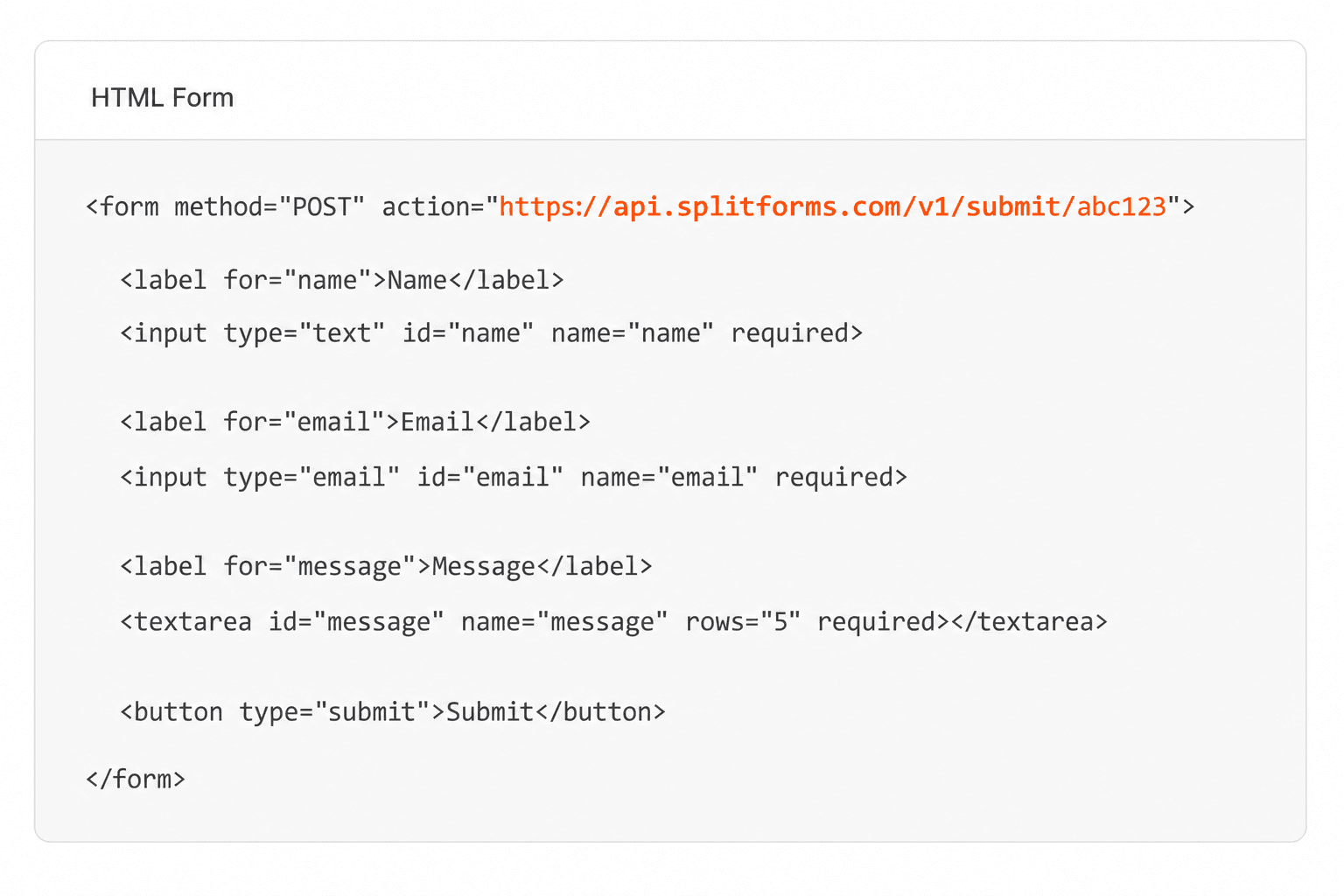
Point your form to your unique SplitForms endpoint. That's it.

HTML form pointing at a SplitForms submit endpoint

Receive submissions

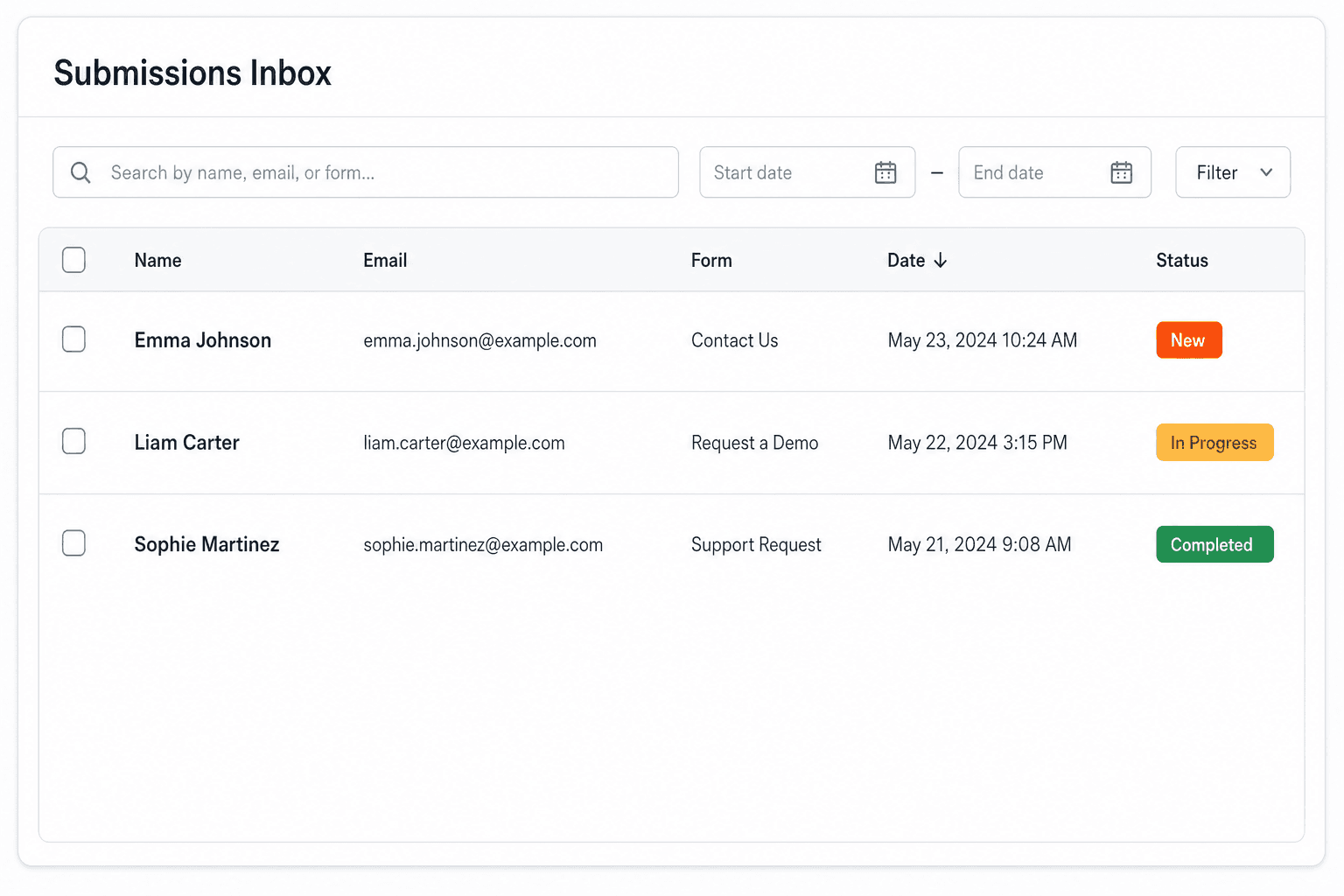
We instantly capture and organize every submission in your inbox.

Submissions inbox with searchable leads and status pills

Route anywhere

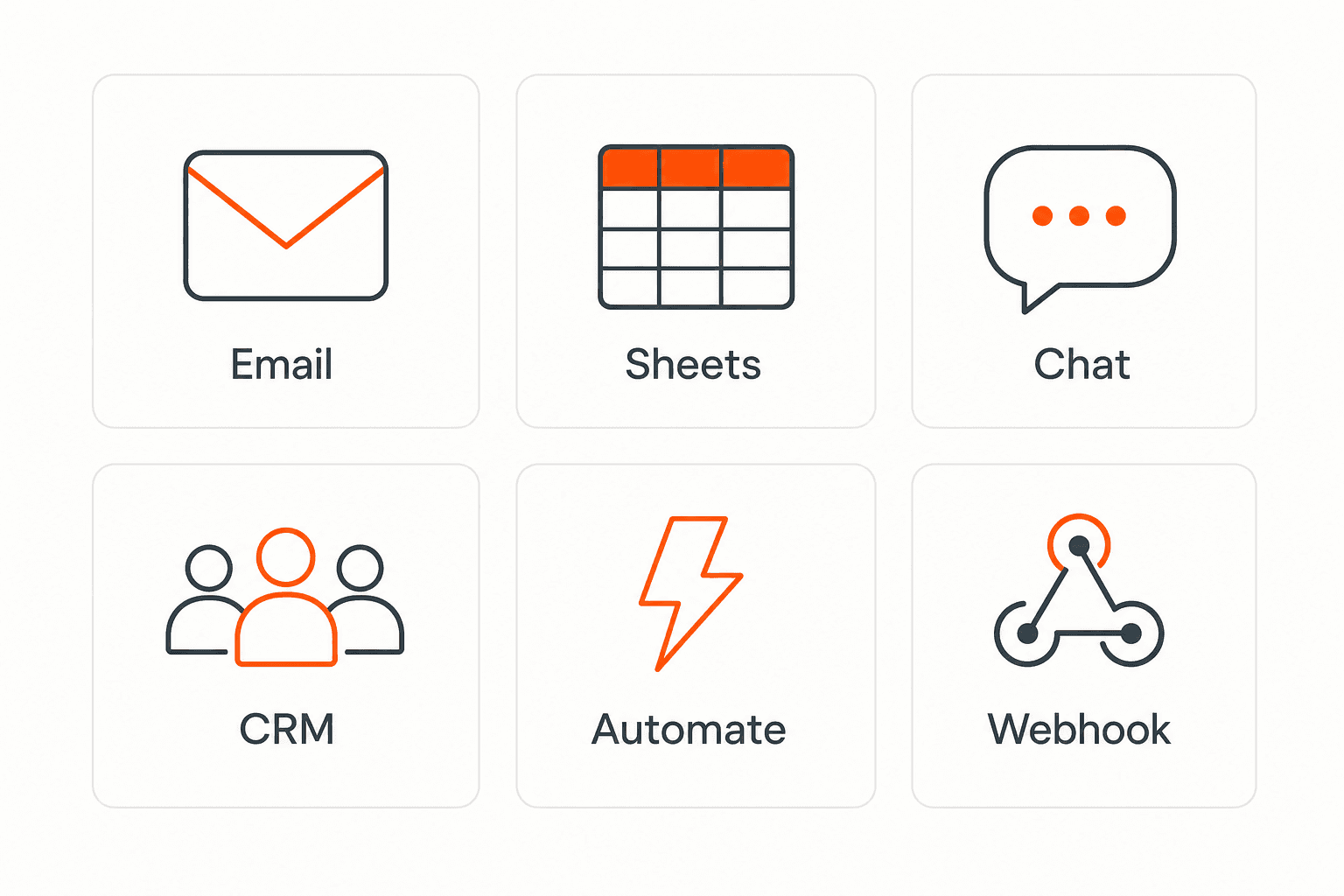
Send data to email, spreadsheets, CRMs, webhooks, and 7,000+ apps.

Generic integration tiles for email, sheets, chat, CRM, automate, and webhook

No credit card required. Set up in under 60 seconds.

Connect & automate

Where can submissions go besides email?

On paid plans, submissions can also go to Slack, Discord, Google Sheets, Notion, Airtable, Zapier or any signed webhook — and splitforms works on the platforms you build on, from WordPress and Shopify to Next.js. With Stripe connected, your forms can take payments too.

Connect your SplitForms form to Slack, Google Sheets, Mailchimp, Zapier and more
NewTake payments on your formsDeposits, bookings, order forms — submitters check out through Stripe and the money goes straight to your Stripe account. Included on every paid plan.See payment forms →Need time slots? Online booking →

Setup guides for the stacks you use

Questions

HTML output Element questions, answered.

View all FAQs
What is the HTML output element?

The <output> element shows a live result from a calculation or user action, such as a sum of two number fields or the current value of a range slider. It is meant for display, not for storing data the server receives.

How do I show a range slider value in HTML?

Add an <output> next to the slider, set for to the slider's id, give the output a name, and on the form use oninput="volumeOut.value = volume.value". Match the output's starting text to the slider's value attribute.

Is the output element included in form submission?

No. Only standard form controls with a name attribute are submitted. To send a calculated value, copy it into a hidden input or recalculate it on the server from the fields you do submit.

How do I update an output element from JavaScript?

Set its value property, for example document.forms[0].total.value = sum or outputEl.value = String(result). The name attribute lets you use total.value in an inline oninput handler on the form.

Simple pricing

How much does splitforms cost?

Free gives you 500 submissions for $0 — no card, no time limit. Pro is $5/month for 5,000 submissions a month, and Annual is $49/year for 15,000 a month with every Pro feature.

Free

$0— 500 submissions
 

No card, no time limit

Best for testing

For side projects and indie devs.

  • 500 free submissions
  • Unlimited forms
  • Email notifications included
  • Smart spam filtering
  • Submissions dashboard
  • Redirect after submit
  • MCP server included

Annual

$49/ year
About $4.08 per month, billed yearly
Best value

Every Pro feature with triple the volume — $0.27 per 1,000 at full use.

  • 15,000 submissions per month
  • Unlimited forms
  • Everything in Pro
  • File uploads with 5 GB storage
  • 3 team seats
  • Priority email support

No credit card required on Free • Cancel anytime • Full pricing and FAQ