splitforms.com

HTML · FORM CONTROL

HTML input type="button": Plain Button for JavaScript

Last reviewed

The <input type="button"> element is a button whose value attribute is the visible label. It does nothing until JavaScript handles a click with onclick or addEventListener('click'). It never submits or resets the form, and unlike a clicked submit control it is not included in the submitted FormData. For new work, <button type="button"> is usually better because it can hold HTML and icons and is easier to style.

  • Live, editable example
  • Copy-paste snippet
  • Attributes & common mistakes
Live demo · nothing is sent

What gets submitted

Fill in the form above and press its button. The demo stops the request and lists every name=value pair the browser would send, plus the controls it leaves out.

With a free access key in the form, these fields land in your splitforms dashboard; access_key and botcheck are read by splitforms, not stored as lead data.

Edit the HTML and re-run it
Runs in a sandbox. Nothing is sent.

Minimal snippet

input-type-button-example.html
<form>
  <input type="text" name="price" id="price">
  <input type="button" value="Show price" onclick="document.getElementById('price').value='49'">
  <button type="submit">Buy</button>
</form>
<!-- The button input fills the field; only Buy submits -->

Copy-paste code

<input type="button"> code you can paste today.

Replace YOUR_ACCESS_KEY with a key from your free splitforms dashboard. The form posts to one endpoint — submissions land in your inbox and dashboard with spam filtering built in.

Get free access key
input-type-button.html
<form action="https://splitforms.com/api/submit" method="POST">
  <input type="hidden" name="access_key" value="YOUR_ACCESS_KEY">

  <label for="name">Name</label>
  <input type="text" id="name" name="name" autocomplete="name" required>

  <label for="price">Price</label>
  <input type="text" id="price" name="price" placeholder="Click Show price">

  <!-- Honeypot: hidden from people, bots fill it in -->
  <input type="checkbox" name="botcheck" style="display:none" tabindex="-1" autocomplete="off">

  <input type="button" id="show-price" value="Show price">
  <button type="submit">Send</button>
</form>

<script>
  document.getElementById("show-price").addEventListener("click", () => {
    document.getElementById("price").value = "$49 / month";
  });
</script>

Comparison

What is the difference between input type=button and button type=button?

Both are plain buttons for JavaScript: neither submits nor resets the form. An <input type="button"> is a void element whose label is the plain-text value; a <button type="button"> can wrap HTML such as an icon and a span. See the full HTML button reference.

What is the difference between input type=button and button type=button?
Topic<input type="button"><button type="button">
LabelThe value attribute; a browser default if missingThe content between the tags
Content allowedPlain text onlyText, icons and other phrasing HTML
Submits the formNoNo
Sent in FormDataNo, never part of the form dataNo, unless it is type="submit" and was clicked
KeyboardEnter and Space activate it nativelyEnter and Space activate it natively

Sources: WHATWG HTML Standard: Button Button state · MDN: <button>

Comparison

How is input type=button different from submit and reset?

Submit sends the form and may send its own name=value. Reset restores HTML defaults. A button input only runs your script and sends nothing.

How is input type=button different from submit and reset?
typeDefault actionIncluded in FormData when form posts
buttonNone until JavaScript runsNo
submitSubmits the formYes, when that control was the submitter (if it has a name)
resetRestores field defaultsNo
<button> with no type in a formSubmits (default type is submit)Yes when clicked, like submit

Sources: WHATWG HTML Standard: Button Button state · MDN: <input type="button">

Attributes · <input type="button">

Which attributes does input type=button support?

value sets the label; disabled turns it off. It never behaves like submit or reset.

<input type="button"> attributes and what each one does
AttributeWhat it doesDocs
valueThe visible label on the button. Without it the browser shows its own default text. Never sent with the form; see [value attribute](/html/value-attribute).MDN
nameOptional. Even with a name, a type=button control is not added to the form data set on submit because it is not a submitter.MDN
formThe id of a <form> this button is associated with for accessibility and form* wiring; see [form attribute](/html/form-attribute).MDN
disabledBoolean. Greys out the button so clicks and keyboard activation do nothing; see [disabled](/html/disabled).MDN

Common mistakes

input type=button mistakes to avoid

Using a div as a button, omitting type on <button>, and expecting the value to post with the form.

  1. It never submits the form

    Clicking <input type="button"> does not post the form. Wire a separate <button type="submit"> or <input type="submit"> when you need to send data.

  2. The value is not sent

    Only a submit control that was activated is included in FormData (when it has a name). A button input's value is for display and scripting, not for the server payload.

  3. <button> defaults to submit inside a form

    The most common bug is a <button> with no type inside a <form>: it submits when you meant to run JavaScript. Set type="button" explicitly.

  4. Do not use a div as a button

    Native buttons get Enter and Space for free and expose the right role to assistive tech. Style <button type="button"> or <input type="button"> instead of a clickable div.

Sources: WHATWG HTML Standard: Button Button state · MDN: <input type="button">

JavaScript

Should I use onclick or addEventListener on a button input?

Both work. Inline onclick="..." is fine for tiny demos; addEventListener('click', handler) keeps markup separate and lets you attach more than one handler. The click never submits the form either way.

button-input-listener.js
const btn = document.querySelector('input[type="button"]');

// Inline: <input type="button" onclick="fill()">
btn.addEventListener("click", () => {
  document.getElementById("price").value = "$49";
});

Pitfall

Why does my button submit the form when I only wanted JavaScript?

A <button> inside a <form> with no type attribute defaults to type="submit", so the form posts when you click it. Set type="button" on <button> or use <input type="button"> when the control should only run script.

explicit-button-type.html
<form action="/save" method="post">
  <input type="text" name="q">
  <!-- Wrong: submits the form -->
  <button onclick="preview()">Preview</button>
  <!-- Right -->
  <button type="button" onclick="preview()">Preview</button>
  <input type="button" value="Preview" onclick="preview()">
  <button type="submit">Save</button>
</form>

Copy-paste ready

The <input type="button"> example below is a complete, working form — paste it into any HTML page and it submits, no edits to the markup required.

No backend to build

Your <input type="button"> form posts to one endpoint. No server, PHP, or API route — accepted submissions are saved to your dashboard before owner notification email is attempted; delivery time and inbox placement depend on provider and recipient settings.

A form that really submits

Unlike a static reference snippet, this <input type="button"> form actually sends data to a free splitforms backend, with spam filtering built in.

How it works

How to add <input type="button"> to any page.

Copy the <input type="button"> example, drop in your free access key, and paste it into any page — submissions start landing in your dashboard.

Copy the code

Copy the <input type="button"> example below.

Add your access key

Replace YOUR_ACCESS_KEY with a free splitforms key from the dashboard.

Paste into your site

Drop the form into any HTML page. Submissions arrive in your dashboard.

How SplitForms works

What happens after someone submits your form?

splitforms receives the submission, filters spam, saves it to your dashboard and emails you — then, on paid plans, sends it on to your webhooks and integrations. No backend infrastructure to build.

A SplitForms contact form submission launching straight to your inbox

Add your endpoint

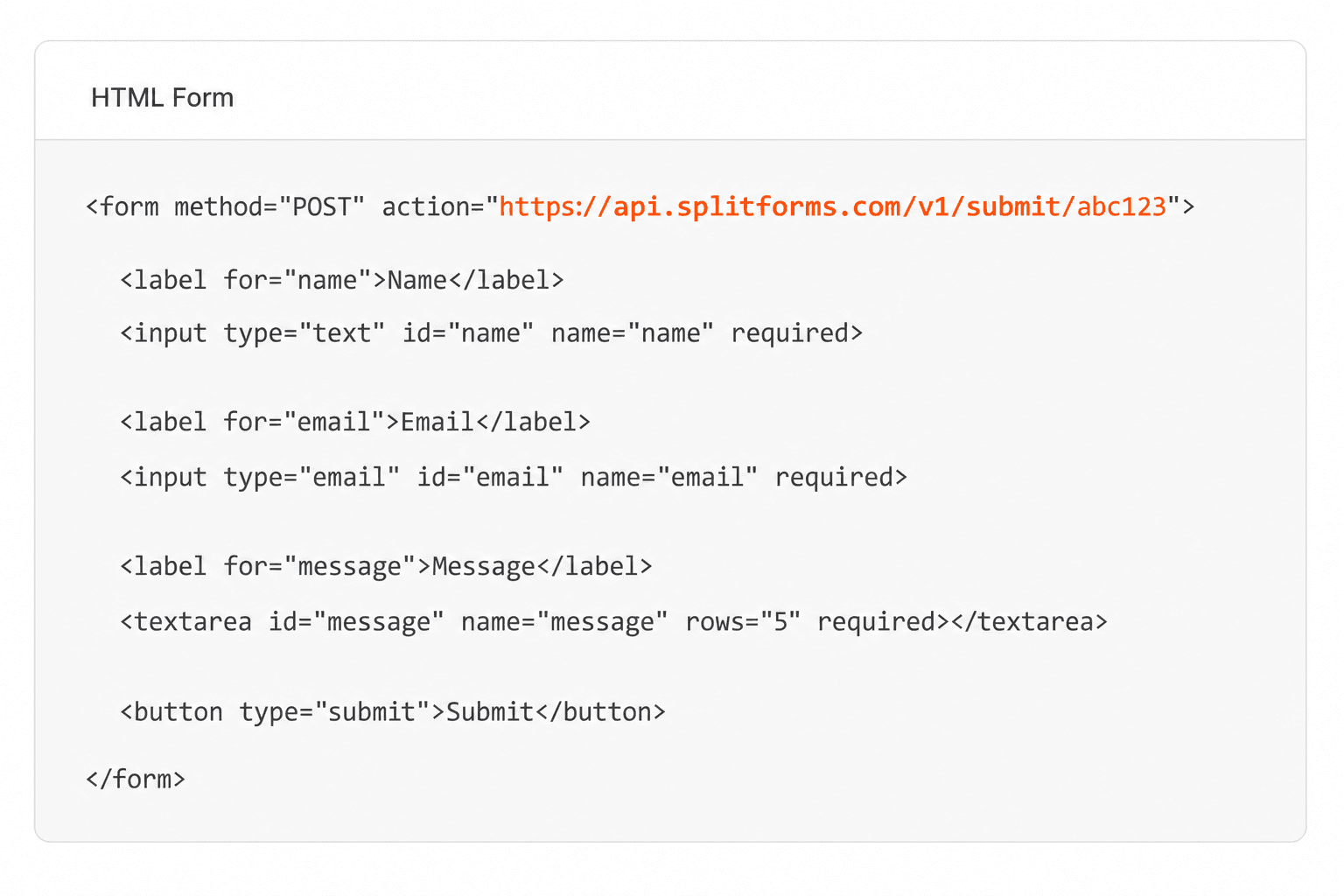
Point your form to your unique SplitForms endpoint. That's it.

HTML form pointing at a SplitForms submit endpoint

Receive submissions

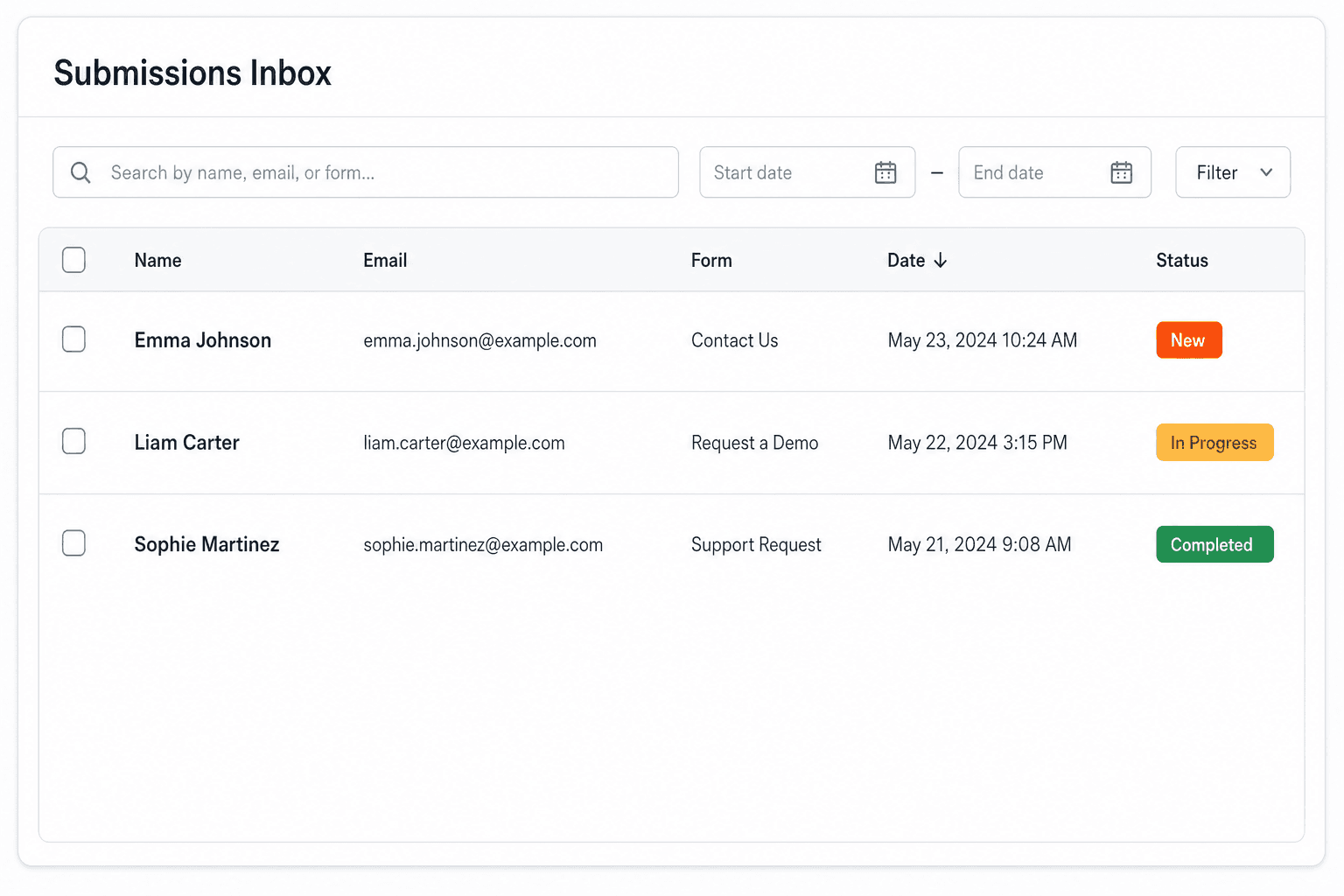
We instantly capture and organize every submission in your inbox.

Submissions inbox with searchable leads and status pills

Route anywhere

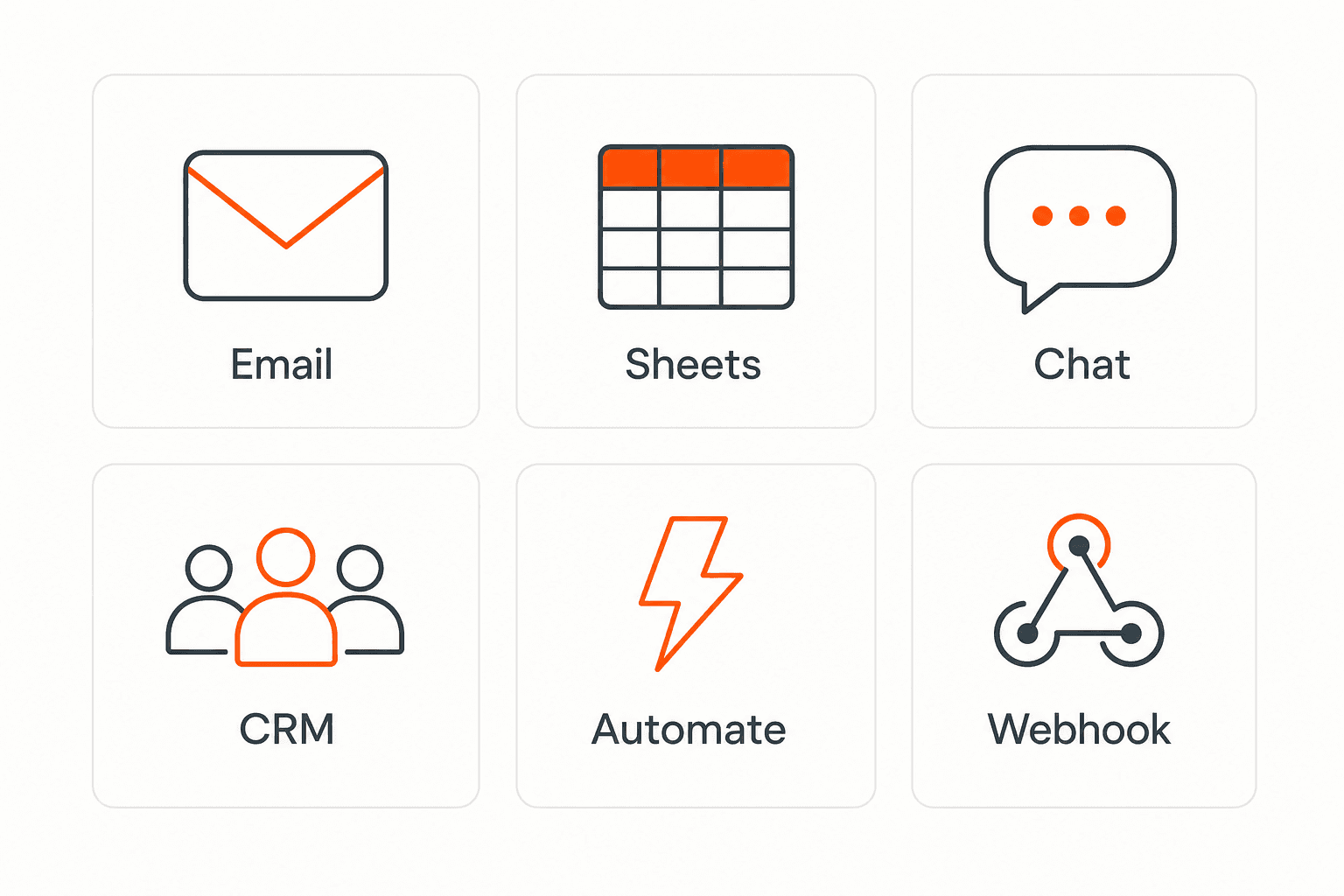
Send data to email, spreadsheets, CRMs, webhooks, and 7,000+ apps.

Generic integration tiles for email, sheets, chat, CRM, automate, and webhook

No credit card required. Set up in under 60 seconds.

Connect & automate

Where can submissions go besides email?

On paid plans, submissions can also go to Slack, Discord, Google Sheets, Notion, Airtable, Zapier or any signed webhook — and splitforms works on the platforms you build on, from WordPress and Shopify to Next.js. With Stripe connected, your forms can take payments too.

Connect your SplitForms form to Slack, Google Sheets, Mailchimp, Zapier and more
NewTake payments on your formsDeposits, bookings, order forms — submitters check out through Stripe and the money goes straight to your Stripe account. Included on every paid plan.See payment forms →Need time slots? Online booking →

Setup guides for the stacks you use

Questions

<input type="button"> questions, answered.

View all FAQs
What does input type=button do in HTML?

It renders a clickable button that has no built-in form action. Its value attribute is the visible label. You handle clicks with onclick or addEventListener. It does not submit or reset the form.

Is the value attribute sent when the form is submitted?

No. FormData includes named fields and the submit control that was clicked. An input type=button is never treated as a submitter, so its name and value are omitted even if you set a name attribute.

input type=button vs button type=button — which should I use?

They behave the same for forms. Prefer <button type="button"> when you need icons or HTML inside the label. Use <input type="button" value="..."> when the label is plain text only.

Why does my button submit the form when I only wanted JavaScript?

You probably used a <button> without type="button" inside a form. The default type is submit, so the browser posts the form. Add type="button" or switch to <input type="button">.

Does disabled work on input type=button?

Yes. The disabled boolean attribute greys out the control and blocks click and keyboard activation until you remove it.

Can I use Enter or Space to activate it?

Yes. Like other native buttons, input type=button responds to Space and Enter when focused. That is why you should not fake buttons with a div and click handlers only.

Simple pricing

How much does splitforms cost?

Free gives you 500 submissions for $0 — no card, no time limit. Pro is $5/month for 5,000 submissions a month, and Annual is $49/year for 15,000 a month with every Pro feature.

Free

$0— 500 submissions
 

No card, no time limit

Best for testing

For side projects and indie devs.

  • 500 free submissions
  • Unlimited forms
  • Email notifications included
  • Smart spam filtering
  • Submissions dashboard
  • Redirect after submit
  • MCP server included

Annual

$49/ year
About $4.08 per month, billed yearly
Best value

Every Pro feature with triple the volume — $0.27 per 1,000 at full use.

  • 15,000 submissions per month
  • Unlimited forms
  • Everything in Pro
  • File uploads with 5 GB storage
  • 3 team seats
  • Priority email support

No credit card required on Free • Cancel anytime • Full pricing and FAQ