splitforms.com

HTML · ATTRIBUTE

HTML autocapitalize Attribute: Control Mobile Auto-Caps

Last reviewed

autocapitalize is a global attribute that hints how a mobile virtual keyboard capitalizes letters while the visitor types. Valid values include off and none (no auto-caps), on and sentences (capitalize the first letter of each sentence), words (capitalize each word) and characters (capitalize every letter). It is inherited from parent elements such as <form>, changes only the keyboard behavior, not the submitted value, and desktop browsers ignore it.

  • Live, editable example
  • Copy-paste snippet
  • Attributes & common mistakes
Live demo · nothing is sent

What gets submitted

Fill in the form above and press its button. The demo stops the request and lists every name=value pair the browser would send, plus the controls it leaves out.

With a free access key in the form, these fields land in your splitforms dashboard; access_key and botcheck are read by splitforms, not stored as lead data.

Edit the HTML and re-run it
Runs in a sandbox. Nothing is sent.

Minimal snippet

autocapitalize-example.html
<input type="text" name="username" autocapitalize="off" spellcheck="false" autocomplete="username">

Copy-paste code

HTML autocapitalize Attribute code you can paste today.

Replace YOUR_ACCESS_KEY with a key from your free splitforms dashboard. The form posts to one endpoint — submissions land in your inbox and dashboard with spam filtering built in.

Get free access key
autocapitalize.html
<form action="https://splitforms.com/api/submit" method="POST">
  <input type="hidden" name="access_key" value="YOUR_ACCESS_KEY">

  <label for="name">Full name</label>
  <input type="text" id="name" name="name" autocapitalize="words" autocomplete="name" required>

  <label for="username">Username</label>
  <input type="text" id="username" name="username" autocapitalize="off" spellcheck="false" autocomplete="username" required>

  <label for="email">Email</label>
  <input type="email" id="email" name="email" autocomplete="email" required>

  <label for="promo">Promo code</label>
  <input type="text" id="promo" name="promo" autocapitalize="off" spellcheck="false" autocorrect="off" pattern="[A-Za-z0-9]+">

  <!-- Honeypot: hidden from people, bots fill it in -->
  <input type="checkbox" name="botcheck" style="display:none" tabindex="-1" autocomplete="off">

  <button type="submit">Sign up</button>
</form>

autocapitalize values

What does each autocapitalize value do on a mobile keyboard?

Each value tells the virtual keyboard how aggressively to shift letters to uppercase while typing. Pairs like off and none, or on and sentences, mean the same thing in HTML.

What does each autocapitalize value do on a mobile keyboard?
ValueKeyboard behaviorTypical use
off or noneNo automatic capitalizationUsernames, emails, promo codes, URLs, search queries
on or sentencesCapitalize the first letter of each sentence (default on many text fields)Comments, messages, ordinary paragraphs
wordsCapitalize the first letter of each wordNames and titles where Title Case is expected
charactersCapitalize every letter as typedAll-caps codes or fields where every character should stay uppercase

Browsers may still apply their own defaults when the attribute is omitted. Set it explicitly on sensitive fields.

Sources: MDN: autocapitalize

Attributes · autocapitalize

Which attributes go with autocapitalize?

autocapitalize shapes mobile capitalization. These attributes handle spell check, autocorrect and autofill alongside it.

HTML autocapitalize Attribute attributes and what each one does
AttributeWhat it doesDocs
autocapitalize="off" or "none"Disables automatic capitalization on the mobile keyboard for this field.MDN
autocapitalize="on" or "sentences"Capitalizes the first letter of each sentence as the visitor types (common default).MDN
autocapitalize="words"Capitalizes the first letter of each word on the virtual keyboard.MDN
autocapitalize="characters"Shifts every typed letter to uppercase on the mobile keyboard.MDN
autocorrectNon-standard on iOS Safari; pair autocorrect="off" with autocapitalize="off" to stop auto-fix on codes and usernames.MDN
spellcheckControls red underlines separately from capitalization; use spellcheck="false" on codes and usernames.MDN

Common mistakes

autocapitalize mistakes to avoid

Most issues come from expecting desktop changes, trusting the keyboard to validate data, or forgetting inheritance from <form>.

  1. Where it works

    autocapitalize applies to <input type="text">, type="search", type="tel">, <textarea> and contenteditable regions. Browsers ignore it on <input type="email">, type="url"> and type="password"> because those types already define their own keyboard behavior.

  2. Inheritance from <form>

    Like spellcheck, autocapitalize inherits from ancestor elements. Adding autocapitalize="off" on the <form> sets the default for every text control inside unless a field overrides it with its own attribute.

  3. Turn it off for usernames, emails, promo codes and URLs

    Mobile keyboards love to capitalize the first letter of every field, which breaks usernames, coupon codes and exact URLs. Set autocapitalize="off" (or none) on those controls and pair it with spellcheck="false" and autocorrect="off" on iOS Safari so underlines, substitutions and caps all stay off.

  4. It only changes the keyboard, not the value: normalise on the server

    Visitors can still paste lowercase text or turn caps lock on. autocapitalize never validates or transforms the submitted string. Trim, fold case and validate usernames, emails and codes again on the server.

  5. Desktop browsers ignore it

    Physical keyboards do not read autocapitalize. Test capitalization hints on real phones; on laptops the attribute has no visible effect.

Sources: WHATWG HTML Standard: Autocapitalization · MDN: autocapitalize

Copy-paste ready

The HTML autocapitalize Attribute example below is a complete, working form — paste it into any HTML page and it submits, no edits to the markup required.

No backend to build

Your html autocapitalize attribute form posts to one endpoint. No server, PHP, or API route — accepted submissions are saved to your dashboard before owner notification email is attempted; delivery time and inbox placement depend on provider and recipient settings.

A form that really submits

Unlike a static reference snippet, this autocapitalize form actually sends data to a free splitforms backend, with spam filtering built in.

How it works

How to add HTML autocapitalize Attribute to any page.

Copy the html autocapitalize attribute example, drop in your free access key, and paste it into any page — submissions start landing in your dashboard.

Copy the code

Copy the HTML autocapitalize Attribute example below.

Add your access key

Replace YOUR_ACCESS_KEY with a free splitforms key from the dashboard.

Paste into your site

Drop the form into any HTML page. Submissions arrive in your dashboard.

How SplitForms works

What happens after someone submits your form?

splitforms receives the submission, filters spam, saves it to your dashboard and emails you — then, on paid plans, sends it on to your webhooks and integrations. No backend infrastructure to build.

A SplitForms contact form submission launching straight to your inbox

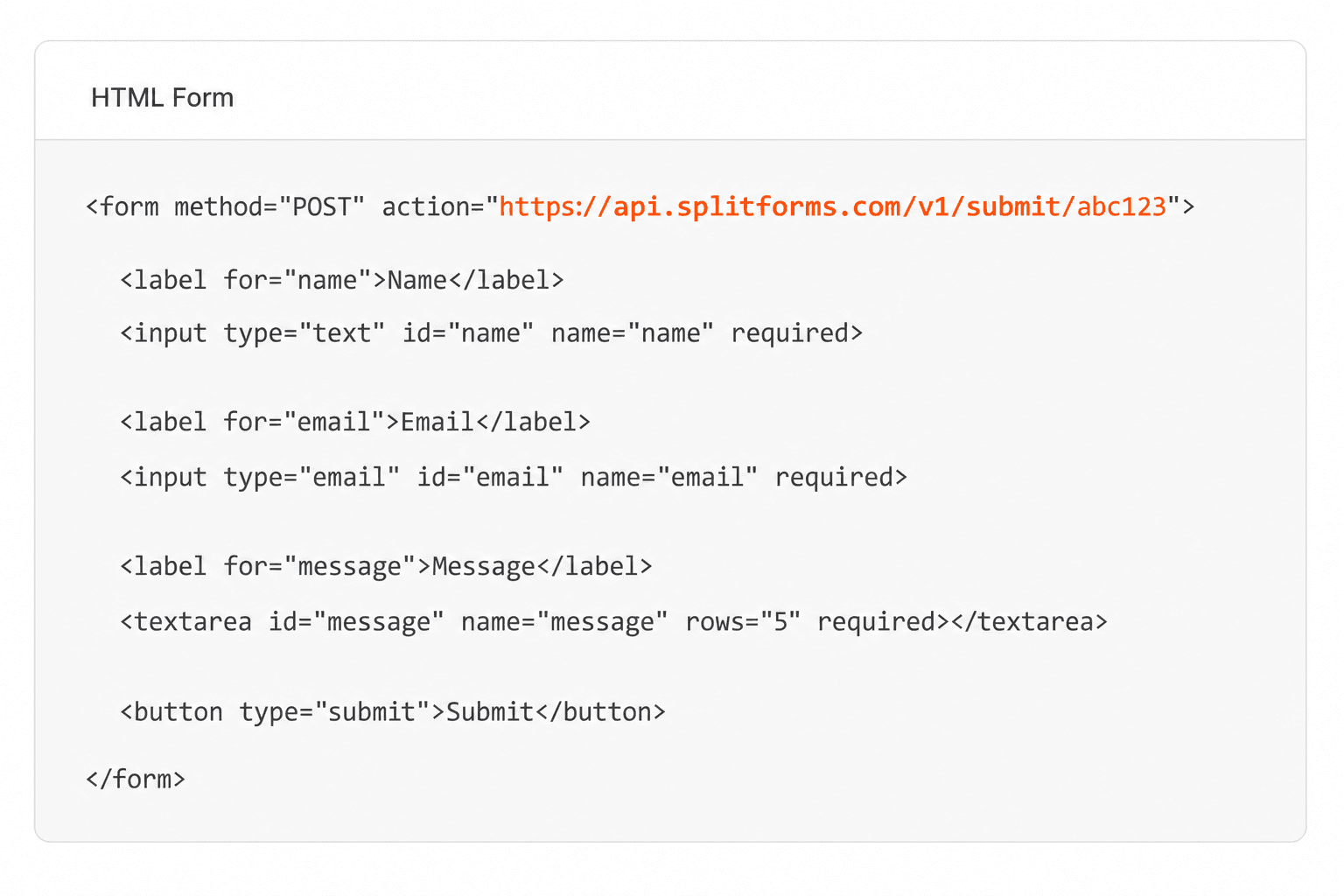
Add your endpoint

Point your form to your unique SplitForms endpoint. That's it.

HTML form pointing at a SplitForms submit endpoint

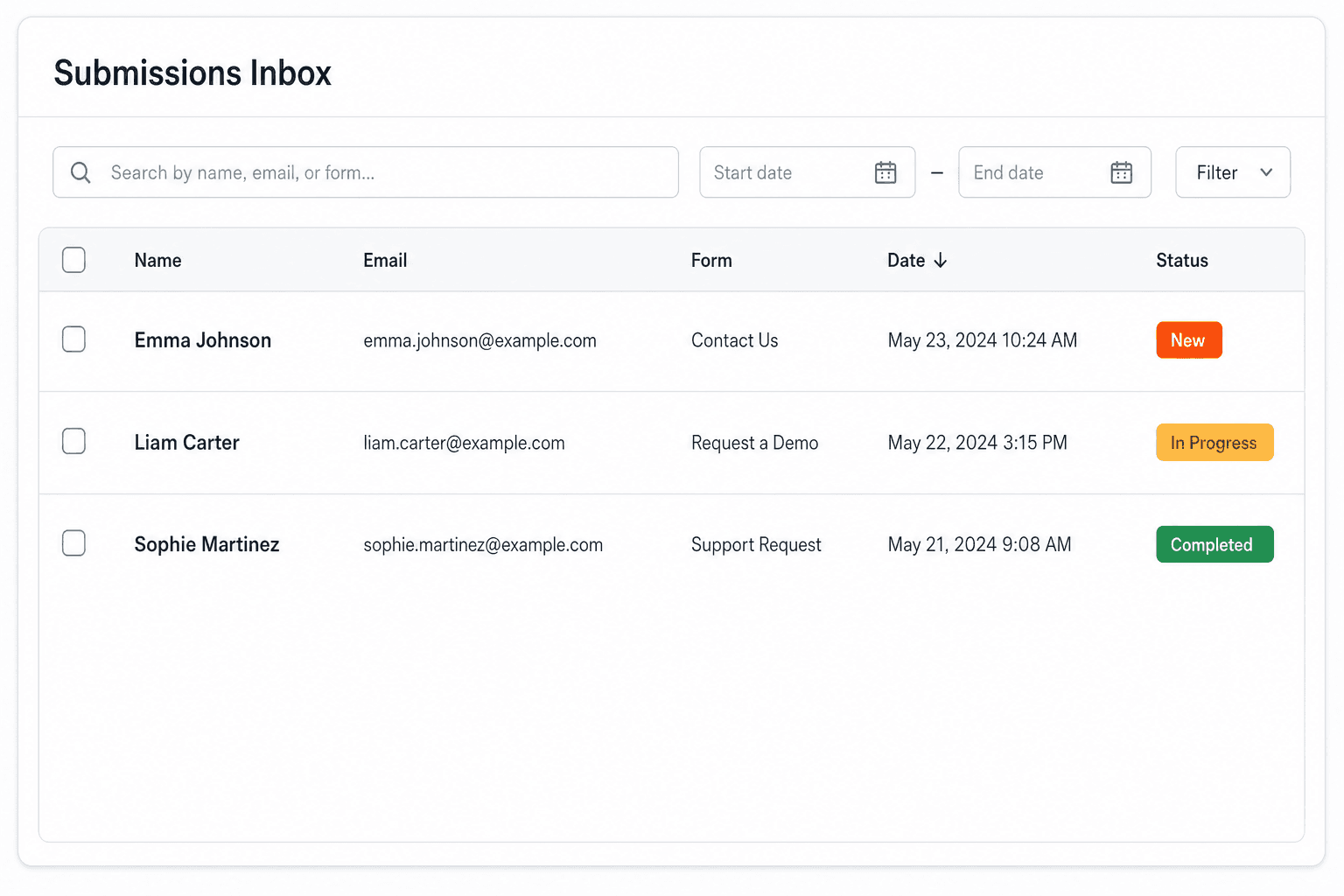
Receive submissions

We instantly capture and organize every submission in your inbox.

Submissions inbox with searchable leads and status pills

Route anywhere

Send data to email, spreadsheets, CRMs, webhooks, and 7,000+ apps.

Generic integration tiles for email, sheets, chat, CRM, automate, and webhook

No credit card required. Set up in under 60 seconds.

Connect & automate

Where can submissions go besides email?

On paid plans, submissions can also go to Slack, Discord, Google Sheets, Notion, Airtable, Zapier or any signed webhook — and splitforms works on the platforms you build on, from WordPress and Shopify to Next.js. With Stripe connected, your forms can take payments too.

Connect your SplitForms form to Slack, Google Sheets, Mailchimp, Zapier and more
NewTake payments on your formsDeposits, bookings, order forms — submitters check out through Stripe and the money goes straight to your Stripe account. Included on every paid plan.See payment forms →Need time slots? Online booking →

Setup guides for the stacks you use

Questions

HTML autocapitalize Attribute questions, answered.

View all FAQs
What is the difference between autocapitalize off and none?

They mean the same thing in HTML: the mobile keyboard should not automatically capitalize letters. Use either value; off is more common in examples.

How do I stop my iPhone from capitalizing the first letter in every input?

Add autocapitalize="off" to the input (or to the whole form). For usernames and promo codes, also set spellcheck="false" and autocorrect="off" so Safari stops auto-fixing text.

Does autocapitalize work on input type=email?

No. Browsers ignore autocapitalize on type=email, type=url and type=password because those types already pick a specialized keyboard. Use the correct input type; you do not need a separate hint.

Can I set autocapitalize on the whole form?

Yes. Put autocapitalize="sentences" or autocapitalize="off" on the <form> element and every inheriting text field follows unless it sets its own value.

How do I use autocapitalize in React?

Use the camelCase prop autoCapitalize on <input> and <textarea>, for example <input autoCapitalize="off" />. It maps to the same HTML attribute.

Simple pricing

How much does splitforms cost?

Free gives you 500 submissions for $0 — no card, no time limit. Pro is $5/month for 5,000 submissions a month, and Annual is $49/year for 15,000 a month with every Pro feature.

Free

$0— 500 submissions
 

No card, no time limit

Best for testing

For side projects and indie devs.

  • 500 free submissions
  • Unlimited forms
  • Email notifications included
  • Smart spam filtering
  • Submissions dashboard
  • Redirect after submit
  • MCP server included

Annual

$49/ year
About $4.08 per month, billed yearly
Best value

Every Pro feature with triple the volume — $0.27 per 1,000 at full use.

  • 15,000 submissions per month
  • Unlimited forms
  • Everything in Pro
  • File uploads with 5 GB storage
  • 3 team seats
  • Priority email support

No credit card required on Free • Cancel anytime • Full pricing and FAQ