splitforms.com
HTML · FORM CONTROL

HTML Label — connect text to a form control (live demo)

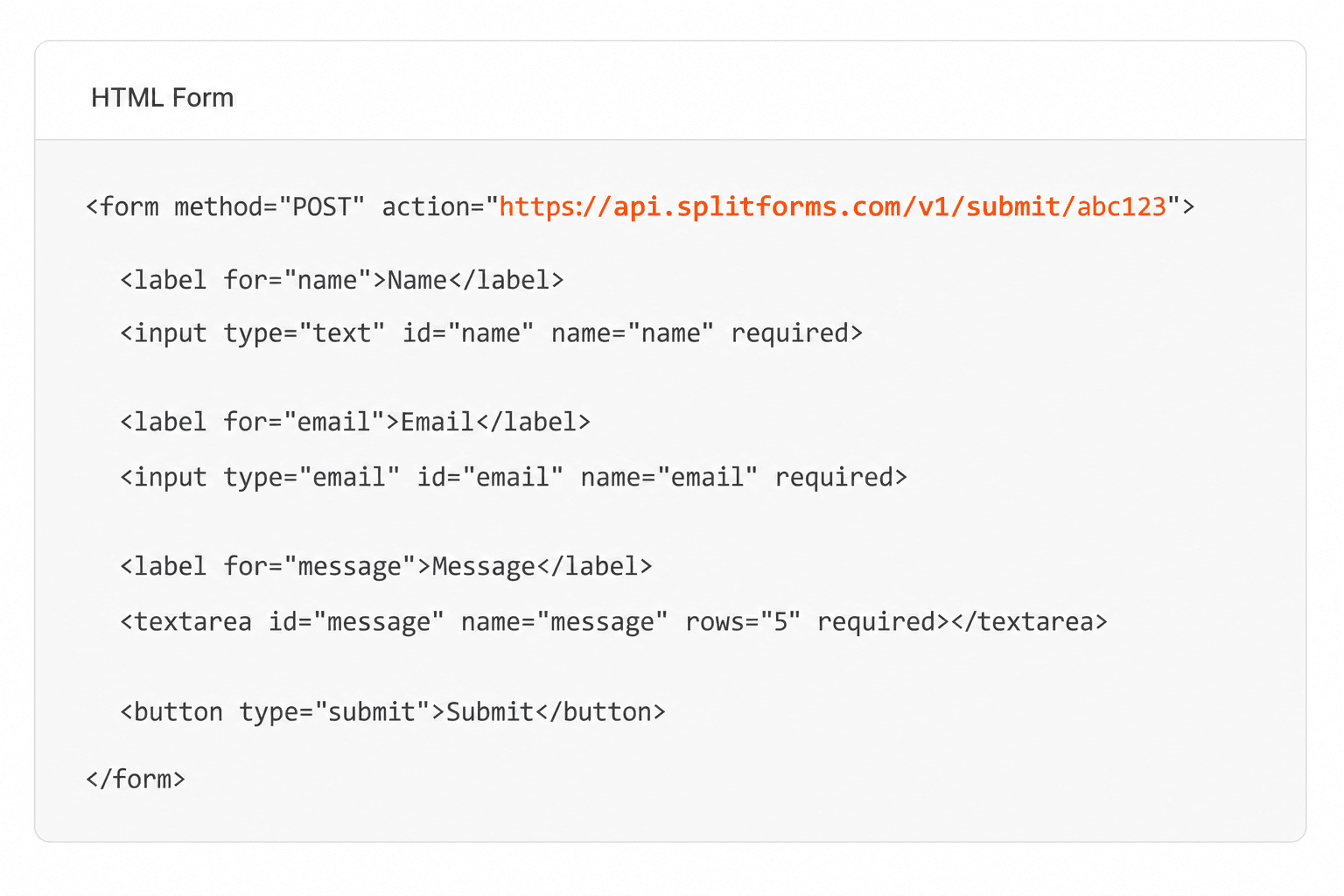
A <label> connects a text caption to a form control. Linked with the for attribute (matching the control's id), it makes the field clickable, accessible to screen readers, and easier to tap on mobile. Below is a working form where every field has a proper label.

Updated June 2026 · The <label> element · 12 elements in the reference

preview · html labelsandboxed · no key
§ 01Copy-paste codeworking · submits to a free backend
label.html
<form action="https://splitforms.com/api/submit" method="POST">
  <input type="hidden" name="access_key" value="YOUR_ACCESS_KEY">

  <!-- Explicit label: for matches the input's id -->
  <label for="name">Full name</label>
  <input type="text" id="name" name="name" required>

  <!-- Implicit label: the control is wrapped inside the label -->
  <label>
    Email
    <input type="email" name="email" required>
  </label>

  <input type="checkbox" name="botcheck" style="display:none">
  <button type="submit">Send</button>
</form>

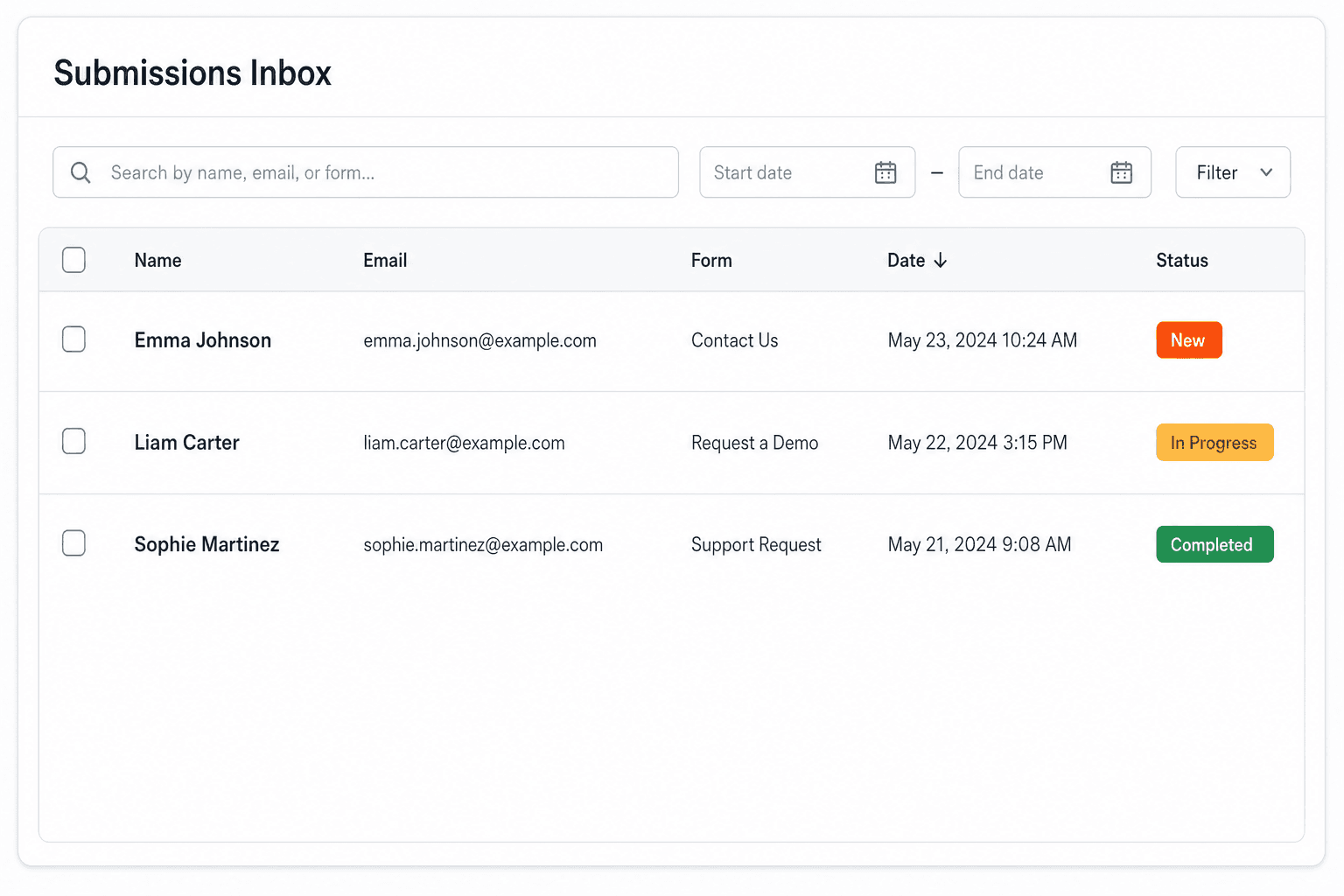
Replace YOUR_ACCESS_KEY with a key from your free splitforms dashboard. The form posts to one endpoint — submissions land in your inbox and dashboard with spam filtering built in.

§ 02<label> attributes
AttributeWhat it does
forThe id of the control this label belongs to. Clicking the label focuses/activates that control.
formThe id of a <form> elsewhere on the page, if the label is not nested inside one.
§ 03Common mistakes
⚠ gotcha

for must match an id, not a name

The for attribute references the control's id. People often point it at name= by mistake, which silently breaks the association.

⚠ gotcha

One label per control

A control should have exactly one label. Multiple labels confuse assistive tech and which one "wins" is inconsistent.

⚠ gotcha

Placeholder is not a label

Placeholder text vanishes on focus and is invisible to many screen readers. Always add a real <label>; keep placeholders as short hints.

§ 04Questions
What is the HTML label tag?
The <label> element adds a human-readable caption to a form control. When its for attribute matches a control's id (or the control is nested inside it), clicking the label focuses the field — improving usability and accessibility.
How does the label for attribute work?
for holds the id of the control the label describes. <label for="email">Email</label> paired with <input id="email"> links them, so clicking "Email" focuses the input and screen readers announce the field as "Email".
Should I wrap the input in the label or use for?
Both work. Wrapping (<label>Email <input></label>) is an implicit label; <label for="email">…</label> is explicit. Explicit labels with for are the most reliable across assistive technologies.
Why is my label not working?
Almost always because the for attribute doesn't match the control's id (people match name= instead), the id is duplicated on the page, or the label sits outside the form. Check that for and id are identical and unique.
Are labels required for accessibility?
Yes — every interactive form control should have a programmatically associated label. It's a WCAG requirement and the single biggest factor in whether a form is usable with a screen reader.

Make this form actually submit.

Point your form at splitforms. 500 free submissions/month, spam filtering, webhooks — no server.

Get free access key →All HTML elements