
Give the form a deciding field
Add a select, radio, or number field whose answer should decide the recipient — for example topic, department, role, or budget.
Feature · Answer-Based Routing
Send support questions to support, billing to billing, and big budgets to the founder — with simple if-this-answer-then-that-inbox rules. No Zapier needed.

Your form posts to one splitforms endpoint — no server, API route, or SDK. splitforms is the backend.
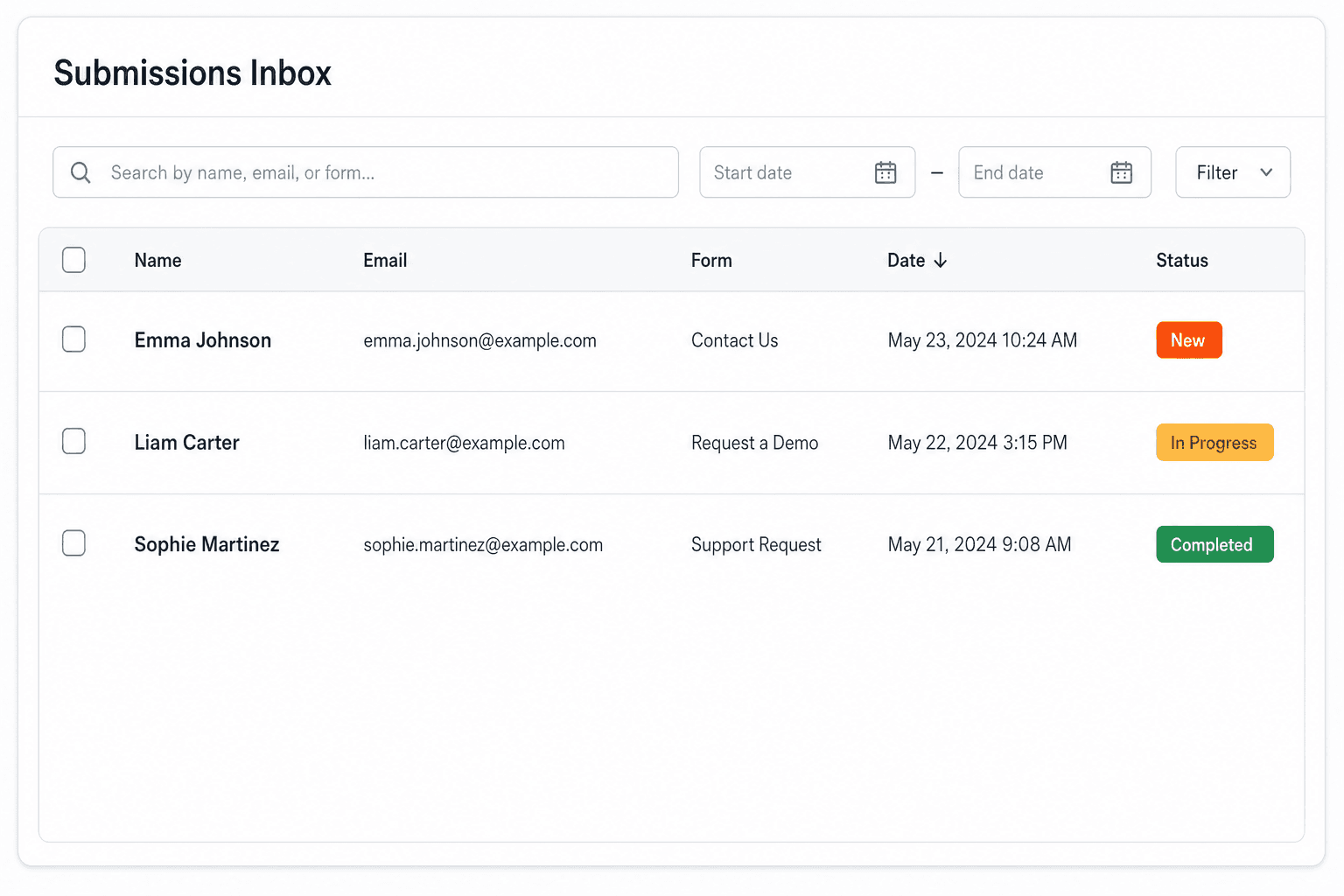
Every submission is saved to a searchable dashboard and emailed to you — spam filtered before it lands.
No glue code, no third-party middleman — it ships as part of splitforms and works from your first submission.
Copy-paste ready
Replace YOUR_ACCESS_KEY with the key from your splitforms dashboard. No SDK to install, no build step — the same html you already write.
<!--
  Answer-based routing: the form only needs a field whose answer decides
  who should hear about it. The rules live in Dashboard → Form settings →
  Notifications.
-->
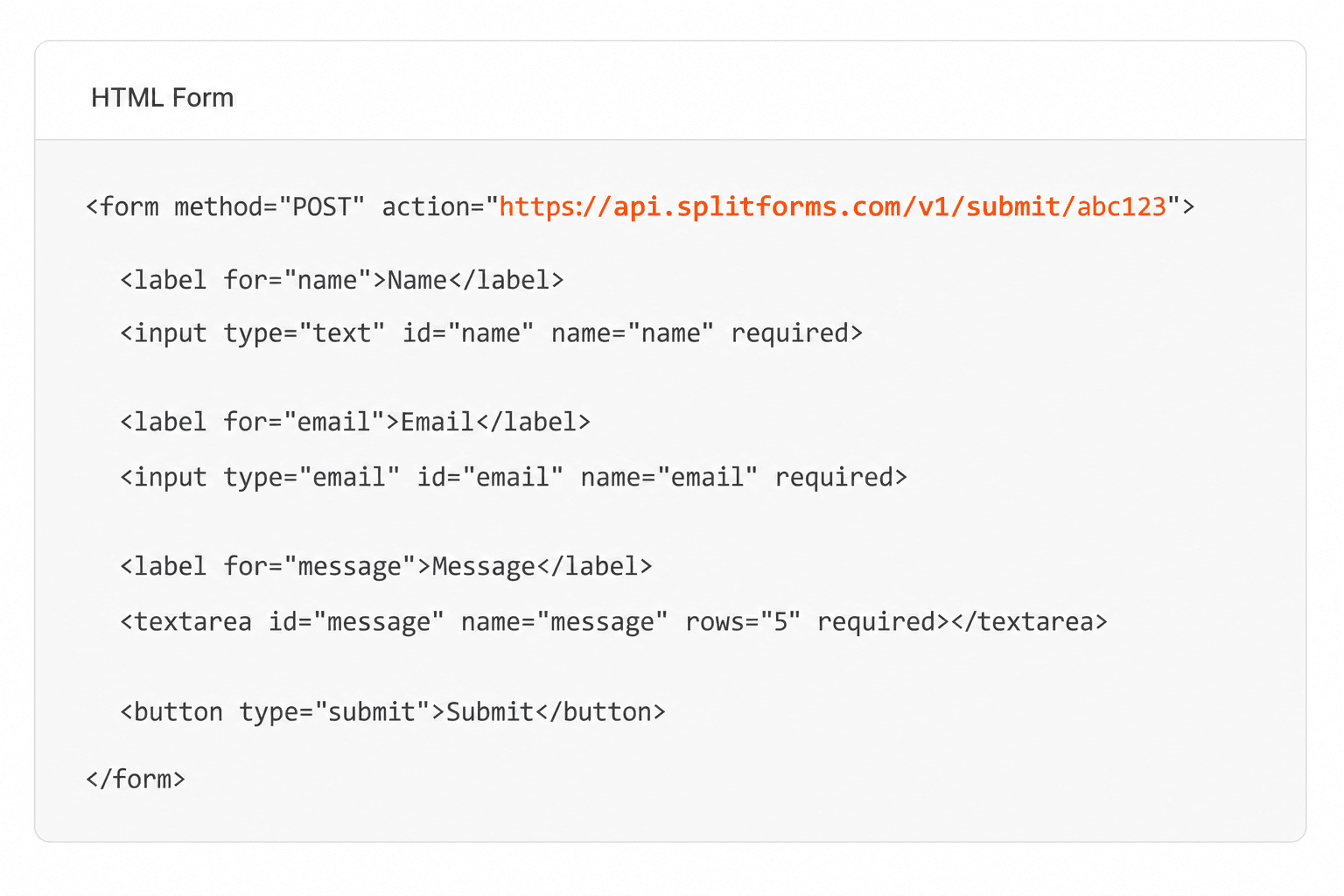
<form action="https://splitforms.com/api/submit" method="POST">
  <input type="hidden" name="access_key" value="YOUR_ACCESS_KEY" />

  <input type="text"  name="name"  placeholder="Name"  required />
  <input type="email" name="email" placeholder="Email" required />
  <select name="topic" required>
    <option value="">What is this about?</option>
    <option>Sales</option>
    <option>Support</option>
    <option>Billing</option>
  </select>
  <input type="number" name="budget" placeholder="Budget (USD)" />
  <textarea name="message" placeholder="Message" required></textarea>

  <input type="checkbox" name="botcheck" style="display:none" tabindex="-1" />
  <button type="submit">Send</button>
</form>
<script src="https://splitforms.com/embed.js" async></script>

<!--
  Example rules (first match wins; no match → your default recipient):
    topic   equals        Support → [email protected]   (replace default)
    topic   equals        Billing → [email protected]   (replace default)
    budget  greater than  10000   → [email protected]       (add alongside default)
  Operators: equals, not equals, contains, greater than, less than.
-->
How to set it up
How answer-based routing flows through splitforms — what you do, what we do, and what lands in your inbox.
Add a select, radio, or number field whose answer should decide the recipient — for example topic, department, role, or budget.
Pick the field, an operator (equals, not equals, contains, greater than, less than), a value, and the address(es) to notify. Choose whether the rule replaces your default recipient or adds to it.
Submit the form once per answer. Each notification goes to the matching address; answers that match no rule go to your default recipient.
How answer-based routing works
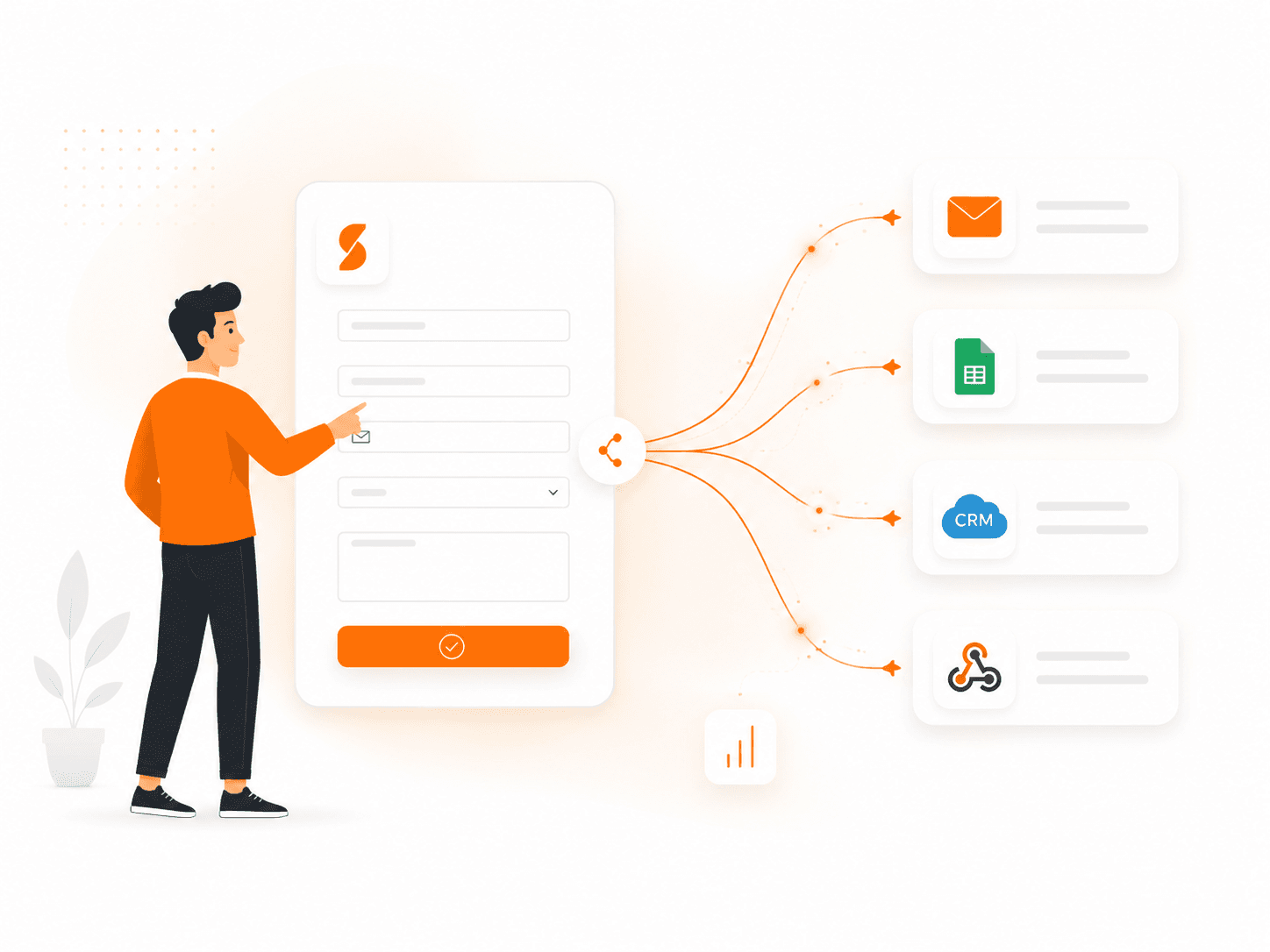
Answer-based routing decides who gets the notification email from what the submitter chose. In Form settings → Notifications, add rules in plain terms: when a field equals, does not equal, contains, is greater than, or is less than a value, email these addresses — either instead of your default recipient or alongside it. Route the same submission to an email inbox or a webhook at the same time — nothing here is one-or-the-other.
What you get
Every reason below is the boring, reliable kind — the fundamentals of answer-based routing, built once and tested in production so you never have to.

How SplitForms works
splitforms receives the submission, filters spam, saves it to your dashboard and emails you — then, on paid plans, sends it on to your webhooks and integrations. No backend infrastructure to build.
Point your form to your unique SplitForms endpoint. That's it.
We instantly capture and organize every submission in your inbox.
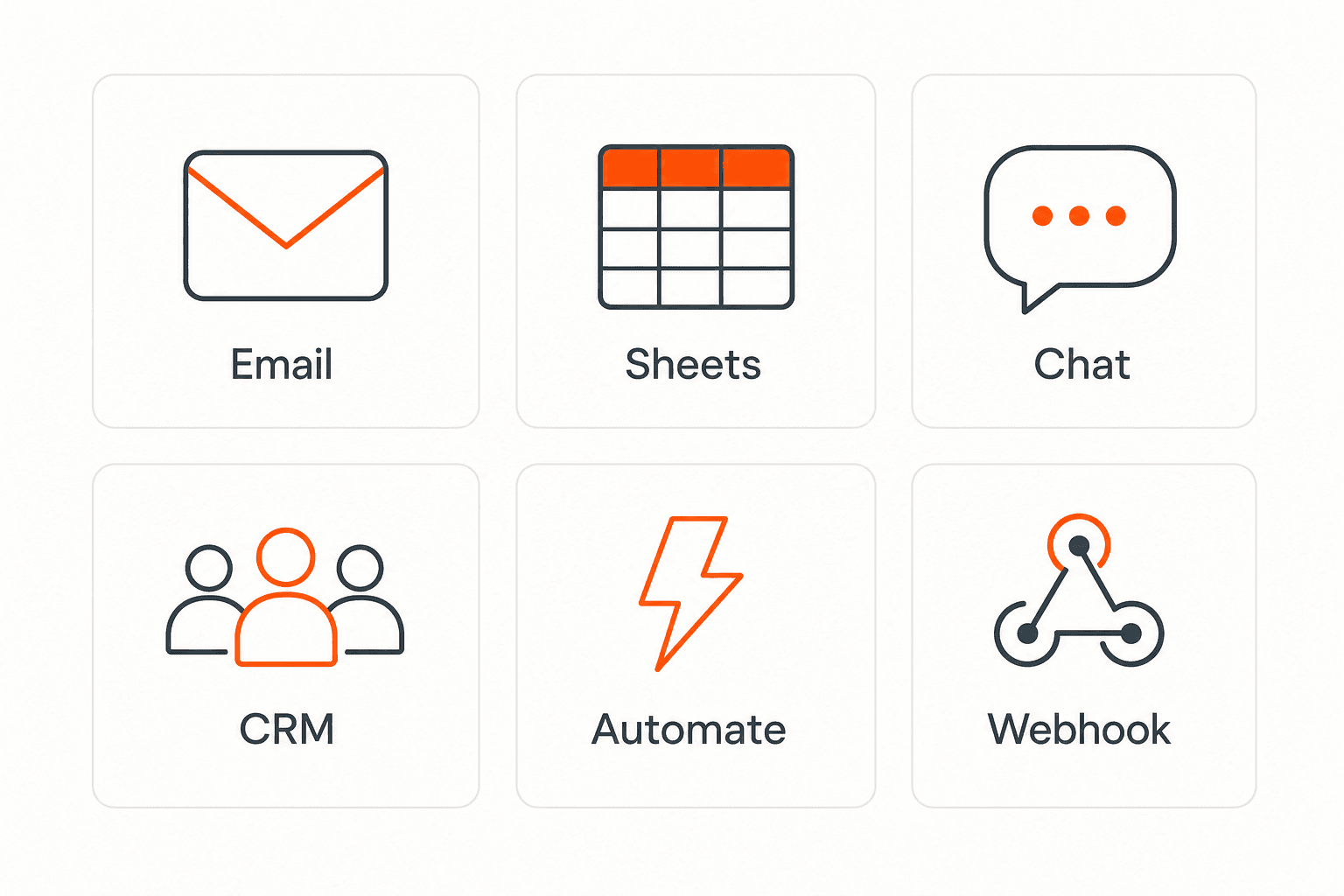
Send data to email, spreadsheets, CRMs, webhooks, and 7,000+ apps.
No credit card required. Set up in under 60 seconds.
Connect & automate
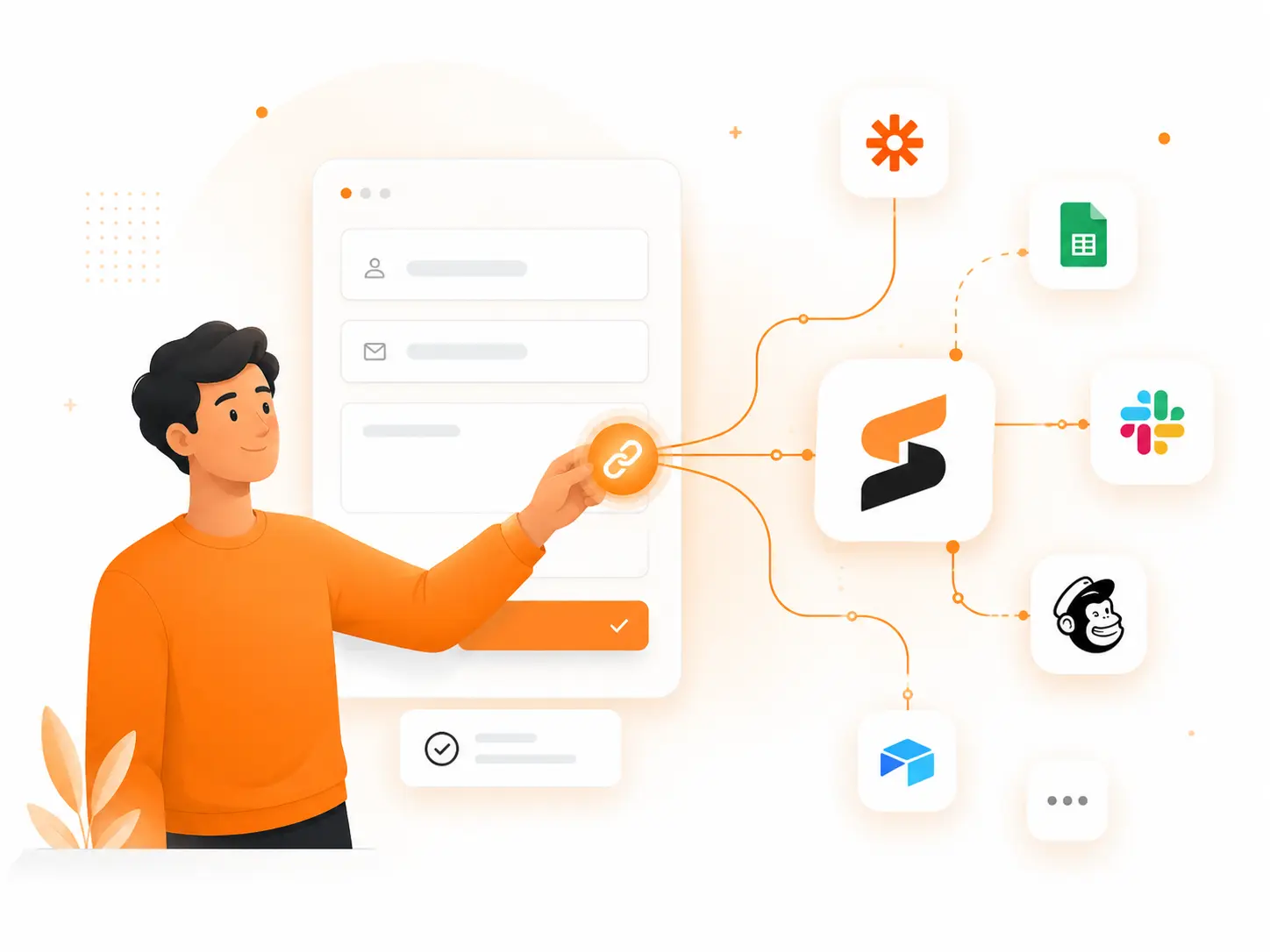
On paid plans, submissions can also go to Slack, Discord, Google Sheets, Notion, Airtable, Zapier or any signed webhook — and splitforms works on the platforms you build on, from WordPress and Shopify to Next.js. With Stripe connected, your forms can take payments too.
 NewTake payments on your formsDeposits, bookings, order forms — submitters check out through Stripe and the money goes straight to your Stripe account. Included on every paid plan.See plans →
Common questions
Open Form settings → Notifications and add a routing rule: choose the field (for example topic), an operator (equals), the value (Billing), and the address to notify ([email protected]). Add a rule per branch. Rules are checked in order, the first match wins, and anything that matches no rule goes to your default recipient.
Yes. Each rule either replaces the default recipient or adds its addresses alongside it — useful for copying a manager on large budgets while the usual inbox still gets the lead.
Routing is included on the paid plans: Pro ($5/month) or Annual ($49/year). On Free, every notification goes to your default recipient.
The notification goes to your default recipient. Routing is designed to fail safe: a missing field, an unmatched answer, or a malformed rule never stops the email from being sent.
No. Routing only chooses who receives the notification email. Webhooks, Slack, Sheets, and other integrations receive every submission on the form as usual.
Simple pricing
Free gives you 500 submissions for $0 — no card, no time limit. Pro is $5/month for 5,000 submissions a month, and Annual is $49/year for 15,000 a month with every Pro feature.
For side projects and indie devs.
Every paid feature, for agencies and growing products.
Every Pro feature with triple the volume — $0.27 per 1,000 at full use.
No credit card required on Free • Cancel anytime • Full pricing and FAQ


