
Get your free splitforms access key
Sign up at splitforms.com, verify your email, and copy your access key from the dashboard. No credit card required.
Contact form · Webflow
Webflow's built-in forms cap free submissions and gate webhooks behind paid plans. Point your existing Form Block at the splitforms endpoint instead — same drag-and-drop designer, real backend, 500 submissions/month free, and signed webhooks from Pro.

No server, API route, or SDK. Your Webflow form posts straight to one endpoint.
Every submission is emailed to you and saved to a searchable dashboard — spam filtered before it reaches you.
It's your own Webflow markup and styles. Splitforms is only the backend, so nothing constrains how the form looks.
Copy-paste ready
Replace YOUR_ACCESS_KEY with the key from your dashboard — that's the whole integration. No SDK to install, no build step, just the html you already write.
<!--
  Webflow setup:
  1. Add a Form Block to your page
  2. Open the form's settings panel
  3. Set Action to:    https://splitforms.com/api/submit
  4. Set Method to:    POST
  5. Add a hidden field named "access_key" with your key as the value
  6. Configure any thank-you redirect in the splitforms dashboard
-->

<form
  action="https://splitforms.com/api/submit"
  method="POST"
>
  <!-- These are added in the Webflow form-settings panel: -->
  <!--   access_key (hidden) = YOUR_ACCESS_KEY            -->

  <input name="name"  type="text"  required />
  <input name="email" type="email" required />
  <textarea name="message" required></textarea>

  <input type="checkbox" name="botcheck" style="display:none" tabindex="-1" />

  <input type="submit" value="Send" />
</form>
How to add it
To add a contact form to a Webflow website you need three things: a free splitforms access key, the html snippet above, and your key pasted into it. No backend, server, or SDK — the form posts to one URL and every submission lands in your inbox and dashboard.
Sign up at splitforms.com, verify your email, and copy your access key from the dashboard. No credit card required.
Copy the Webflow code example into your project and replace YOUR_ACCESS_KEY with the key from step 1.
Submissions arrive in the splitforms dashboard within seconds. Free includes inbox delivery; Pro adds Slack, Discord, Sheets, or any signed webhook URL.
Where submissions go
Every submission is emailed to you and saved to a searchable dashboard — spam filtered before it ever reaches you. Search, export to CSV, or forward it to a webhook or Slack on Pro.

No backend needed
Your Webflow form posts standard FormData to one URL. Splitforms validates the access key, runs the spam classifier, and forwards it to your email — so there's no server, API route, or database for you to build or maintain.

Best practices
The difference between a form that works in the demo and one that survives launch traffic — the production-tested defaults, in priority order.

How SplitForms works
Connect your form, collect every submission, and send data where it needs to go — without building backend infrastructure.

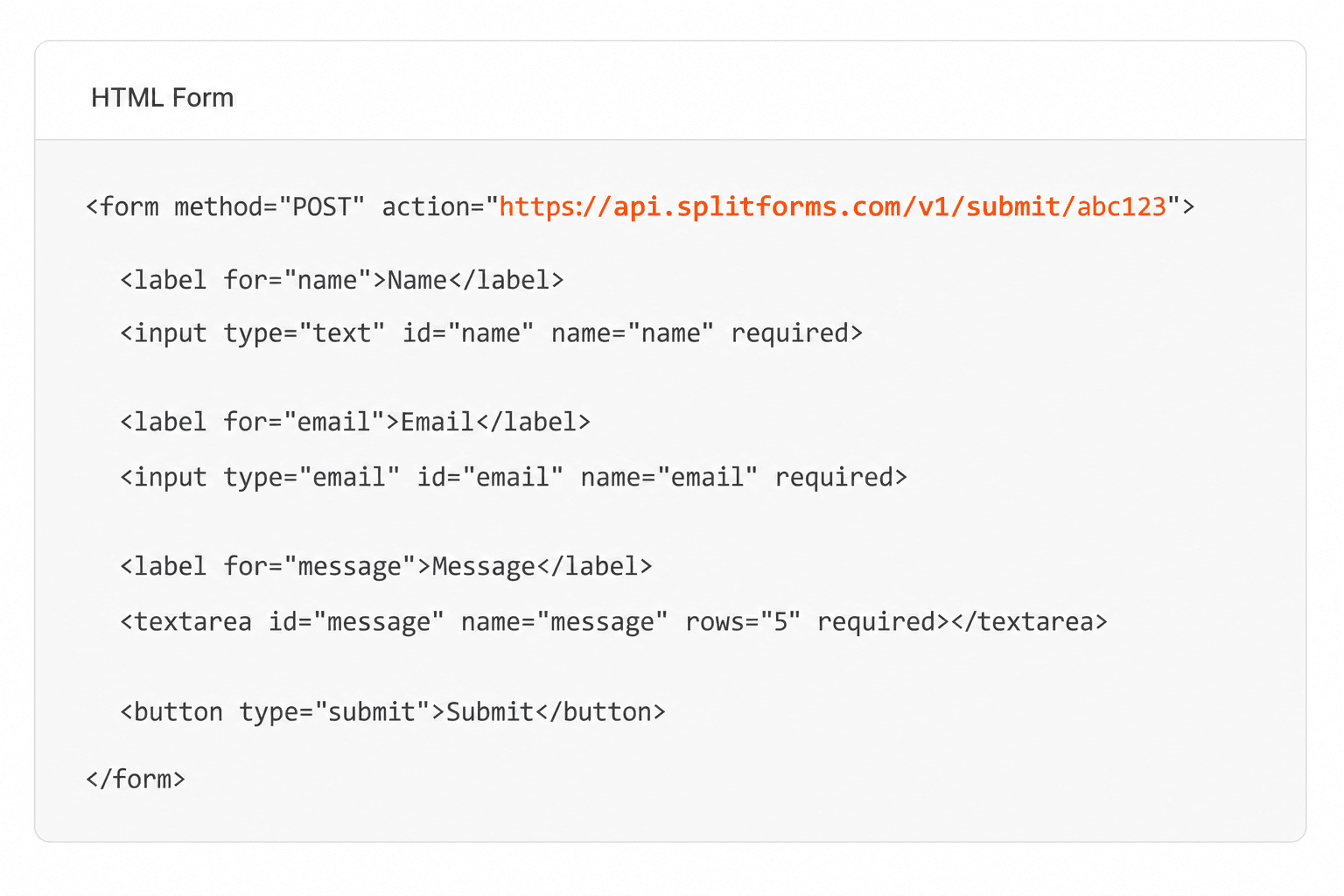
Point your form to your unique SplitForms endpoint. That's it.
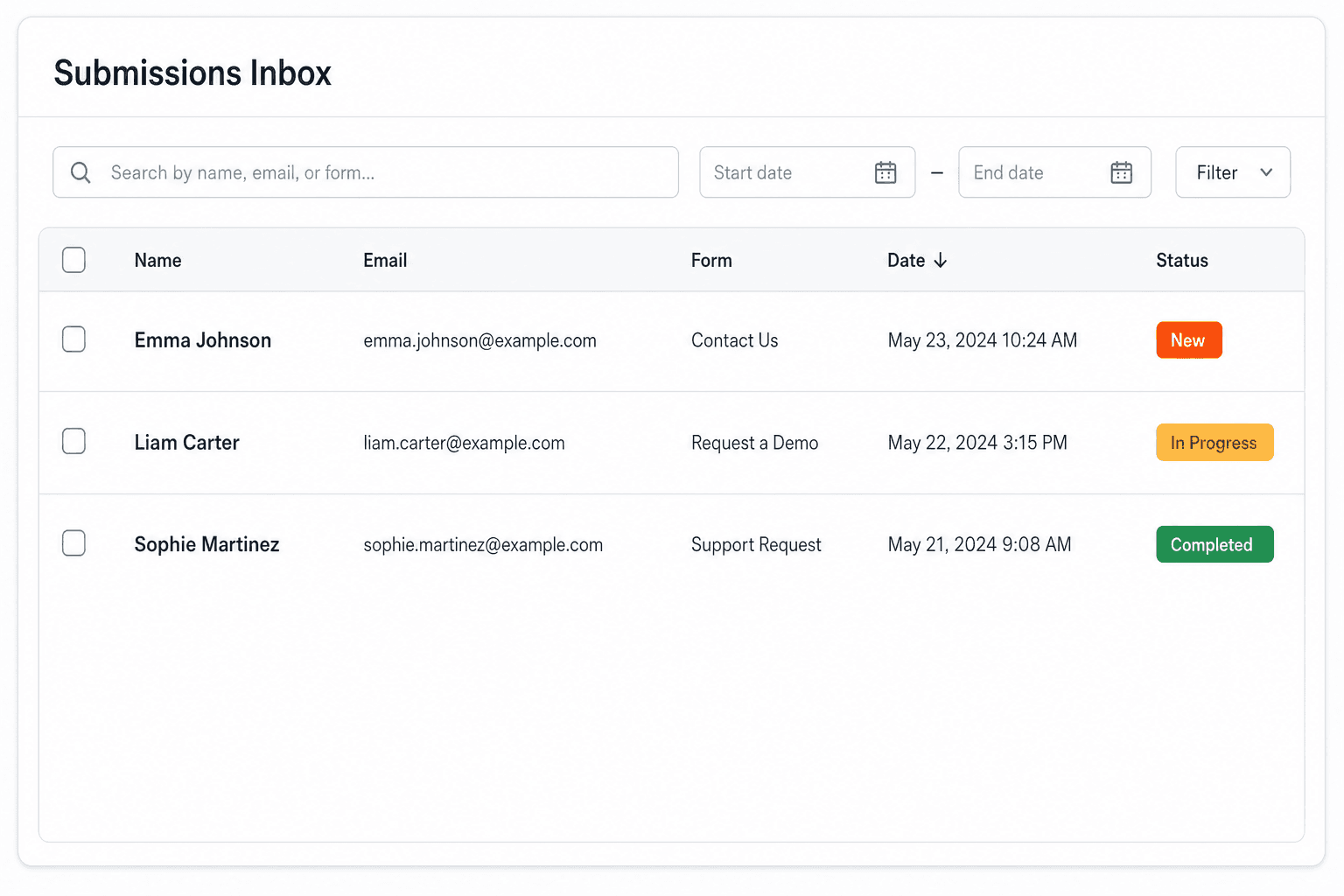
We instantly capture and organize every submission in your inbox.
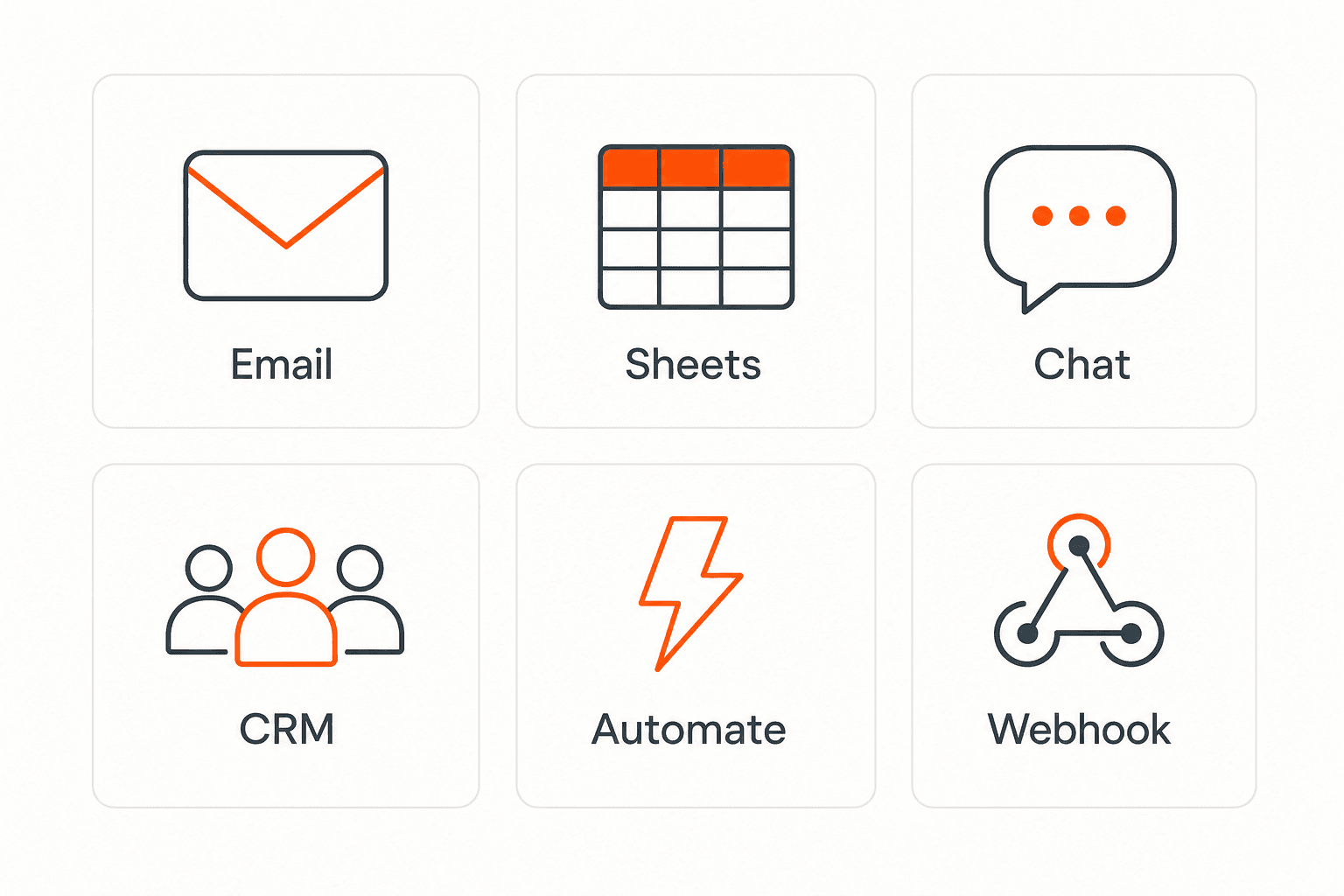
Send data to email, spreadsheets, CRMs, webhooks, and 7,000+ apps.
No credit card required. Set up in under 60 seconds.
Connect & automate
SplitForms works with the destinations you route to and the platforms you build on — from Slack and Sheets to WordPress, Shopify, and Next.js.
Trusted by indie teams and agencies shipping forms worldwide
Testimonials
40 quotes on record — from indie hacks to agency migrations.
“I replaced a Lambda + DynamoDB + SES contact form with six lines of HTML. It took eleven minutes, and the dashboard is better than what I was going to build.”
“We migrated 14 client sites off Formspree in a single weekend. The price is a third of what we paid, the API is more honest, and the spam filter actually works.”
“The webhook payload is signed, idempotent, and well-shaped. It reads like code from a competent team, not a CRUD app held together with duct tape.”
“I stopped reaching for Typeform on small marketing sites. splitforms covers 90% of the use case at none of the bloat.”
“I onboarded our whole agency in an afternoon. The MCP integration meant Cursor literally dropped the form straight into our client repos for us.”
“The free plan gave me 500 submissions before I paid a cent, and Pro is five dollars a month. I've spent more on coffee deciding which backend to use.”
“Spam went from forty junk entries a day to zero, with no reCAPTCHA puzzle ruining the form. The honeypot and time-trap just quietly do their job.”
“Point the form action at one endpoint and you're done. No SDK, no client library, no build step. This is how a form backend should feel.”
“Leads land in Slack the second someone submits, and a copy goes to Google Sheets for the sales team. I wired both up in under ten minutes.”
“I run a static Hugo site on a five-dollar VPS. splitforms gave it a real contact form without me standing up a single server.”
Questions
Open your Form Block in Designer, change the Action URL to https://splitforms.com/api/submit, set Method to POST, add a hidden field named access_key with your splitforms key. Submissions now go to splitforms (not Webflow), so they don't count against your Webflow plan limit.
Yes. Use the same pattern — change the form's action URL and method. Splitforms doesn't care whether the form is on a static page or a CMS template; it processes the POST identically.
Webflow's .w-form-fail div automatically shows on a non-2xx response. Splitforms returns 4xx for spam/invalid keys with { message: "…" } — Webflow's default error styling will show it. Customize the .w-form-fail content in Designer.
Yes — splitforms forwards every submission to a webhook URL (configure in dashboard → Webhooks). Point that at Make.com, Zapier, n8n, or your own endpoint. Payloads are HMAC-signed.
Two options. (1) Use Webflow's built-in success state. (2) Set an absolute thank-you URL in Dashboard → Form settings → Redirect so splitforms sends the browser there after a native submit. Pick one, not both; submitted redirect fields are ignored.
Editor-only pages have a slightly different DOM, but the form action override still works. Test in the published view — Editor preview won't actually submit.
If you add <input type="hidden" name="access_key"> directly in Designer's Form Block, Webflow ignores it on publish. Use the Form Block's settings panel: Form Settings → Form Name + add custom attribute. Or use an Embed element with raw HTML if you need full control.
Setting the Action URL to https://splitforms.com/api/submit in the Form Block sometimes reverts to Webflow's default after a publish. The fix: lock it in by adding a custom attribute action to the form element (Settings → Element Settings → Custom Attribute).
Webflow forms default to GET. Open the form's Settings panel, change Method to POST. If you forget, the submission posts your fields as URL query params — splitforms returns a 405 Method Not Allowed.
Webflow auto-shows the .w-form-done div on a 2xx response. If you also configure a redirect in the splitforms dashboard, the success message may flash before navigation. Use either Webflow's success state or the dashboard redirect.
If you've enabled Webflow's built-in hCaptcha for the form, Webflow blocks the submission client-side before splitforms is reached. Disable Webflow's CAPTCHA — splitforms has its own honeypot + classifier, no need for both.
Webflow's runtime (webflow.js) attaches a global submit listener that serializes form fields and POSTs them via XHR — and any field name it doesn't recognize from the Designer schema is dropped before the request leaves the browser. The access_key hidden input you added in an Embed often gets filtered. Workaround: instead of a hidden <input>, append the key to the form action URL as a query param (?access_key=…) or add wf-form to a class allowlist in the form's settings to let Webflow pass through unknown fields verbatim.
Webflow's built-in Forms feature delivers submissions to your Webflow project dashboard and emails them — but the free Site plan caps submissions (50 per site, lifetime, on legacy plans) and webhooks are gated behind the Workspace plan ($24/mo+). Worse, the form fails silently if you exceed the cap: users see the 'success' state, your inbox gets nothing. There's no API to inspect submissions programmatically below the Workspace tier, and CMS-driven forms inherit the same caps. Native is fine for a personal portfolio with three submissions a year; for any real lead capture, you need an external endpoint. Splitforms is that endpoint without the plan upgrade.
Webflow hosts your published site on its own CDN — there's no Vercel/Netlify config to worry about. The form posts cross-origin to splitforms regardless. Disable Webflow's built-in hCaptcha for the form (Form Settings → Spam Filter → Off) — it intercepts submissions client-side before splitforms is reached. Lock the splitforms access key to BOTH your *.webflow.io staging URL and your custom domain in the dashboard; Webflow serves both, with different Origin headers. Custom code embeds count toward Webflow's per-page code limit (10 KB) — keep raw-HTML Embed forms tight if you have multiple per page.
Simple pricing
Choose a plan that fits your workflow — from a free form endpoint to full automations, exports, and higher submission limits.
Free forever
For side projects and indie devs.
For agencies and growing products.
Pay $59. 3 years sorted.
No credit card required on Free • Cancel anytime


