Copy the code
Copy the HTML Radio Button example below.
HTML · FORM CONTROL
A radio button is an <input type="radio"> that lets a user pick exactly one option from a group. Radio buttons are linked into a group by sharing the same name= attribute; only the selected option's value is submitted. Below is a working form with a radio group that actually submits.

The HTML Radio Button example below is a complete, working form — paste it into any HTML page and it submits, no edits to the markup required.
Your html radio button form posts to one endpoint. No server, PHP, or API route — submissions land in your inbox and a searchable dashboard.
Unlike a static reference snippet, this <input type="radio"> form actually sends data to a free splitforms backend, with spam filtering built in.
Copy-paste code
Replace YOUR_ACCESS_KEY with a key from your free splitforms dashboard. The form posts to one endpoint — submissions land in your inbox and dashboard with spam filtering built in.
<form action="https://splitforms.com/api/submit" method="POST">
<input type="hidden" name="access_key" value="YOUR_ACCESS_KEY">
<label for="name">Name</label>
<input type="text" id="name" name="name" required>
<label for="email">Email</label>
<input type="email" id="email" name="email" required>
<fieldset>
<legend>Preferred plan</legend>
<label><input type="radio" name="plan" value="free" checked> Free</label>
<label><input type="radio" name="plan" value="pro"> Pro — $5/mo</label>
<label><input type="radio" name="plan" value="lifetime"> Lifetime</label>
</fieldset>
<input type="checkbox" name="botcheck" style="display:none">
<button type="submit">Request access</button>
</form>How it works
Copy the html radio button example, drop in your free access key, and paste it into any page — submissions start landing in your dashboard.
Copy the HTML Radio Button example below.
Replace YOUR_ACCESS_KEY with a free splitforms key from the dashboard.
Drop the form into any HTML page. Submissions arrive in your dashboard.
The <input type="radio"> element
The <input type="radio"> element takes a handful of attributes — these decide how your form behaves and what actually gets emailed to your inbox when someone submits.

Common mistakes
Most broken forms come down to a few small mistakes with the <input type="radio"> element. Check these before you ship — then forward every submission to Slack or a webhook.

How SplitForms works
Connect your form, collect every submission, and send data where it needs to go — without building backend infrastructure.

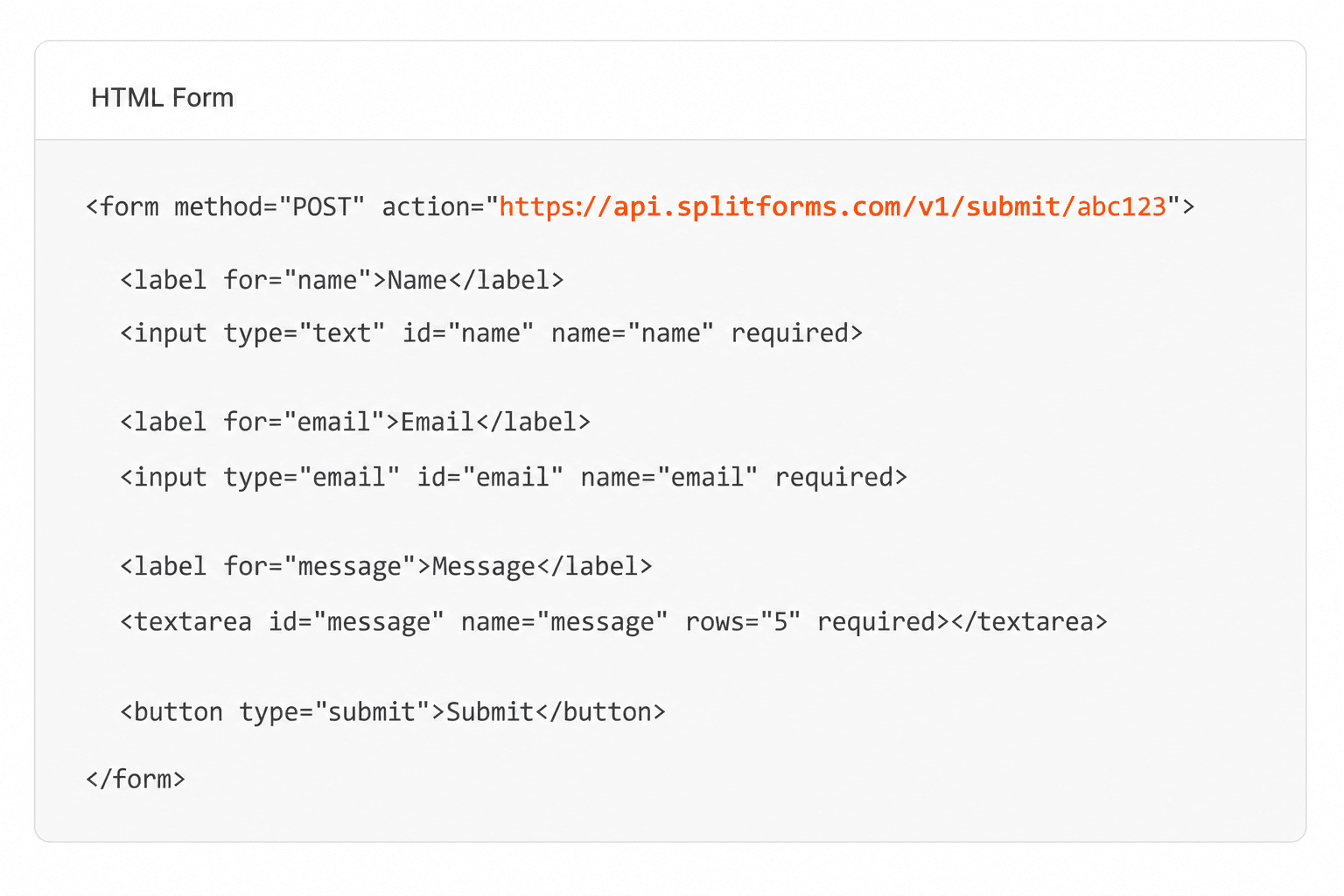
Point your form to your unique SplitForms endpoint. That's it.

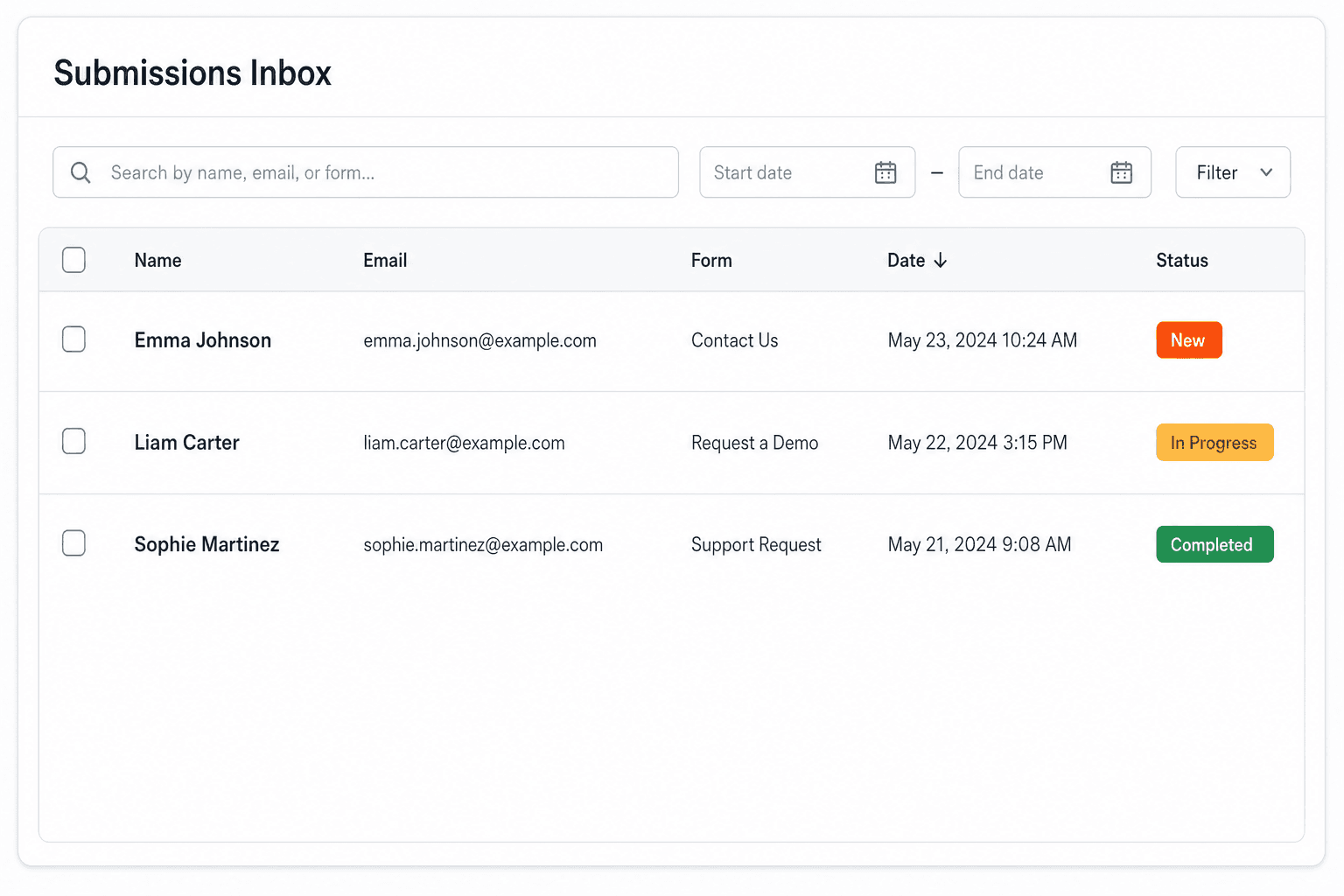
We instantly capture and organize every submission in your inbox.

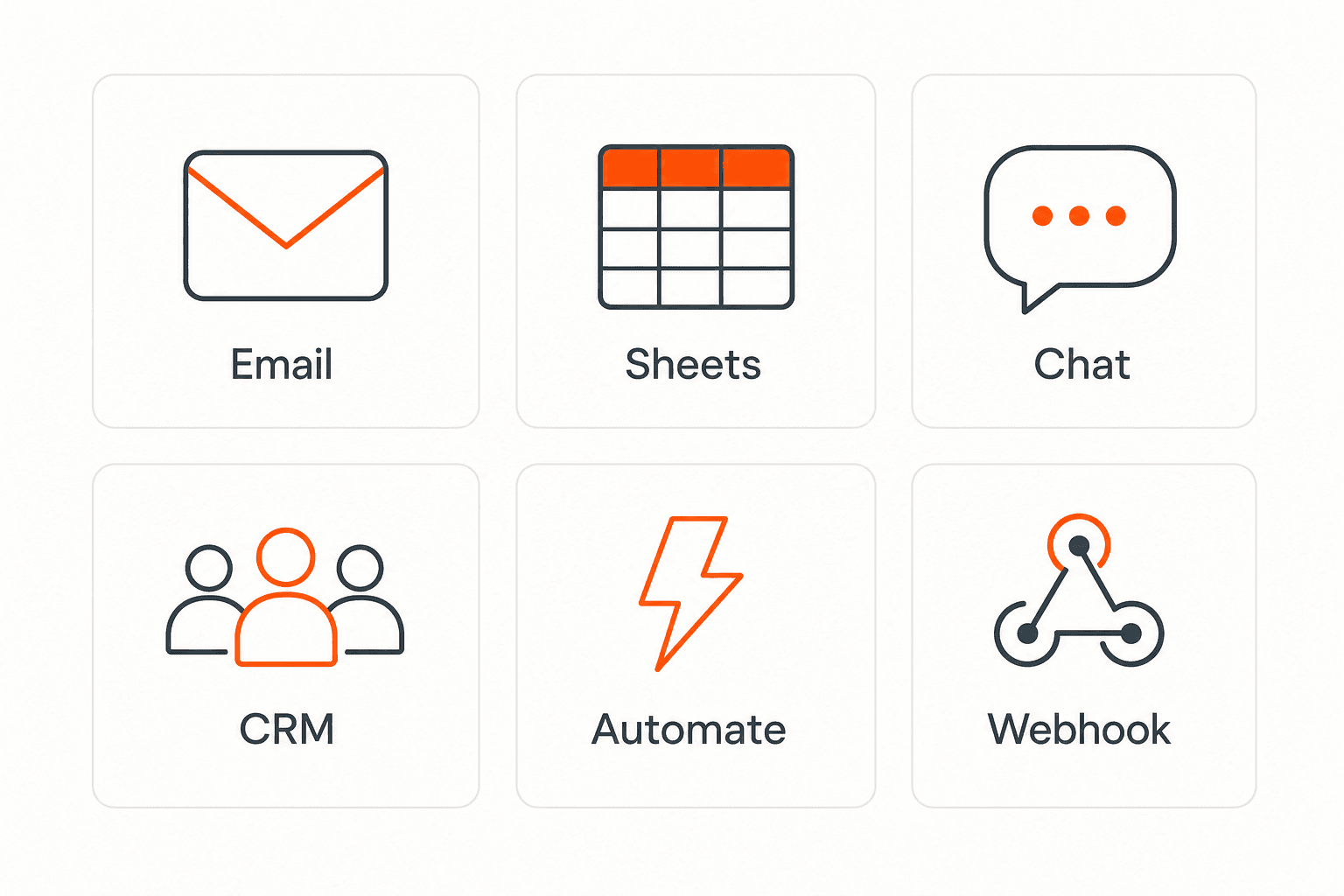
Send data to email, spreadsheets, CRMs, webhooks, and 7,000+ apps.

No credit card required. Set up in under 60 seconds.
Connect & automate
SplitForms works with the destinations you route to and the platforms you build on — from Slack and Sheets to WordPress, Shopify, and Next.js.

Trusted by indie teams and agencies shipping forms worldwide
Testimonials
40 quotes on record — from indie hacks to agency migrations.
“I replaced a Lambda + DynamoDB + SES contact form with six lines of HTML. It took eleven minutes, and the dashboard is better than what I was going to build.”
“We migrated 14 client sites off Formspree in a single weekend. The price is a third of what we paid, the API is more honest, and the spam filter actually works.”
“The webhook payload is signed, idempotent, and well-shaped. It reads like code from a competent team, not a CRUD app held together with duct tape.”
“I stopped reaching for Typeform on small marketing sites. splitforms covers 90% of the use case at none of the bloat.”
“I onboarded our whole agency in an afternoon. The MCP integration meant Cursor literally dropped the form straight into our client repos for us.”
“The free plan gave me 500 submissions before I paid a cent, and Pro is five dollars a month. I've spent more on coffee deciding which backend to use.”
“Spam went from forty junk entries a day to zero, with no reCAPTCHA puzzle ruining the form. The honeypot and time-trap just quietly do their job.”
“Point the form action at one endpoint and you're done. No SDK, no client library, no build step. This is how a form backend should feel.”
“Leads land in Slack the second someone submits, and a copy goes to Google Sheets for the sales team. I wired both up in under ten minutes.”
“I run a static Hugo site on a five-dollar VPS. splitforms gave it a real contact form without me standing up a single server.”
Questions
A radio button is an <input type="radio"> control. Radios that share the same name= attribute form a group, and the user can select exactly one option from that group. The selected option's value is submitted with the form.
Give every radio in the set the same name= attribute. The browser then allows only one to be selected at a time — selecting one automatically deselects the others in the group.
Use multiple <input type="radio"> elements with the same name= but different value= attributes, each wrapped in a <label>. Place them inside a <fieldset> with a <legend> for an accessible group caption.
Add the checked attribute to the option you want pre-selected, e.g. <input type="radio" name="plan" value="pro" checked>.
It submits the value of its value= attribute. If you omit value=, the browser submits the string "on", which is rarely useful — always set an explicit value on each radio.
Simple pricing
Choose a plan that fits your workflow — from a free form endpoint to full automations, exports, and higher submission limits.
Free forever
For side projects and indie devs.
For agencies and growing products.
Pay $59. 3 years sorted.
No credit card required on Free • Cancel anytime