
Contact form for Framer websites
Framer's built-in forms send to a single email, gate webhooks behind paid plans, and limit free submissions. Paste a Code Component instead — same canvas drag-and-drop, real backend, 500 submissions/month free, dashboard search, and signed webhooks from Starter.
Updated May 21, 2026 · Tested with standard HTML form submissions
What your Framer contact form actually looks like.
Drop-in form backend with spam filtering and a real submissions dashboard. Starter adds signed webhooks. The same code in this preview is what you copy into your Framer project — no SDK, no plugin, no PHP.
- ✓500 submissions per month, free forever
- ✓Honeypot + AI spam classifier on every plan
- ✓Signed webhooks to Slack, Discord, your server
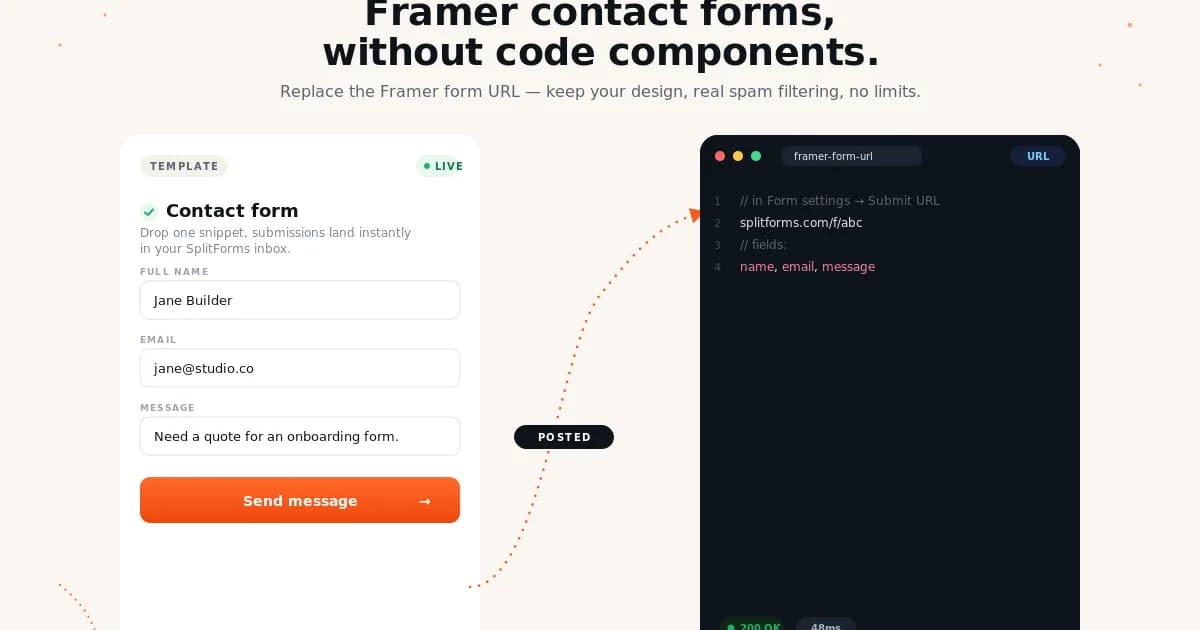
Ship a Framer contact form without a backend.
No SDK, no PHP, no plugin. Your form posts standard FormData to one URL — submissions land in your dashboard.
Get your free access key
Verify your email and your access key is generated instantly. Free for 500 submissions per month, forever.
By signing up, you agree to our terms and privacy policy.
Drop in the Framer code
Copy the Framer snippet on the right and paste it into your project. Replace YOUR_ACCESS_KEY with the key from step 1.
Submissions land in your dashboard
Free captures the submission in your dashboard. Starter adds email, Slack, Discord, Sheets, Notion, or any signed webhook URL.
Try it now — no signup, no key.
This is a styled HTML preview of what your Framer form will look like. Submitting opens a confirmation, no real request is sent.
Your Framer form posts FormData to /api/submit. Splitforms validates the access key, runs the spam classifier, and forwards the parsed submission to your inbox plus the dashboard.
- →14ms median round-trip from the edge.
- →Honeypot + classifier, no CAPTCHA.
- →Per-domain key locking out of the box.
{
  "access_key": "sk_live_4f9a_••••",
  "name":       "Maya Iyer",
  "email":      "maya@studio71.co",
  "message":    "…"
}How to ship this without regrets.
Five rules that make the difference between a form that works in the demo and a form that survives launch traffic.
- 01
Use `addPropertyControls` to expose the access key as a property — don't hardcode it. Then designers can swap keys per page or per environment without touching code.
- 02
Style the form with inline `style` objects, not CSS modules. Framer's bundling doesn't transform CSS imports inside Code Components.
- 03
Set `display: 'grid', gap: 12` on the form for consistent spacing — Framer's flex defaults can fight your form layout.
- 04
Lock the access key to your `*.framer.app` AND custom domain in the splitforms dashboard. Framer's preview URL is a different origin than your published site.
- 05
If you have multiple forms on different pages, give each a unique `form-name` hidden field so the splitforms dashboard groups submissions correctly.
What bites people who skip the docs.
Worth a 60-second skim before you ship to production. Each one has caused a Framer support ticket at least once.
addPropertyControls must be the LAST statement in the file
Framer reads property controls only if addPropertyControls(Component, {...}) is called after the component is exported. If you put it before the export or wrap it in a conditional, the access-key control disappears from the right panel and you can't set the key visually.
Framer's canvas re-renders the component on every prop change
Editing the access key in the right panel re-mounts the form mid-edit. If a user is testing the form when you change the key, their status === 'loading' state resets to 'idle' visually but the in-flight fetch still completes. Not a bug in production — only an editor quirk.
Framer's published page CSP blocks splitforms.com unless you set it
Framer's published sites have a default Content Security Policy that allows known integrations. Splitforms isn't on the default allowlist — you may need to add connect-src https://splitforms.com via Framer's Site Settings → Custom Code → Head HTML, inside a <meta http-equiv="Content-Security-Policy" content="…"> tag.
Code Components don't get Framer's font system by default
If you use style={{ fontFamily: '...' }} in a Code Component, you have to import the font manually — Framer's site fonts only auto-apply to canvas-built elements. Use font-family: inherit to inherit from the parent frame.
Form fields don't focus visibly without explicit styling
Browser-default focus rings are sometimes hidden by Framer's reset CSS. Add :focus { outline: 2px solid currentColor; outline-offset: 2px; } in your component's styles — accessibility requires a visible focus indicator.
Framer's Smart Components break Code Component state on layout swap
If your contact form Code Component lives inside a Smart Component variant (e.g. a 'Mobile' variant of a header), Framer re-instantiates the entire Code Component when switching variants — losing your useState for status. A user mid-submission who rotates their device sees the form reset to 'idle' while the fetch is still in flight, then a stale success/error notification when the request resolves into a now-unmounted component (React logs a 'state update on unmounted component' warning). Either lift the form out of any Smart Component variant, or persist status to sessionStorage and rehydrate on mount.
How Framer handles forms without splitforms.
The shape of the problem before splitforms enters the picture — and the gap it fills for Framer specifically.
Framer's built-in form widget delivers submissions to a single email address (configured per form) with no dashboard for managing submissions, no webhooks below the Pro plan, and no spam filtering beyond Framer's basic bot detection. CMS-driven Framer forms inherit the same constraints. The native flow works for a portfolio's contact form; it falls apart for any setup that needs Slack/Discord notifications, multiple recipients, CSV export, or tagged form-name routing. Replacing it means writing a Code Component — Framer's mechanism for embedding custom React. That's the pattern splitforms uses: a Code Component with the access key as a property control, dropped onto the canvas like a native widget.
Two ways to ship splitforms on Framer.
Pick the pattern that matches your constraints — JS budget, key-exposure tolerance, server-side opacity. Both produce the same result.
Pattern A — Code Component with property control
Paste into Framer's Code Components panel. The access key becomes a property in the right-side inspector — designers swap keys per page or per environment without touching code.
Pattern B — Framer override (apply to existing canvas form)
If you already designed a form on the canvas with Framer's native form widget, an override can intercept its submit and re-route to splitforms. Useful when you want to keep the canvas-built design but swap the backend.
Shipping Framer + splitforms to production.
Host-specific gotchas, env-var conventions, and the boring-but-load-bearing details for putting this on the public internet.
Framer publishes sites to its own CDN — there's no Vercel/Netlify config to manage. The form posts cross-origin to splitforms regardless. Framer's published sites have a default Content Security Policy that may block connect-src to splitforms.com on some plans; if submissions silently fail, add <meta http-equiv="Content-Security-Policy" content="connect-src https://splitforms.com"> via Site Settings → Custom Code → Head HTML. Lock the access key to BOTH your *.framer.app preview URL AND your custom domain — Framer serves both with different Origin headers. Framer's preview environment runs Code Components live, so you can test the form before publishing.
splitforms vs native framer.
What you get for free vs what you build, pay for, or do without.
Things developers ask before they integrate.
Direct answers, no marketing fluff. Missing one? Email hello@splitforms.com.
Go deeper on Framer forms.
Ship your Framer contact form in 60 seconds.
500 free submissions per month. No credit card. Lock the access key to your domains, paste the snippet, watch submissions land in your dashboard.