splitforms.com

HTML · INPUT TYPE

HTML input type=month: Month and Year Picker

Last reviewed

An <input type="month"> lets users pick a year and a month. The submitted value is always YYYY-MM, such as 2026-11, whatever format the picker shows. An empty field sends an empty string. Firefox and desktop Safari show a plain text box instead of a picker, so always validate the value on the server.

  • Live, editable example
  • Copy-paste snippet
  • Attributes & common mistakes
Live demo · nothing is sent

What gets submitted

Fill in the form above and press its button. The demo stops the request and lists every name=value pair the browser would send, plus the controls it leaves out.

With a free access key in the form, these fields land in your splitforms dashboard; access_key and botcheck are read by splitforms, not stored as lead data.

Edit the HTML and re-run it
Runs in a sandbox. Nothing is sent.

Minimal snippet

month-input-example.html
<input type="month" id="start_month" name="start_month" min="2026-01" max="2027-12">

Copy-paste code

HTML input type=month code you can paste today.

Replace YOUR_ACCESS_KEY with a key from your free splitforms dashboard. The form posts to one endpoint — submissions land in your inbox and dashboard with spam filtering built in.

Get free access key
input-type-month.html
<form action="https://splitforms.com/api/submit" method="POST">
  <input type="hidden" name="access_key" value="YOUR_ACCESS_KEY">

  <label for="name">Name</label>
  <input type="text" id="name" name="name" autocomplete="name" required>

  <label for="start_month">Start month</label>
  <input type="month" id="start_month" name="start_month"
         min="2026-01" max="2027-12" required>

  <!-- Honeypot: hidden from people, bots fill it in -->
  <input type="checkbox" name="botcheck" style="display:none" tabindex="-1" autocomplete="off">

  <button type="submit">Send</button>
</form>

Attributes · <input type="month">

Which HTML input type=month attributes matter?

These attributes decide how the <input type="month"> behaves and what actually gets emailed to your inbox when someone submits.

HTML input type=month attributes and what each one does
AttributeWhat it doesDocs
valueThe default month in YYYY-MM format (such as 2026-11). This is also the format the form submits.MDN
minThe earliest month allowed, in YYYY-MM format (such as 2026-01).MDN
maxThe latest month allowed, in YYYY-MM format (such as 2027-12).MDN
stepThe step in months. The default is 1. Use 3 to allow every third month, counted from min.MDN
requiredRequires a month to be chosen before the form can be submitted.MDN
listThe id of a <datalist> with suggested months, each as a YYYY-MM value.MDN

Common mistakes

HTML input type=month not working? Here's why.

Most broken forms come down to a few small mistakes with the <input type="month">. Check these before you ship, then forward every submission to Slack or a webhook.

  1. Firefox and desktop Safari show a plain text box

    These browsers have no month picker, so users type free text. Add pattern="\d{4}-\d{2}" and placeholder="YYYY-MM" as a fallback. Browsers with a picker ignore both. Still check the value on the server.

  2. No day or time zone is sent

    The value is only a year and a month, such as 2026-11. There is no day, time or time zone. If you need a full date, build it on the server.

  3. Don't use it for card expiry dates

    Card expiry is not a good fit for a month picker. Payment forms use a plain text field in MM/YY format with autocomplete="cc-exp", so browsers and password managers can fill it in.

  4. step counts months, not days

    step="3" allows every third month, counted from min (or from value when there is no min). It does not mean three days.

Sources: WHATWG HTML Standard: <input type="month"> · MDN: <input type="month">

Copy-paste ready

The HTML input type=month example below is a complete, working form — paste it into any HTML page and it submits, no edits to the markup required.

No backend to build

Your html input type=month form posts to one endpoint. No server, PHP, or API route — accepted submissions are saved to your dashboard before owner notification email is attempted; delivery time and inbox placement depend on provider and recipient settings.

A form that really submits

Unlike a static reference snippet, this <input type="month"> form actually sends data to a free splitforms backend, with spam filtering built in.

How it works

How to add HTML input type=month to any page.

Copy the html input type=month example, drop in your free access key, and paste it into any page — submissions start landing in your dashboard.

Copy the code

Copy the HTML input type=month example below.

Add your access key

Replace YOUR_ACCESS_KEY with a free splitforms key from the dashboard.

Paste into your site

Drop the form into any HTML page. Submissions arrive in your dashboard.

How SplitForms works

What happens after someone submits your form?

splitforms receives the submission, filters spam, saves it to your dashboard and emails you — then, on paid plans, sends it on to your webhooks and integrations. No backend infrastructure to build.

A SplitForms contact form submission launching straight to your inbox

Add your endpoint

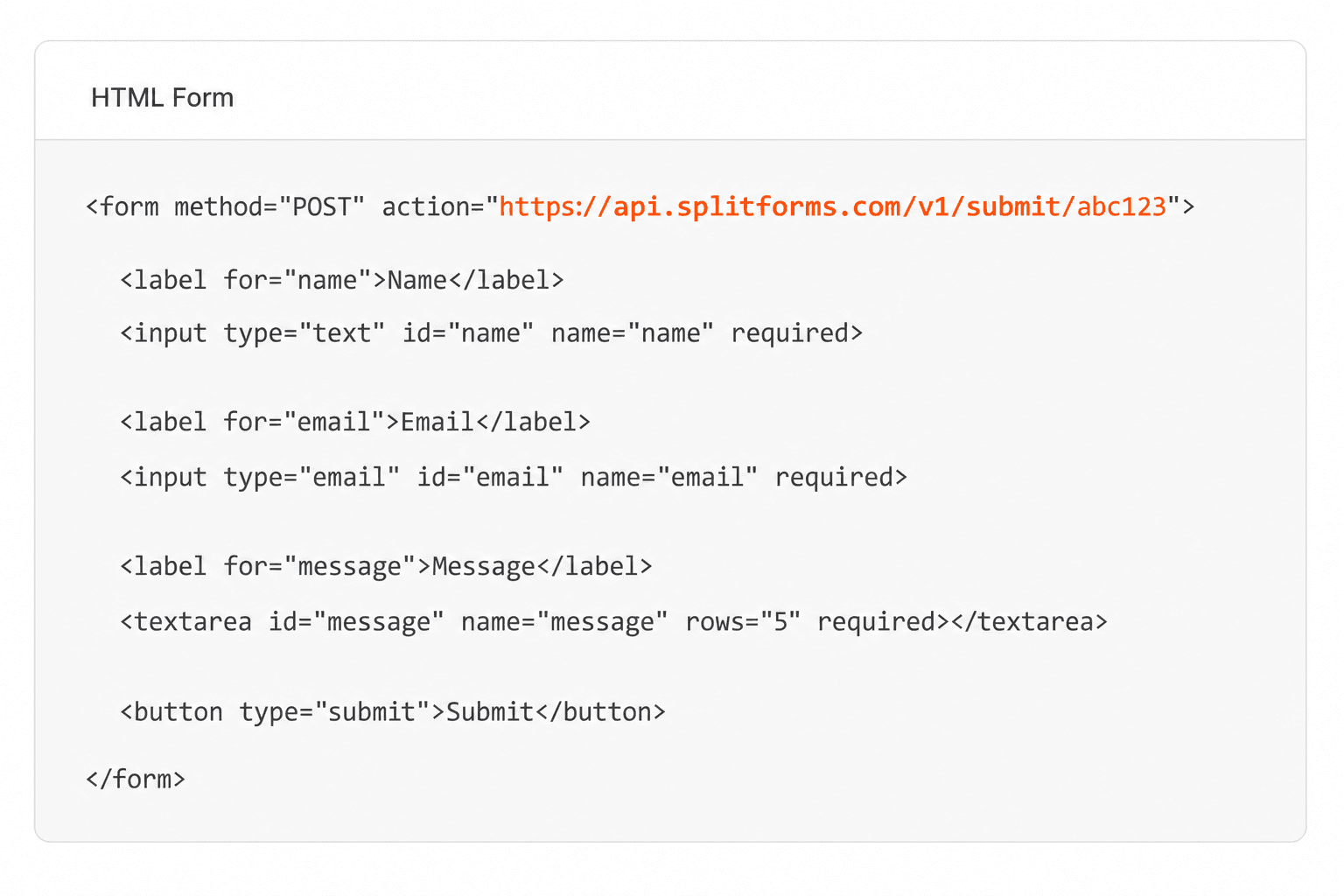
Point your form to your unique SplitForms endpoint. That's it.

HTML form pointing at a SplitForms submit endpoint

Receive submissions

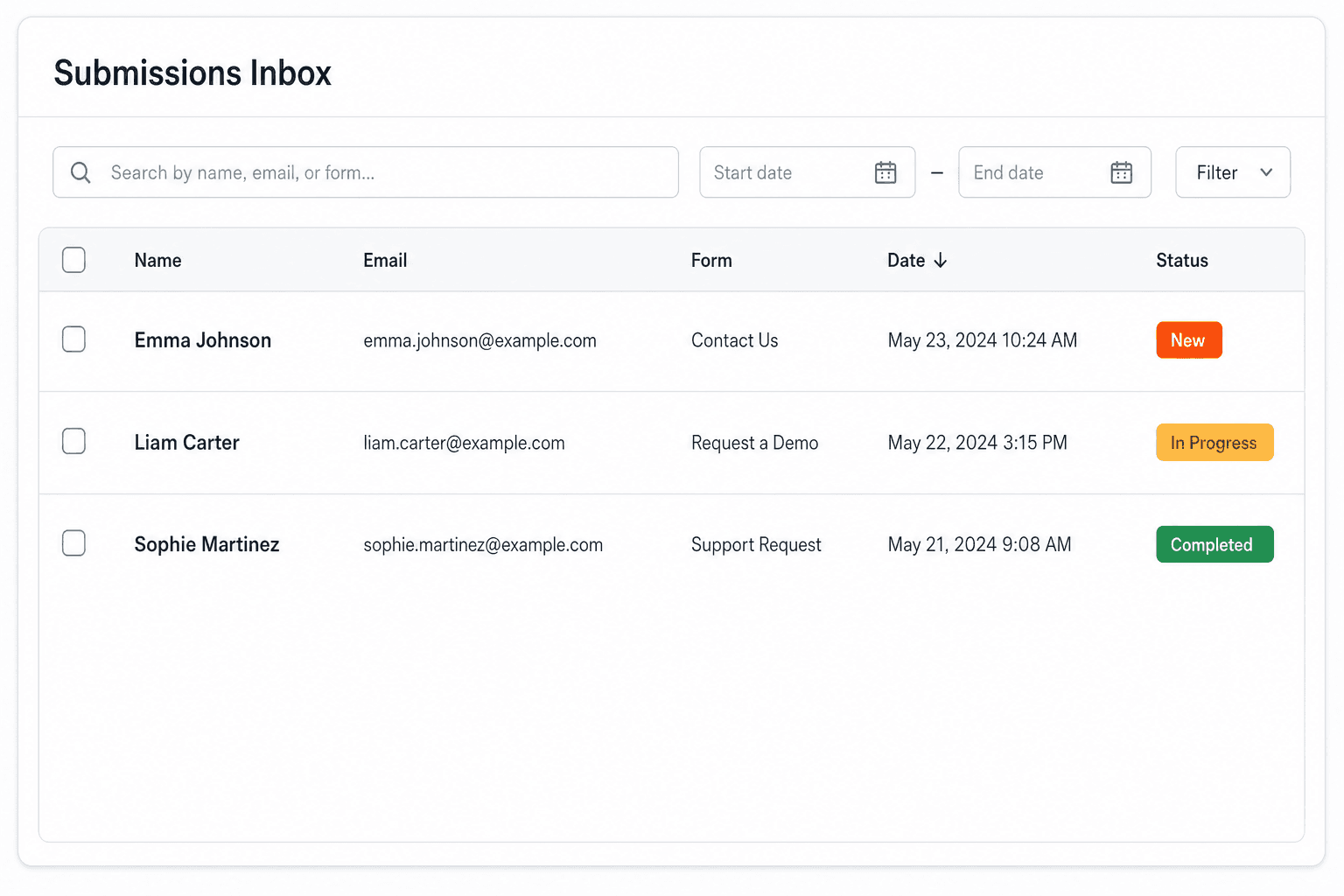
We instantly capture and organize every submission in your inbox.

Submissions inbox with searchable leads and status pills

Route anywhere

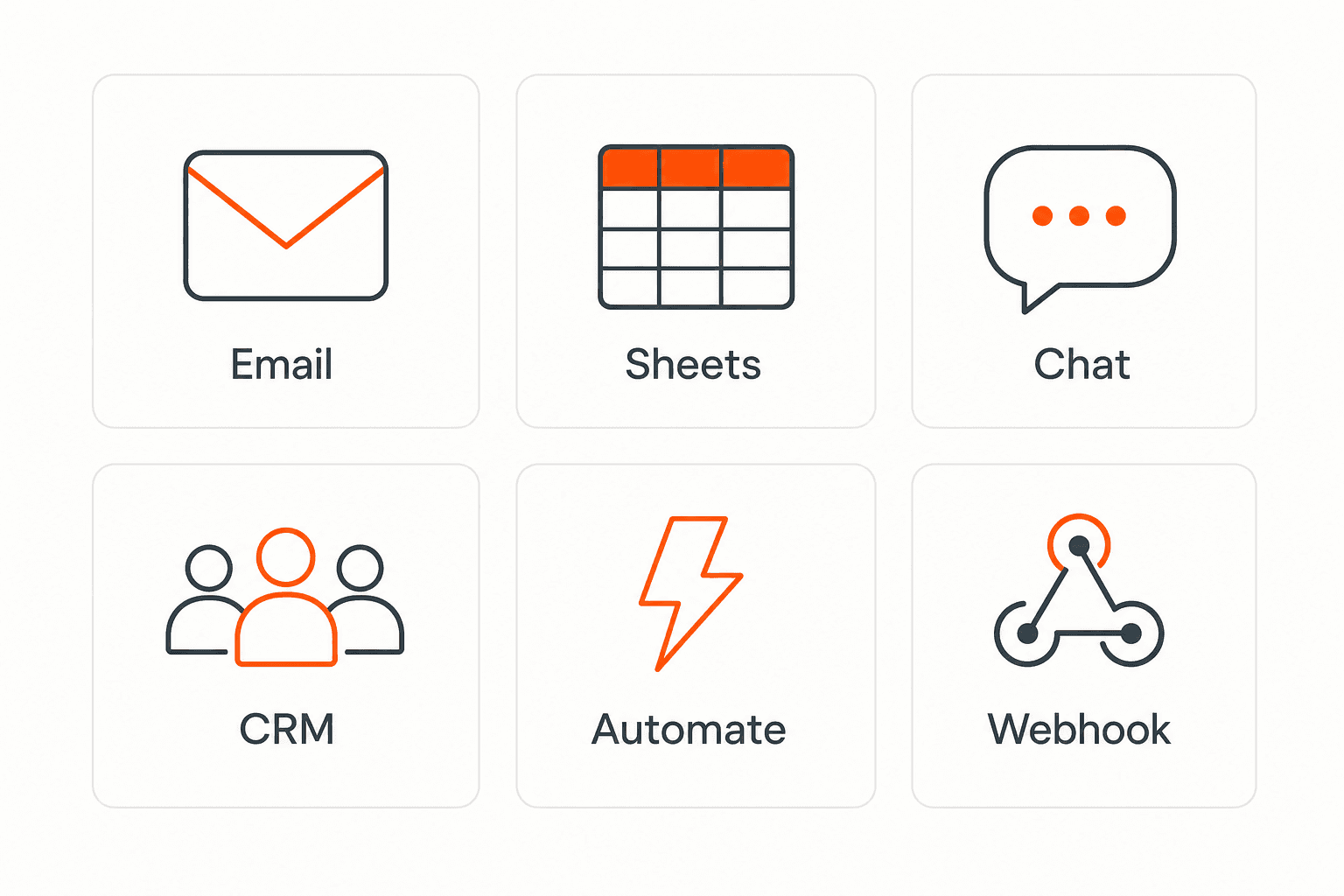
Send data to email, spreadsheets, CRMs, webhooks, and 7,000+ apps.

Generic integration tiles for email, sheets, chat, CRM, automate, and webhook

No credit card required. Set up in under 60 seconds.

Connect & automate

Where can submissions go besides email?

On paid plans, submissions can also go to Slack, Discord, Google Sheets, Notion, Airtable, Zapier or any signed webhook — and splitforms works on the platforms you build on, from WordPress and Shopify to Next.js. With Stripe connected, your forms can take payments too.

Connect your SplitForms form to Slack, Google Sheets, Mailchimp, Zapier and more
NewTake payments on your formsDeposits, bookings, order forms — submitters check out through Stripe and the money goes straight to your Stripe account. Included on every paid plan.See payment forms →Need time slots? Online booking →

Setup guides for the stacks you use

Questions

HTML input type=month questions, answered.

View all FAQs
What value does input type month send to the backend?

It sends a string in YYYY-MM format, such as 2026-11, under the input's name. The format is the same in every browser and locale. An empty field sends an empty string.

How do I set a default month?

Set the value attribute in YYYY-MM format, such as value="2026-11". In JavaScript, set input.value to the same format.

How do I limit the month range?

Use min and max in YYYY-MM format, such as min="2026-01" max="2027-12". Months outside the range are flagged as invalid when the form is submitted.

Which browsers support input type month?

Chrome, Edge and other Chromium browsers show a month picker, and so does Safari on iPhone and iPad. Firefox and desktop Safari show a plain text box, so add a pattern and placeholder as a fallback.

How do I turn the month value into a date on the server?

Append -01 to get the first day of the month, such as 2026-11-01, and parse that as a date. Check the value matches YYYY-MM first, because the text-box fallback can send anything.

Simple pricing

How much does splitforms cost?

Free gives you 500 submissions for $0 — no card, no time limit. Pro is $5/month for 5,000 submissions a month, and Annual is $49/year for 15,000 a month with every Pro feature.

Free

$0— 500 submissions
 

No card, no time limit

Best for testing

For side projects and indie devs.

  • 500 free submissions
  • Unlimited forms
  • Email notifications included
  • Smart spam filtering
  • Submissions dashboard
  • Redirect after submit
  • MCP server included

Annual

$49/ year
About $4.08 per month, billed yearly
Best value

Every Pro feature with triple the volume — $0.27 per 1,000 at full use.

  • 15,000 submissions per month
  • Unlimited forms
  • Everything in Pro
  • File uploads with 5 GB storage
  • 3 team seats
  • Priority email support

No credit card required on Free • Cancel anytime • Full pricing and FAQ