splitforms.com

HTML · FORM WIDGET

HTML progress Element: Progress Bars and Upload Progress

Last reviewed

The <progress> element shows how far a task has got. `value` is the work done and `max` is the total (default `1`), so `<progress value="70" max="100">` draws a bar 70% full. Leave `value` out and the bar is indeterminate: the browser shows a busy animation. The text inside the tag is fallback content for browsers that cannot draw the bar.

  • Live, editable example
  • Copy-paste snippet
  • Attributes & common mistakes
Live demo · nothing is sent

What gets submitted

Fill in the form above and press its button. The demo stops the request and lists every name=value pair the browser would send, plus the controls it leaves out.

With a free access key in the form, these fields land in your splitforms dashboard; access_key and botcheck are read by splitforms, not stored as lead data.

Edit the HTML and re-run it
Runs in a sandbox. Nothing is sent.

Minimal snippet

progress-example.html
<label for="task">Task progress</label>
<progress id="task" value="70" max="100">70%</progress>

Copy-paste code

HTML Progress Bar code you can paste today.

Replace YOUR_ACCESS_KEY with a key from your free splitforms dashboard. The form posts to one endpoint — submissions land in your inbox and dashboard with spam filtering built in.

Get free access key
progress.html
<form id="upload-form" action="https://splitforms.com/api/submit" method="POST"
      enctype="multipart/form-data">
  <input type="hidden" name="access_key" value="YOUR_ACCESS_KEY">

  <label for="file">Choose a file</label>
  <input type="file" id="file" name="file" required>

  <label for="bar">Upload progress</label>
  <progress id="bar" value="0" max="1">0%</progress>
  <output id="pct" for="bar">0%</output>

  <button type="submit">Upload</button>
</form>

<script>
  const form = document.getElementById("upload-form");
  const bar = document.getElementById("bar");
  const pct = document.getElementById("pct");

  form.addEventListener("submit", (event) => {
    event.preventDefault();
    const data = new FormData(form); // every named field, access_key and file included

    const xhr = new XMLHttpRequest();
    xhr.open("POST", form.action);
    xhr.setRequestHeader("Accept", "application/json");

    // fetch() has no upload progress event in most browsers, so use XHR here
    xhr.upload.onprogress = (e) => {
      if (e.lengthComputable) {
        bar.value = e.loaded / e.total;
        pct.textContent = Math.round(bar.value * 100) + "%";
      } else {
        bar.removeAttribute("value"); // size unknown: show the busy state
      }
    };
    xhr.onload = () => {
      bar.value = 1;
      pct.textContent = xhr.status < 400 ? "Done" : "Upload failed (" + xhr.status + ")";
    };
    xhr.onerror = () => { pct.textContent = "Network error"; };

    xhr.send(data);
  });
</script>

Comparison

What is the difference between progress and meter?

Use <progress> for how far a **task** has got: an upload, a download, step 2 of 4. Use <meter> for a **measurement** inside a known range that is not a task, such as disk usage, a password strength score or a battery level. A screen reader announces <progress> as a progress bar, so using it for a gauge gives people the wrong idea.

What is the difference between progress and meter?
Topic<progress><meter>
MeaningCompletion of a taskA scalar value in a known range
ExamplesFile upload, form step 3 of 5, install progressDisk usage, password strength, quiz score
Attributesvalue, maxvalue, min, max, low, high, optimum
Indeterminate stateYes: leave out valueNo: it always shows a value
Implicit ARIA roleprogressbarmeter
Submitted with the formNoNo

Sources: WHATWG HTML Standard: The progress element · WHATWG HTML Standard: The meter element

CSS

How do I style an HTML progress bar with CSS?

Turn off the native look with appearance: none, then style the track and the fill through vendor pseudo-elements. Chromium and Safari use ::-webkit-progress-bar for the track and ::-webkit-progress-value for the fill; Firefox styles the track on the element itself and the fill with ::-moz-progress-bar. Write the two fill rules separately: a browser drops a whole rule when one selector in the list is unknown.

How do I style an HTML progress bar with CSS?
PartCSS
Resetprogress { appearance: none; border: none; height: 0.75rem; border-radius: 999px; background: #e5e7eb; }
Track (Chromium, Safari)progress::-webkit-progress-bar { background: #e5e7eb; border-radius: 999px; }
Fill (Chromium, Safari)progress::-webkit-progress-value { background: #2563eb; border-radius: 999px; }
Fill (Firefox)progress::-moz-progress-bar { background: #2563eb; border-radius: 999px; }
Simple accent onlyprogress { accent-color: #2563eb; } keeps the native bar and changes its colour where supported

Sources: MDN: ::-webkit-progress-value · MDN: ::-moz-progress-bar

Attributes · <progress>

Which attributes does the progress element support?

Only two of its own: value for the work done and max for the total. Global attributes such as id, class and aria-label also apply.

HTML Progress Bar attributes and what each one does
AttributeWhat it doesDocs
valueHow much of the task is done: a number from 0 to max. Leave it out for the indeterminate (busy) state. In JavaScript, bar.value reads and sets it; bar.position returns value / max, or -1 when indeterminate.MDN
maxThe total amount of work. Must be a number greater than 0; defaults to 1, so value="0.5" alone is half full.MDN

Common mistakes

HTML progress bar mistakes to avoid

Forgetting value, expecting it in the form data, and using it as a gauge where <meter> belongs.

  1. No value means it animates forever

    A <progress> without value is indeterminate by design. If your bar never stops moving, your script never set bar.value, for example because e.lengthComputable was false or the handler never ran.

  2. It is not sent with the form

    <progress> has no name and is not a submittable element, so its value never appears in the POST body. Put anything the server needs in an <input>.

  3. fetch() can't report upload progress

    In most browsers fetch() gives you no event while the request body uploads. Use XMLHttpRequest and xhr.upload.onprogress for upload bars, as in the example above and the [file input](/html/file-input) guide.

  4. Give it an accessible name

    The element has the implicit role progressbar, so you don't need role yourself. Name it with <label for> pointing at its id, or with aria-label, so screen readers say what is loading.

  5. Don't use it as a meter

    Disk space, password strength and scores are measurements, not tasks. Use <meter> for those; <progress> tells assistive tech that something is in progress.

Sources: WHATWG HTML Standard: The progress element · MDN: <progress> · MDN: XMLHttpRequest upload

:indeterminate

Show an indeterminate (busy) progress bar

Leave out value when you can't measure the work yet, for example while waiting for a server reply. The browser draws its busy animation, and the :indeterminate pseudo-class matches the bar so you can style that state. Set value later to switch it to a normal bar, or call removeAttribute("value") to go back.

Setting value="" or value="0" does not make it indeterminate; 0 is an empty determinate bar. The attribute must be missing.

progress-indeterminate.html
<progress aria-label="Loading"></progress>

<style>
  progress:indeterminate {
    opacity: 0.7;
  }
</style>

Copy-paste ready

The HTML Progress Bar example below is a complete, working form — paste it into any HTML page and it submits, no edits to the markup required.

No backend to build

Your html progress bar form posts to one endpoint. No server, PHP, or API route — accepted submissions are saved to your dashboard before owner notification email is attempted; delivery time and inbox placement depend on provider and recipient settings.

Where do uploaded files go?

File uploads need a paid splitforms plan with Storage connected (up to 5 files of 5 MB per submission); on the Free plan, text fields are saved and files are dropped.

How it works

How to add HTML Progress Bar to any page.

Copy the html progress bar example, drop in your free access key, and paste it into any page — submissions start landing in your dashboard.

Copy the code

Copy the HTML Progress Bar example below.

Add your access key

Replace YOUR_ACCESS_KEY with a free splitforms key from the dashboard.

Paste into your site

Drop the form into any HTML page. Submissions arrive in your dashboard.

How SplitForms works

What happens after someone submits your form?

splitforms receives the submission, filters spam, saves it to your dashboard and emails you — then, on paid plans, sends it on to your webhooks and integrations. No backend infrastructure to build.

A SplitForms contact form submission launching straight to your inbox

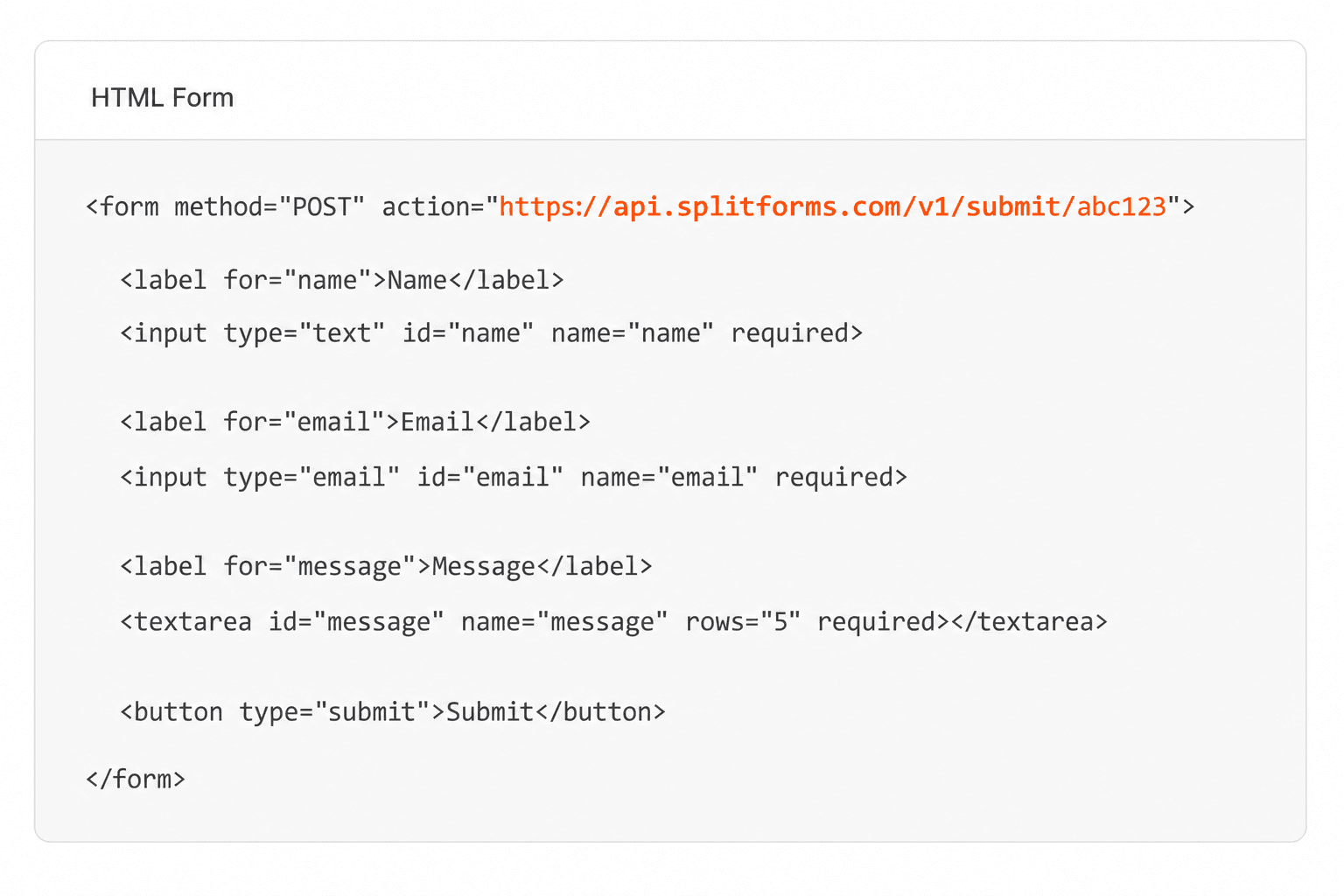
Add your endpoint

Point your form to your unique SplitForms endpoint. That's it.

HTML form pointing at a SplitForms submit endpoint

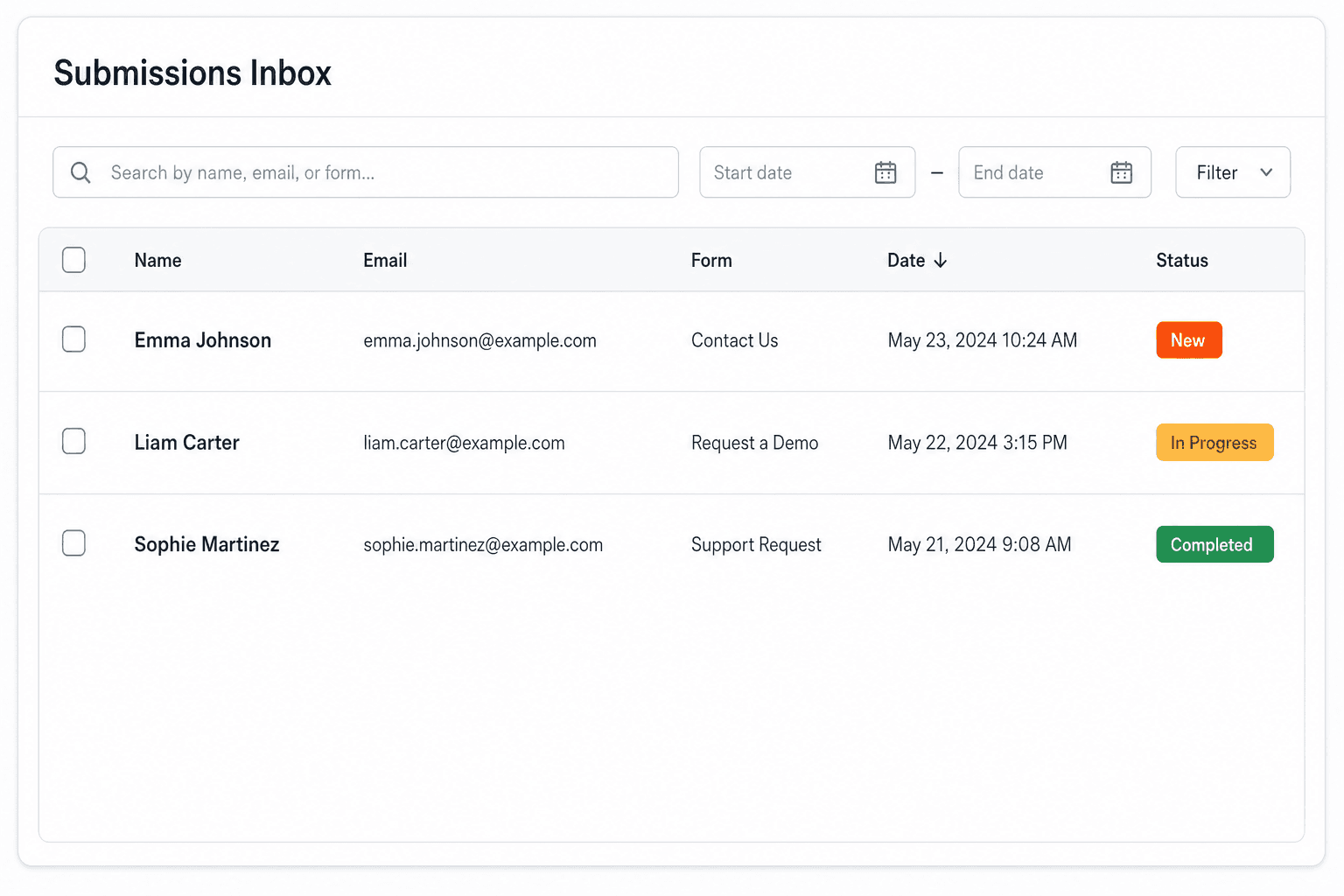
Receive submissions

We instantly capture and organize every submission in your inbox.

Submissions inbox with searchable leads and status pills

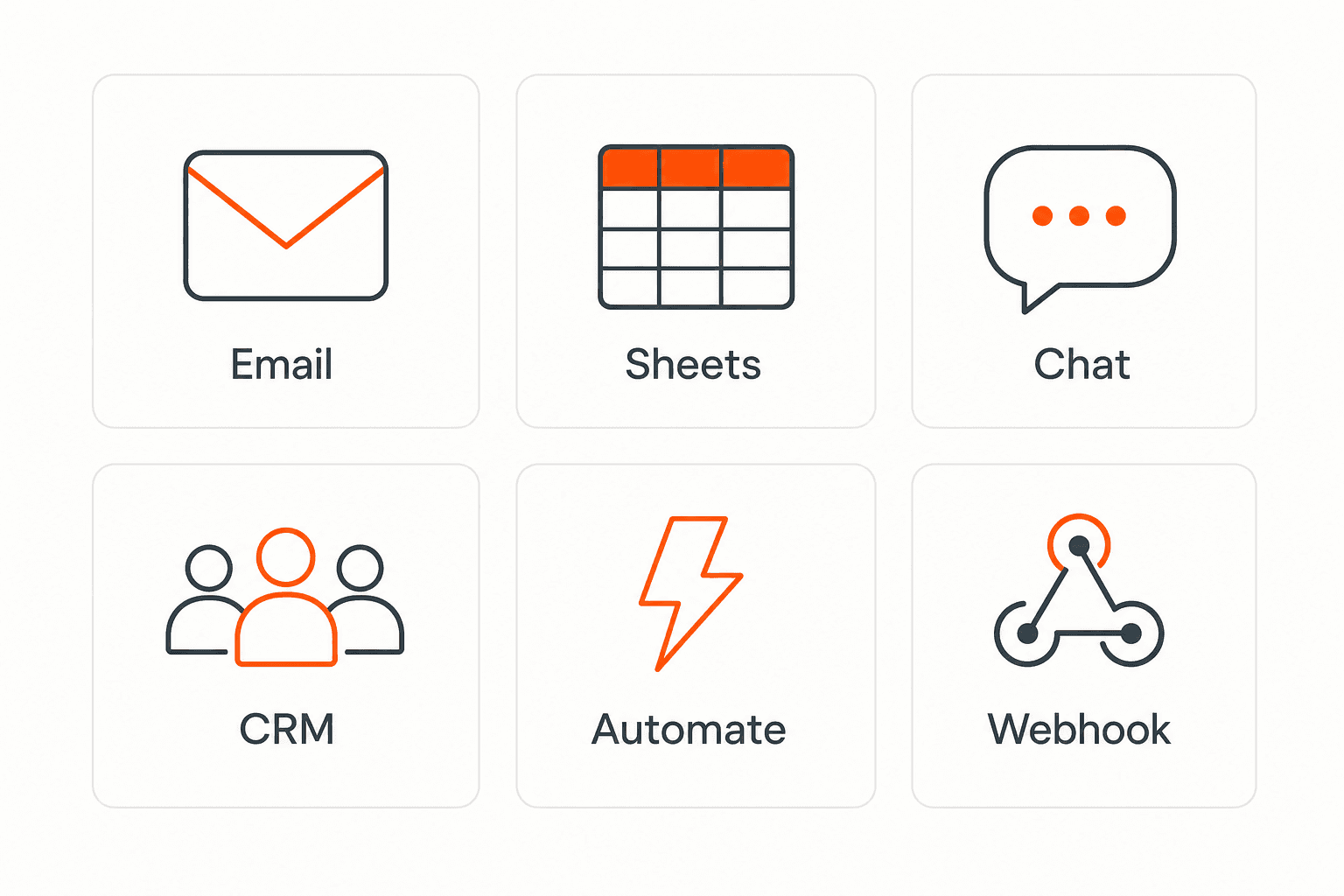
Route anywhere

Send data to email, spreadsheets, CRMs, webhooks, and 7,000+ apps.

Generic integration tiles for email, sheets, chat, CRM, automate, and webhook

No credit card required. Set up in under 60 seconds.

Connect & automate

Where can submissions go besides email?

On paid plans, submissions can also go to Slack, Discord, Google Sheets, Notion, Airtable, Zapier or any signed webhook — and splitforms works on the platforms you build on, from WordPress and Shopify to Next.js. With Stripe connected, your forms can take payments too.

Connect your SplitForms form to Slack, Google Sheets, Mailchimp, Zapier and more
NewTake payments on your formsDeposits, bookings, order forms — submitters check out through Stripe and the money goes straight to your Stripe account. Included on every paid plan.See payment forms →Need time slots? Online booking →

Setup guides for the stacks you use

Questions

HTML Progress Bar questions, answered.

View all FAQs
Is progress a form element?

It is listed with the form elements in the HTML standard, but it is not a form control you submit: it has no name attribute and its value is never sent with the form. Use it only to show status, and keep the data you need in inputs.

How do I show a percentage with a progress bar?

Set max="100" and value to the percentage, or keep max at 1 and set a fraction. The bar itself shows no number, so add text next to it, for example an <output> updated with Math.round(bar.value / bar.max * 100) + "%". The text inside the tag is only fallback content.

Why does my progress bar animate forever?

Because it has no value attribute, which makes it indeterminate. Set bar.value from your script once you know how much is done. During uploads, check e.lengthComputable before dividing e.loaded by e.total.

How do I make a file upload progress bar in HTML?

Send the form with XMLHttpRequest and listen to xhr.upload.onprogress. In the handler, set bar.value = e.loaded / e.total when e.lengthComputable is true. Build the body with new FormData(form) so hidden fields like the access key go too. fetch() has no upload progress event in most browsers.

Should I use progress or meter for password strength?

Use <meter>. Password strength is a measurement within a range, not a task moving towards completion. <progress> is for things like uploads, downloads and multi-step forms.

Simple pricing

How much does splitforms cost?

Free gives you 500 submissions for $0 — no card, no time limit. Pro is $5/month for 5,000 submissions a month, and Annual is $49/year for 15,000 a month with every Pro feature.

Free

$0— 500 submissions
 

No card, no time limit

Best for testing

For side projects and indie devs.

  • 500 free submissions
  • Unlimited forms
  • Email notifications included
  • Smart spam filtering
  • Submissions dashboard
  • Redirect after submit
  • MCP server included

Annual

$49/ year
About $4.08 per month, billed yearly
Best value

Every Pro feature with triple the volume — $0.27 per 1,000 at full use.

  • 15,000 submissions per month
  • Unlimited forms
  • Everything in Pro
  • File uploads with 5 GB storage
  • 3 team seats
  • Priority email support

No credit card required on Free • Cancel anytime • Full pricing and FAQ