
Add multipart encoding to the form
Set enctype="multipart/form-data" on the <form> tag. Without it, the browser submits the text fields but silently leaves the selected file out of the request.
File upload form
Updated · plan facts checked against /pricing
Yes — SplitForms forms can accept file uploads. Add enctype="multipart/form-data" and a file input, connect Storage, and visitors can attach resumes, PDFs, screenshots or images straight from your HTML form. Paid plans store up to 5 files of 5 MB each; no upload server, SDK or S3 signing flow is needed.

A normal multipart form post to one endpoint — no JavaScript SDK, no client-side S3 signing and no separate upload server.
Files are stored privately and shared through expiring download links, with executables and script-like files blocked.
Attach resumes, briefs, screenshots or PDFs per submission. Text fields still arrive if a file is rejected.
Copy-paste ready
Set the access key from your dashboard, keep the multipart encoding, and connect Storage before testing. Without Storage, the text fields still submit but the files are not retained.
<form
  action="https://splitforms.com/api/submit"
  method="POST"
  enctype="multipart/form-data"
>
  <input type="hidden" name="access_key" value="YOUR_ACCESS_KEY" />
  <input type="hidden" name="subject" value="New file upload" />

  <label for="name">Full name</label>
  <input id="name" type="text" name="name" required />

  <label for="email">Email</label>
  <input id="email" type="email" name="email" required />

  <label for="resume">Resume or document (PDF, DOCX, max 5 MB)</label>
  <input
    id="resume"
    type="file"
    name="resume"
    accept=".pdf,.doc,.docx,application/pdf"
    required
  />

  <label for="screenshots">Screenshots (up to 5 files)</label>
  <input
    id="screenshots"
    type="file"
    name="screenshots"
    accept="image/*"
    multiple
  />

  <!-- Honeypot — bots fill it, humans don't -->
  <input type="checkbox" name="botcheck" style="display:none" tabindex="-1" autocomplete="off" />

  <button type="submit">Send files</button>
</form>
Setup guide
Six steps from markup to a stored file. The only file-specific change is the multipart encoding and the file input; the access key, spam fields and notifications work the same as any SplitForms form.
Set enctype="multipart/form-data" on the <form> tag. Without it, the browser submits the text fields but silently leaves the selected file out of the request.
Use <input type="file" name="resume">. Add multiple to allow several files, accept to guide the file picker, and required to make an attachment mandatory. The name is the field the backend reads.
Sign up with email and password — no credit card. The access key appears in the dashboard and goes in the hidden access_key field.
Open Dashboard → Integrations → Storage and connect it. This is the step that makes SplitForms retain uploaded files; it is available on the paid plans.
Paste the form into your site, submit a real file, and confirm the submission, the file link and the notification email all arrive. Text fields still submit if a file exceeds plan limits.
Download files from the dashboard, receive small uploads as email attachments, include file metadata in webhook payloads, or connect Google Drive to copy every upload into a folder you own.
Security
Uploads are stored privately rather than in a public bucket, and the dashboard exposes them through expiring signed links. SplitForms blocks executable and script-like extensions and sniffs the content type on the server. The HTML accept attribute only filters the file picker — it is not a security boundary. For larger intake, read the file upload feature and limits.

Plan requirement
Retained uploads need a paid plan and the Storage integration connected in the dashboard. Pro is $5 per month with 500 MB of storage; Annual is $49 per year with 5 GB. On the Free plan the text fields and notification still work, but attached files are dropped. Compare the details on SplitForms pricing.

Use cases
The same form works for a job application with a resume, a support request with screenshots, a design brief with a PDF, or a client intake with reference images. For a closer starting point, copy the contact form with file upload template and adapt its fields.

How SplitForms works
splitforms receives the submission, filters spam, saves it to your dashboard and emails you — then, on paid plans, sends it on to your webhooks and integrations. No backend infrastructure to build.

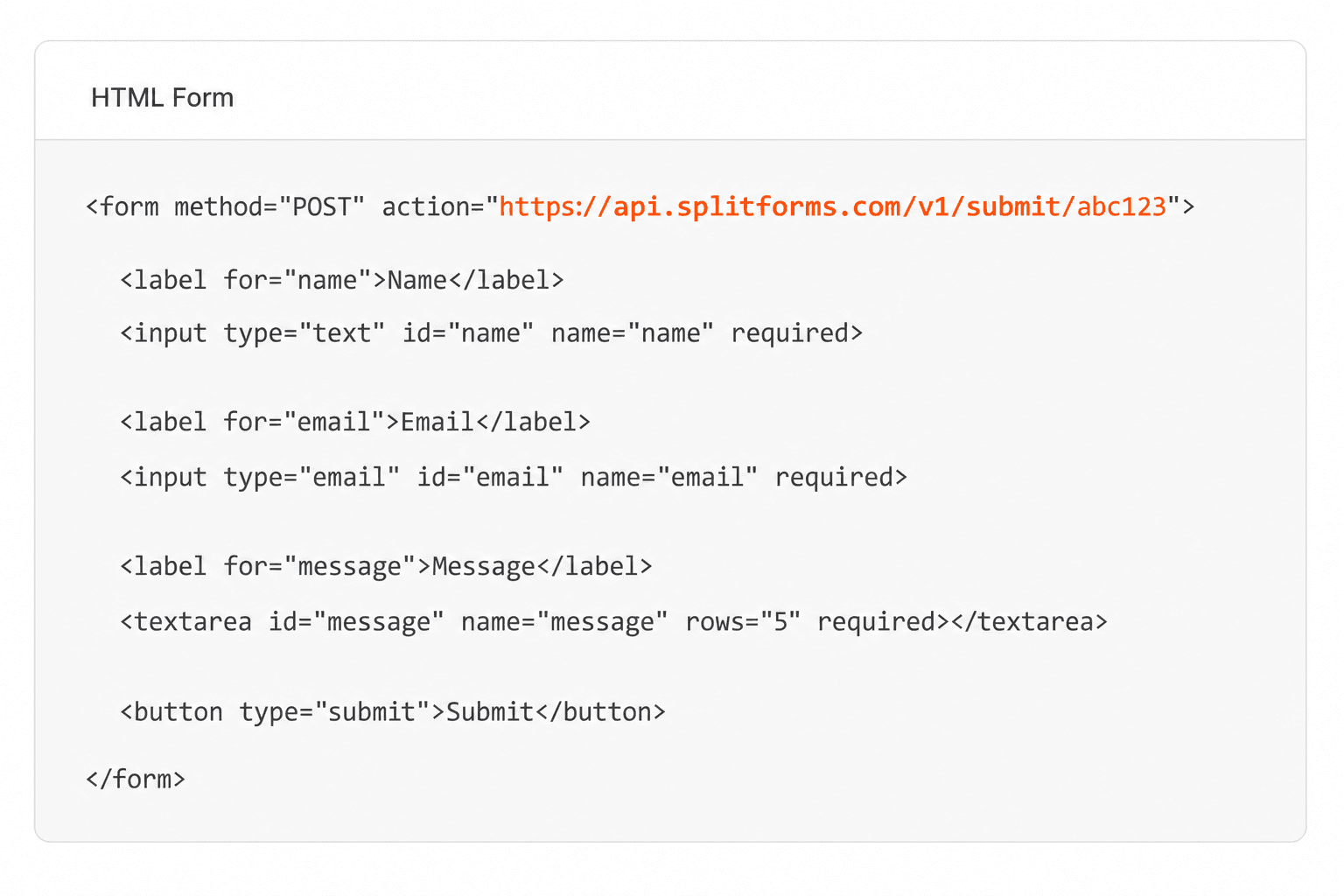
Point your form to your unique SplitForms endpoint. That's it.
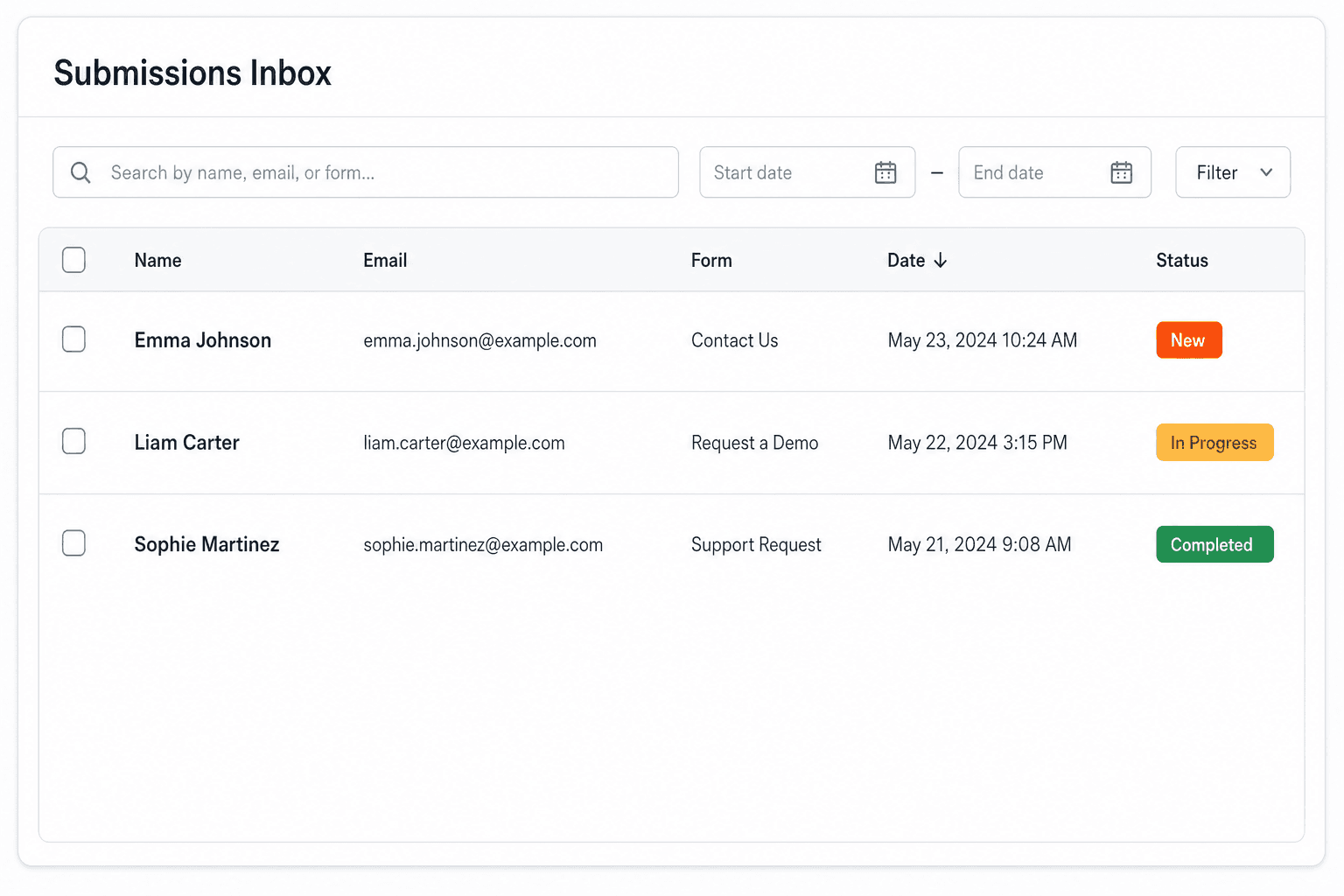
We instantly capture and organize every submission in your inbox.
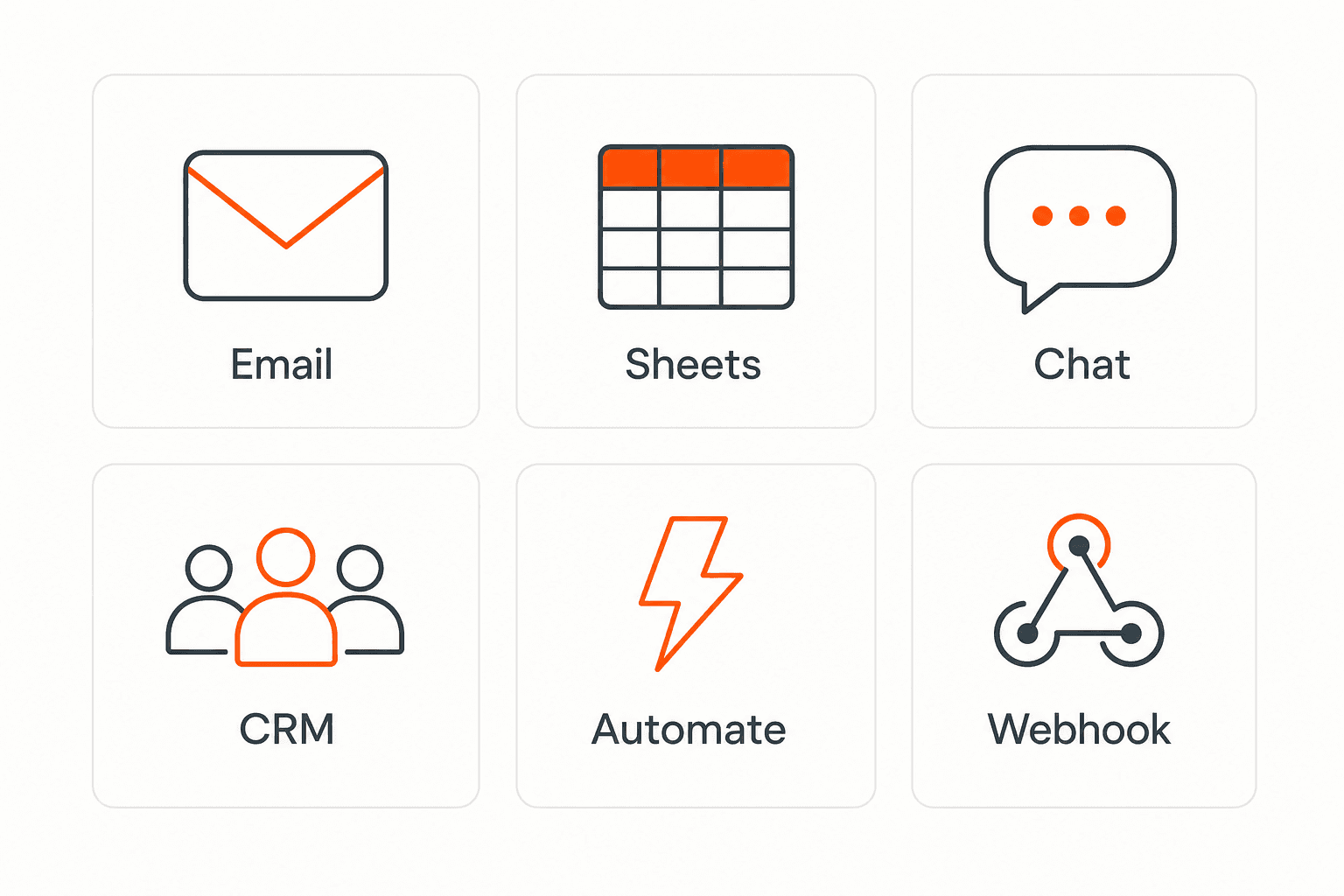
Send data to email, spreadsheets, CRMs, webhooks, and 7,000+ apps.
No credit card required. Set up in under 60 seconds.
Connect & automate
On paid plans, submissions can also go to Slack, Discord, Google Sheets, Notion, Airtable, Zapier or any signed webhook — and splitforms works on the platforms you build on, from WordPress and Shopify to Next.js. With Stripe connected, your forms can take payments too.
 NewTake payments on your formsDeposits, bookings, order forms — submitters check out through Stripe and the money goes straight to your Stripe account. Included on every paid plan.See payment forms →Need time slots? Online booking →
Questions
Yes. Add enctype="multipart/form-data" and a named <input type="file"> to any HTML form that posts to the SplitForms endpoint. With the Storage integration connected on a paid plan, SplitForms stores the upload privately and shows it in the dashboard with a signed download link. The current limit is 5 files per submission at 5 MB each.
Retained file uploads require a paid plan plus the Storage integration: Pro is $5 per month with 500 MB of storage, and Annual is $49 per year with 5 GB. On the Free plan, text fields are saved normally but attached files are dropped.
Up to 5 files per submission, with a maximum of 5 MB per file. When a submission's uploads total 7 MB or less, they are also attached directly to the notification email; larger uploads stay available through signed links in the dashboard.
Set the form method to POST, set enctype="multipart/form-data", point the action at https://splitforms.com/api/submit, and add a file input with a name such as resume or attachment. Then create an access key, connect Storage in the dashboard, and publish the form. No separate upload endpoint or client-side S3 signing flow is needed.
Yes. Build a FormData object from your form ref or append the fields manually, append the access_key, and POST it to https://splitforms.com/api/submit. Do not set the Content-Type header yourself when sending FormData — the browser must add the multipart boundary.
Yes. Files are stored privately, not in a public bucket, and are exposed through expiring signed download links (a 7-day window). SplitForms blocks executable and script-like extensions and sniffs the content type server-side. The accept attribute only filters the file picker; it is not a security boundary, so keep the server-side checks in place.
Use the accept attribute to guide the picker, for example accept=".pdf,.docx,image/*". It is a convenience filter, not enforcement. SplitForms checks files server-side and rejects executable or script-like extensions regardless of what the form allows.
They appear with the submission in your SplitForms dashboard, with signed download links. Small uploads are also attached to the owner notification email, webhook payloads can include stored-file metadata, and the Google Drive integration can copy each uploaded file into a folder you own.
Simple pricing
Free gives you 500 submissions for $0 — no card, no time limit. Pro is $5/month for 5,000 submissions a month, and Annual is $49/year for 15,000 a month with every Pro feature.
For side projects and indie devs.
Every paid feature, for agencies and growing products.
Every Pro feature with triple the volume — $0.27 per 1,000 at full use.
No credit card required on Free • Cancel anytime • Full pricing and FAQ


