
Set your categories and priorities
Edit the category list to the trades you dispatch and the priority times to what your team can meet, then swap in your access key and publish the page.
Form template · Work Order Form Template
Updated · plan facts checked against /pricing
A work order template turns a job into a ticket a technician can act on: where, which asset, how urgent, what needs doing and how to get in. This free work order form has 14 fields, from requester to priority, cost code and photos, and each submission gets a sequential Lead # to use as the work order number.

This template is one of our free HTML form templates. See more form templates by industry. Collecting repair requests from tenants or residents? Use the maintenance request form template.
No server, API route, or SDK — your Work Order Form posts straight to one endpoint.
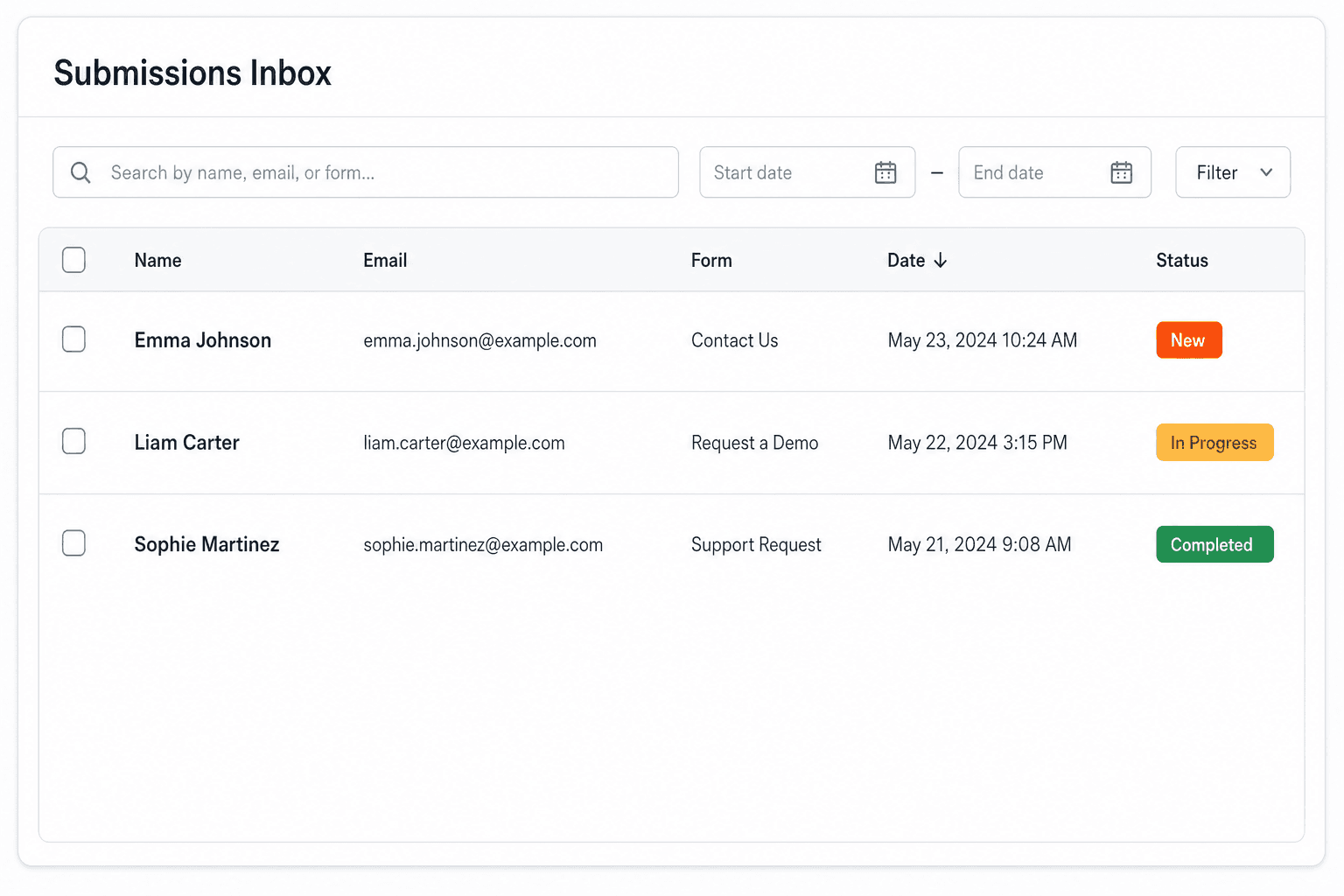
Every submission is emailed to you and saved to a searchable dashboard — spam filtered before it reaches you.
It's plain HTML you own — paste the Work Order Form snippet, swap in your access key, and ship.
Copy and ship
Plain HTML that posts to the /api/submit endpoint. Replace YOUR_ACCESS_KEY with the key from your dashboard; that's the only edit.
<form action="https://splitforms.com/api/submit" method="POST" enctype="multipart/form-data">
  <input type="hidden" name="access_key" value="YOUR_ACCESS_KEY">
  <input type="hidden" name="subject" value="New work order">
  <input type="hidden" name="form_loaded_at" id="form_loaded_at">

  <fieldset>
    <legend>Requested by</legend>
    <label>Full name <input type="text" name="requester_name" autocomplete="name" required></label>
    <label>Email <input type="email" name="email" autocomplete="email" required></label>
    <label>Phone <input type="tel" name="phone" autocomplete="tel"></label>
    <label>Department or company <input type="text" name="department" autocomplete="organization"></label>
  </fieldset>

  <fieldset>
    <legend>Where and what</legend>
    <label>Site and location
      <input type="text" name="location" placeholder="Site, building, floor, room or unit" required>
    </label>
    <label>Asset or equipment (name, tag or serial)
      <input type="text" name="asset" placeholder="e.g. Rooftop unit RTU-2, Dock door 4">
    </label>
    <label>Category
      <select name="category" required>
        <option value="">Choose one</option>
        <option>Electrical</option>
        <option>Plumbing</option>
        <option>HVAC</option>
        <option>Doors, locks and carpentry</option>
        <option>Equipment or machinery</option>
        <option>IT and AV</option>
        <option>Cleaning</option>
        <option>Grounds</option>
        <option>Other</option>
      </select>
    </label>
  </fieldset>

  <fieldset>
    <legend>Priority</legend>
    <label><input type="radio" name="priority" value="Emergency" required> Emergency: safety risk or stopped operations, respond today</label>
    <label><input type="radio" name="priority" value="High"> High: within 1 business day</label>
    <label><input type="radio" name="priority" value="Normal"> Normal: within 1 week</label>
    <label><input type="radio" name="priority" value="Planned"> Planned: schedule with routine work</label>
  </fieldset>

  <label>Work requested
    <textarea name="work_description" rows="5" required
      placeholder="What is wrong or what needs doing, when it started, anything already tried"></textarea>
  </label>

  <fieldset>
    <legend>Scheduling and access</legend>
    <label>Preferred date <input type="date" name="preferred_date"></label>
    <label>Access window
      <select name="access_window">
        <option>Any time</option>
        <option>Business hours only</option>
        <option>Before or after business hours</option>
        <option>Weekend</option>
      </select>
    </label>
    <label>Access notes and on-site contact
      <input type="text" name="access_notes" placeholder="Keys at front desk, ask for Sam, 555-0142">
    </label>
  </fieldset>

  <label>Cost code or PO number
    <input type="text" name="cost_code">
  </label>

  <label>Photos (up to 5, 5 MB each)
    <input type="file" name="photos" accept="image/*" multiple>
  </label>

  <!-- honeypot: leave empty -->
  <input type="checkbox" name="botcheck" style="display:none" tabindex="-1" autocomplete="off">

  <button type="submit">Submit work order</button>
</form>
<script>
  document.getElementById('form_loaded_at').value = Date.now();
</script>
Field by field
requester_name, email, departmentlocation (required)asset (text)category (dropdown)priority (radio, required)work_description (required)preferred_date, access_window, access_notescost_code (text)photos (file, paid plans)How to add it
To add a Work Order Form to your site you need three things: a free splitforms access key, the HTML snippet above, and your key pasted into it. No backend, database, or CAPTCHA library — the form posts to one URL and every submission lands in your inbox and dashboard.
Edit the category list to the trades you dispatch and the priority times to what your team can meet, then swap in your access key and publish the page.
Every work order is emailed to you on every plan. On paid plans, routing rules such as category equals Electrical, or priority equals Emergency, can send the ticket straight to the right technician or the on-call inbox.
Quote the Lead # as the work order number, star open jobs in the dashboard, and on paid plans send tickets to Slack or a spreadsheet through webhooks or the Google Sheets integration.
What's included
A work order fails when the technician arrives and has to phone someone: which unit, which machine, is anyone on site, who is paying. This template is built around those four calls. It asks for the site and the exact asset (with its tag or serial if there is one), a priority with a stated response time instead of a vague 'urgent', an access window plus on-site contact, and a cost code or PO number so the invoice lands on the right budget. splitforms numbers every submission with a sequential Lead #, so the work order number exists the moment the request is sent and both sides can quote it. If tenants or residents are the ones reporting problems, use the maintenance request form template for that step and raise work orders from it. Asset, priority with response times, access and cost code on every ticket, with a Lead # as the work order number.

Where submissions go
Reply-to is wired to the visitor's email, so one tap on Reply answers them directly — while the built-in honeypot and automatic spam scoring filter out bots before they reach you. Every submission is emailed to your inbox and can forward to a webhook or Slack the moment a visitor hits send.

How SplitForms works
splitforms receives the submission, filters spam, saves it to your dashboard and emails you — then, on paid plans, sends it on to your webhooks and integrations. No backend infrastructure to build.
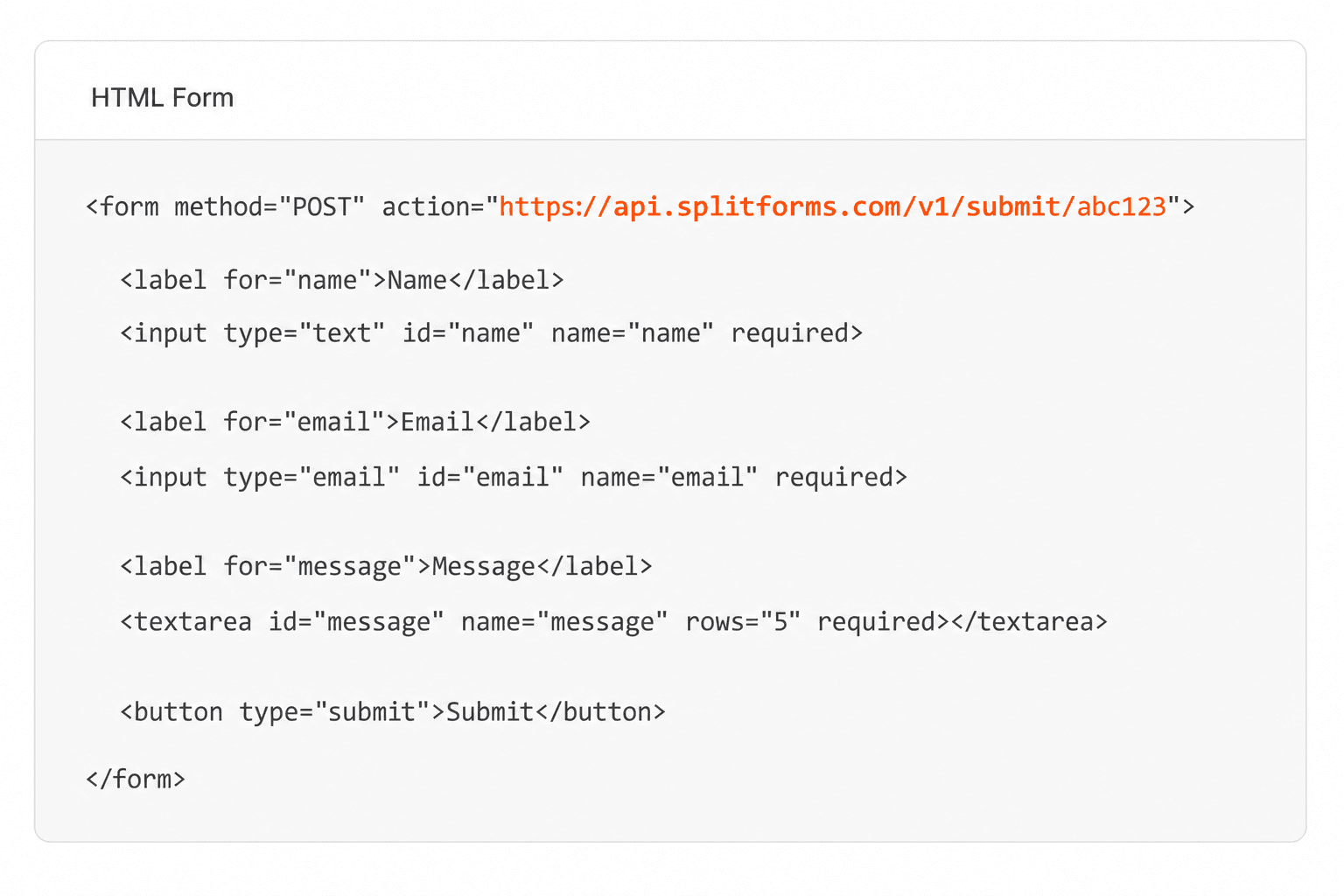
Point your form to your unique SplitForms endpoint. That's it.
We instantly capture and organize every submission in your inbox.
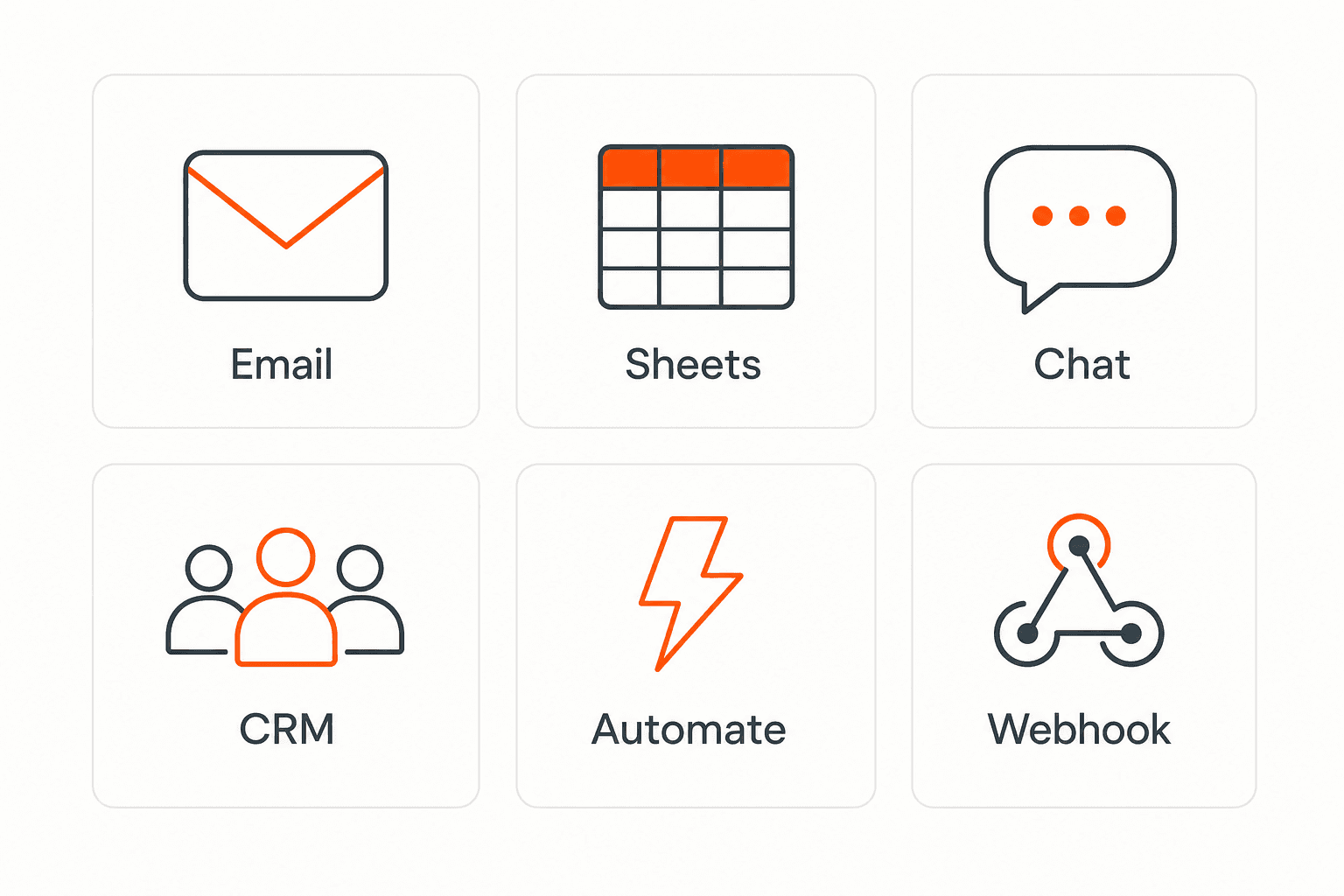
Send data to email, spreadsheets, CRMs, webhooks, and 7,000+ apps.
No credit card required. Set up in under 60 seconds.
Connect & automate
On paid plans, submissions can also go to Slack, Discord, Google Sheets, Notion, Airtable, Zapier or any signed webhook — and splitforms works on the platforms you build on, from WordPress and Shopify to Next.js. With Stripe connected, your forms can take payments too.

 NewTake payments on your formsDeposits, bookings, order forms — submitters check out through Stripe and the money goes straight to your Stripe account. Included on every paid plan.See payment forms →Need time slots? Online booking →
Questions
A work order is a ticket that tells a technician or contractor what job to do, where, on which asset, how urgently and who pays. It usually starts from a request, then gets a number, a priority and an assignee, and is closed when the work is done.
A maintenance request is the problem report, often from a tenant or staff member ('the sink is leaking'). A work order is the job ticket raised from it for the person who fixes it, with the asset, priority, access and cost code. For the tenant side, use the maintenance request form template; this page is for the ticket.
Every splitforms submission gets a sequential Lead # on every plan. It appears in the notification email and is searchable in the dashboard, so use it as the work order number in replies, on invoices and when the technician closes the job.
Yes, on paid plans. The template already has the file field and the multipart enctype; each submission can carry up to 5 files of 5 MB each. On the Free plan files are not stored, so remove the field there.
This is an online form rather than a Word or PDF file. You can print the published page from your browser for a blank paper copy, but the point of the online form is that every ticket lands in one numbered, searchable list.
For intake, yes: it collects clean, numbered work orders and emails them. It does not schedule technicians, track parts or record completion. If you need those, keep this form as the front door and pass tickets on with webhooks (paid plans).
Each work order is one submission, and the Free plan covers 500 in total, not per month, with email notifications included. Photo uploads, routing, CSV export and integrations are on paid plans; Pro is $5 per month.
Simple pricing
Free gives you 500 submissions for $0 — no card, no time limit. Pro is $5/month for 5,000 submissions a month, and Annual is $49/year for 15,000 a month with every Pro feature.
For side projects and indie devs.
Every paid feature, for agencies and growing products.
Every Pro feature with triple the volume — $0.27 per 1,000 at full use.
No credit card required on Free • Cancel anytime • Full pricing and FAQ


