
Free tool · no signup
Wedding RSVP Form for Your Website
Last updated · plan facts checked against /pricing
This free generator makes an online RSVP form for your wedding website: guest names, attending or not, guest count, meal choice, dietary needs and a song request. Change any field and copy the HTML, with no signup needed to generate it. Paste it into Squarespace, Wix, WordPress or a custom site, and splitforms emails you every RSVP.
Build your RSVP form, then copy the code
1. Backend
where submissions goDon't have one? Get a free splitforms key: 500 submissions total, no credit card.
2. Fields
Click a type to add a field, then use ↑ ↓ to reorder.
3. Button, style + spam
Style preset (HTML + React)A hidden botcheck checkbox people never see. If a bot ticks it, splitforms silently drops the submission; rule-based spam filtering runs on every submission either way.
Live preview
preview only · submit is disabledwedding-rsvp-form.html
<style>
    form { max-width: 480px; font-family: system-ui, sans-serif; }
    label { display: block; font-size: 13px; font-weight: 600; margin: 14px 0 6px; }
    input:not([type=checkbox]):not([type=radio]), textarea, select { width: 100%; padding: 10px 12px; border: 1px solid #d6d6d1; border-radius: 6px; font: inherit; box-sizing: border-box; }
    textarea { min-height: 100px; resize: vertical; }
    fieldset { border: 0; margin: 14px 0 0; padding: 0; min-width: 0; }
    legend { font-size: 13px; font-weight: 600; margin: 0 0 4px; padding: 0; }
    label.sf-choice { display: flex; align-items: center; gap: 8px; margin: 8px 0 0; font-size: 14px; font-weight: 400; }
    label.sf-choice input { margin: 0; accent-color: #ff4f00; }
    button { margin-top: 18px; padding: 12px 20px; background: #ff4f00; color: #fff; border: none; border-radius: 6px; font-size: 14px; font-weight: 600; cursor: pointer; }
    button:hover { background: #c93d00; }
  </style>

<form action="https://splitforms.com/api/submit" method="POST">
  <input type="hidden" name="access_key" value="YOUR_ACCESS_KEY">
  <input type="hidden" name="subject" value="New wedding RSVP">

  <!-- Honeypot — bots fill every field, humans don't see this -->
  <input type="checkbox" name="botcheck" style="display:none" tabindex="-1" autocomplete="off">

  <label for="field-guest_names">Guest name(s) <span style="color:#ff4f00">*</span></label>
  <input id="field-guest_names" name="guest_names" type="text" placeholder="Jane and John Smith" required>

  <label for="field-email">Email <span style="color:#ff4f00">*</span></label>
  <input id="field-email" name="email" type="email" placeholder="[email protected]" required>

  <fieldset>
    <legend>Will you be attending? <span style="color:#ff4f00">*</span></legend>
    <label class="sf-choice"><input type="radio" name="attending" value="Joyfully accepts" required> Joyfully accepts</label>
    <label class="sf-choice"><input type="radio" name="attending" value="Regretfully declines"> Regretfully declines</label>
  </fieldset>

  <label for="field-guest_count">Number of guests (including you)</label>
  <input id="field-guest_count" name="guest_count" type="number" placeholder="2">

  <label for="field-meal_choice">Meal choice</label>
  <select id="field-meal_choice" name="meal_choice">
    <option value="">Choose…</option>
    <option value="Chicken">Chicken</option>
    <option value="Fish">Fish</option>
    <option value="Vegetarian">Vegetarian</option>
    <option value="Child's meal">Child's meal</option>
  </select>

  <label for="field-dietary_needs">Dietary needs or allergies</label>
  <input id="field-dietary_needs" name="dietary_needs" type="text" placeholder="e.g. gluten-free, nut allergy">

  <label for="field-message">Song request or a note for the couple</label>
  <textarea id="field-message" name="message" placeholder="Optional"></textarea>

  <button type="submit">Send RSVP</button>
</form>
<p class="splitforms-attribution" style="margin-top:12px;font-size:11px;color:#888;text-align:right">
  Powered by <a href="https://splitforms.com" style="color:#888;text-decoration:none" target="_blank" rel="sponsored noopener">splitforms</a>
</p>
Paste into any HTML page, a WordPress Custom HTML block, a Webflow or Carrd embed, or a static site. Replace YOUR_ACCESS_KEY with your key (get one free) and submissions start arriving in your inbox and dashboard.
How to
How to add an RSVP form to your wedding website
- Generate your RSVP form. Edit the fields in the builder above (rename, reorder, mark required), pick a style, then copy the HTML, React JSX or Tailwind code.
- Get a free access key. Sign up at splitforms and create a form to get its access key. Free covers 500 submissions total, with no credit card and no expiry.
- Paste the code into your site. Replace YOUR_ACCESS_KEY in the code with your key, then paste it where the form should appear. On Squarespace use a Code block, on Wix an Embed HTML element, on WordPress a Custom HTML block, or paste it into your page's HTML on a custom site.
- Send a test submission. Fill in the form once on your live page and check that it arrives in your inbox and in your splitforms dashboard.
Add a redirect URL in the builder (free on every plan) to send guests to your own "thank you, see you there" page after they reply.
Example output
Wedding RSVP form HTML.
This is the generator's starting RSVP form with no CSS preset and the honeypot spam trap on. Edit the meal options to match your menu, replace YOUR_ACCESS_KEY with your key and it is ready for your site.
<form action="https://splitforms.com/api/submit" method="POST">
  <input type="hidden" name="access_key" value="YOUR_ACCESS_KEY">
  <input type="hidden" name="subject" value="New wedding RSVP">

  <!-- Honeypot — bots fill every field, humans don't see this -->
  <input type="checkbox" name="botcheck" style="display:none" tabindex="-1" autocomplete="off">

  <label for="field-guest_names">Guest name(s) <span style="color:#ff4f00">*</span></label>
  <input id="field-guest_names" name="guest_names" type="text" placeholder="Jane and John Smith" required>

  <label for="field-email">Email <span style="color:#ff4f00">*</span></label>
  <input id="field-email" name="email" type="email" placeholder="[email protected]" required>

  <fieldset>
    <legend>Will you be attending? <span style="color:#ff4f00">*</span></legend>
    <label class="sf-choice"><input type="radio" name="attending" value="Joyfully accepts" required> Joyfully accepts</label>
    <label class="sf-choice"><input type="radio" name="attending" value="Regretfully declines"> Regretfully declines</label>
  </fieldset>

  <label for="field-guest_count">Number of guests (including you)</label>
  <input id="field-guest_count" name="guest_count" type="number" placeholder="2">

  <label for="field-meal_choice">Meal choice</label>
  <select id="field-meal_choice" name="meal_choice">
    <option value="">Choose…</option>
    <option value="Chicken">Chicken</option>
    <option value="Fish">Fish</option>
    <option value="Vegetarian">Vegetarian</option>
    <option value="Child's meal">Child's meal</option>
  </select>

  <label for="field-dietary_needs">Dietary needs or allergies</label>
  <input id="field-dietary_needs" name="dietary_needs" type="text" placeholder="e.g. gluten-free, nut allergy">

  <label for="field-message">Song request or a note for the couple</label>
  <textarea id="field-message" name="message" placeholder="Optional"></textarea>

  <button type="submit">Send RSVP</button>
</form>
<p class="splitforms-attribution" style="margin-top:12px;font-size:11px;color:#888;text-align:right">
  Powered by <a href="https://splitforms.com" style="color:#888;text-decoration:none" target="_blank" rel="sponsored noopener">splitforms</a>
</p>
Fields
Which fields should a wedding RSVP form have?
The ones your planning actually needs: who is replying, whether they are coming, how many people, and anything the caterer has to know. Ask for a meal choice only if your venue needs entrée counts, and keep everything except names, email and attendance optional so declining guests can reply quickly.
| Guest name(s) | One field for the whole party keeps the form short; you match it against your guest list. |
|---|---|
| So you can confirm the RSVP arrived and send updates about the day. | |
| Attending (accepts / declines) | The one answer every guest must give. A radio button makes it a single tap. |
| Number of guests | Your headcount. Optional, so guests who decline don't have to fill it in. |
| Meal choice | Only if your caterer needs counts per dish. Edit the options to match your menu. |
| Dietary needs or allergies | Free text, because allergies and diets vary too much for a dropdown. |
| Song request or note | Optional and fun: requests for the playlist, or a message for the two of you. |
Before you start
Is your wedding website on Zola, The Knot or Joy?
Then use their built-in RSVP. Wedding website platforms such as Zola, The Knot and Joy include an RSVP tied to your guest list, which is simpler than any form you paste in. This generator is for couples whose wedding website runs on Squarespace, Wix, WordPress, Carrd or custom code, where you want an RSVP form that matches the rest of the site and sends each reply to your inbox.
Matches your site
Plain HTML that picks up your wedding website's fonts and colours. No iframe and no third-party branding.
500 RSVPs free
Each reply is one submission, and the Free plan covers 500 total with no card and no expiry.
Spam stays out
A hidden honeypot field plus smart spam filtering keep bot replies out of your guest count.
How SplitForms works
What happens after someone submits your form?
splitforms receives the submission, filters spam, saves it to your dashboard and emails you — then, on paid plans, sends it on to your webhooks and integrations. No backend infrastructure to build.

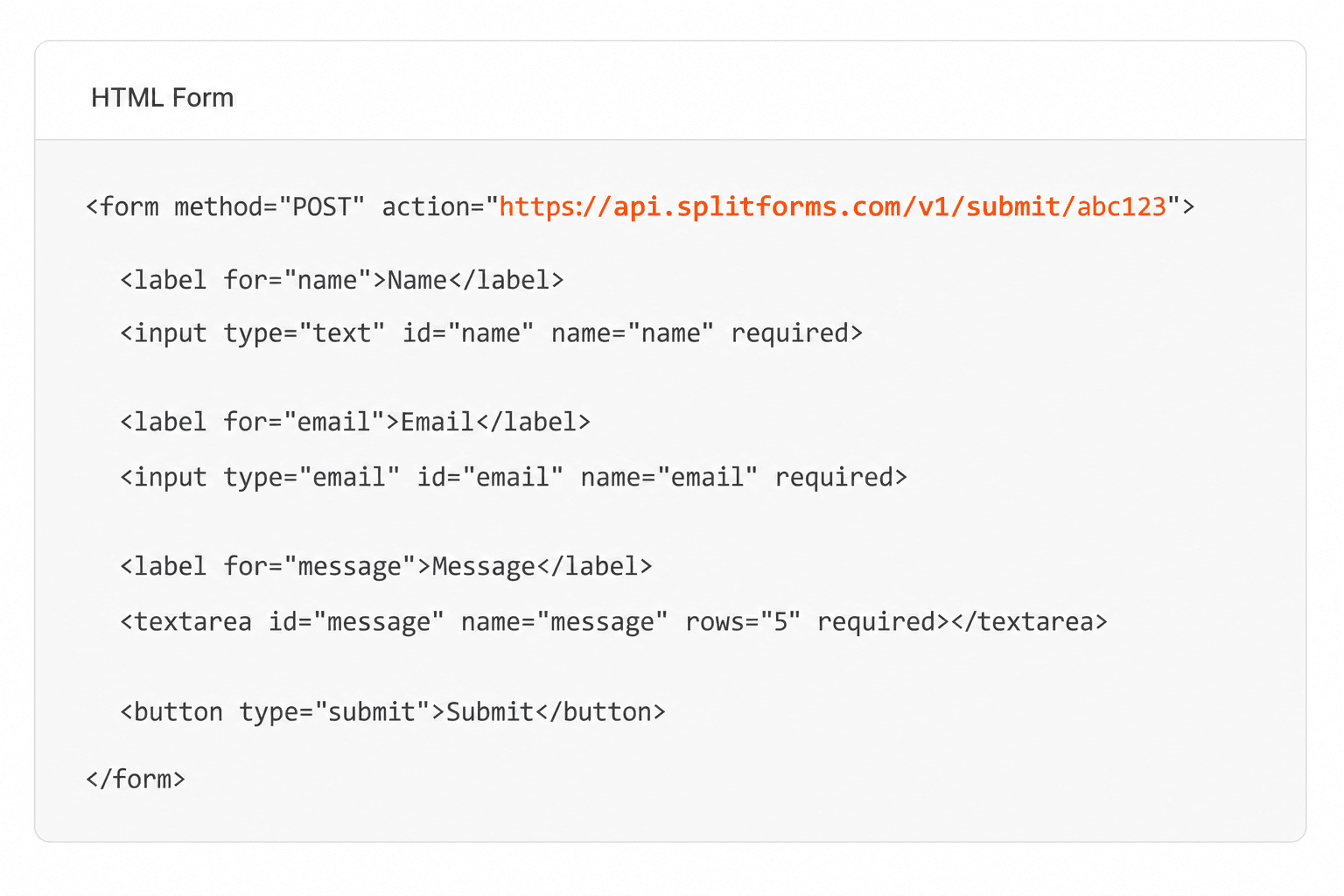
Add your endpoint
Point your form to your unique SplitForms endpoint. That's it.
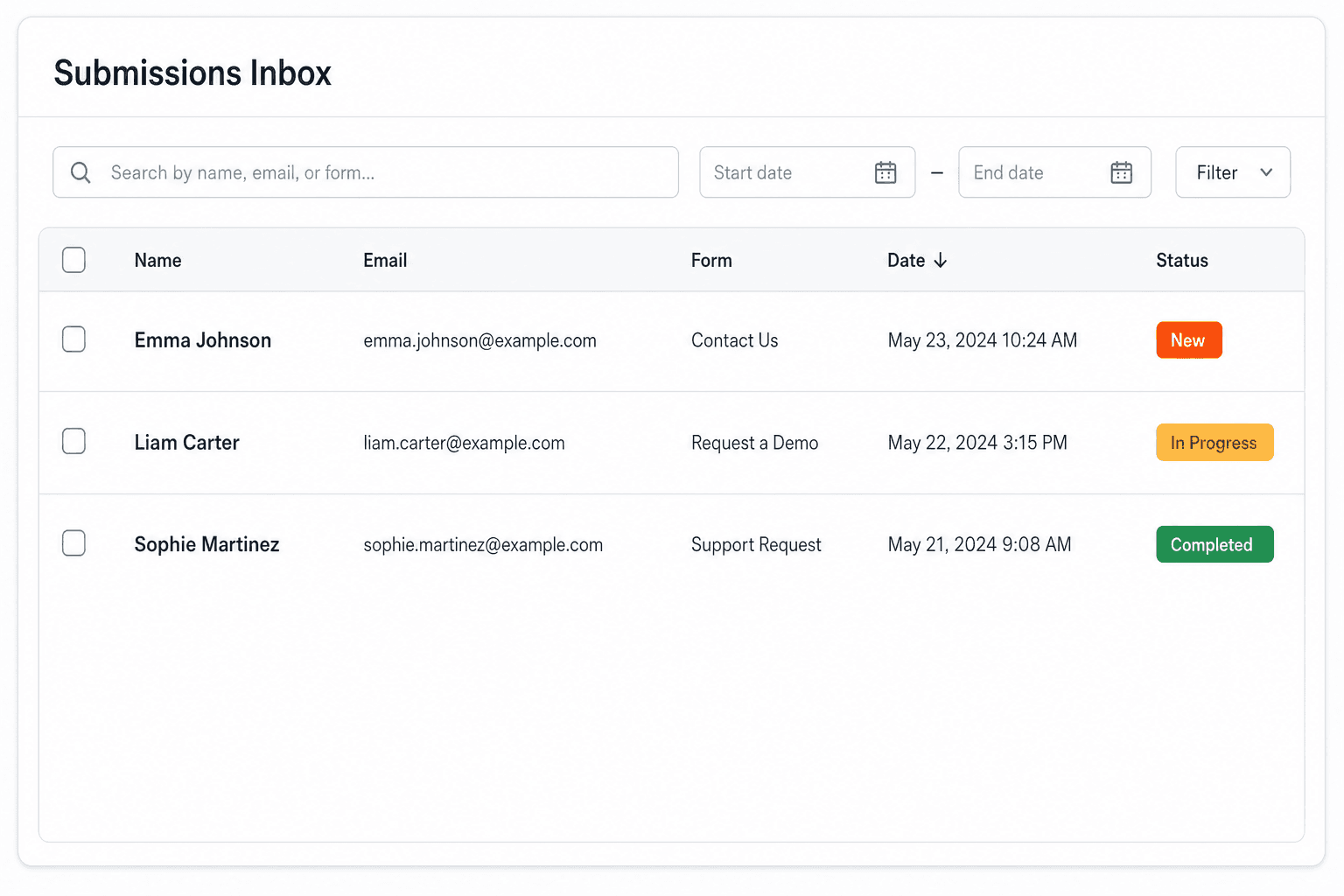
Receive submissions
We instantly capture and organize every submission in your inbox.
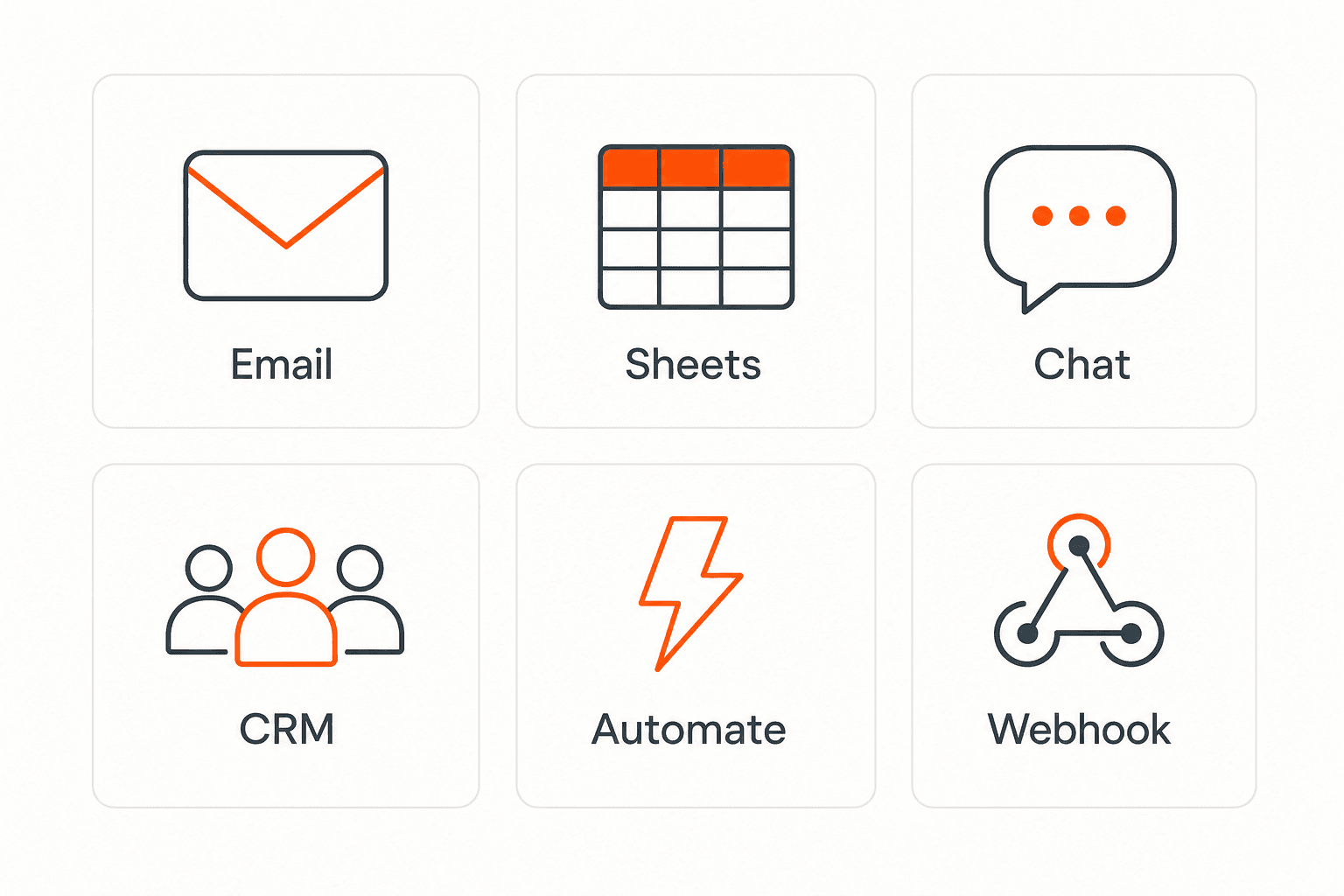
Route anywhere
Send data to email, spreadsheets, CRMs, webhooks, and 7,000+ apps.
No credit card required. Set up in under 60 seconds.
Connect & automate
Where can submissions go besides email?
On paid plans, submissions can also go to Slack, Discord, Google Sheets, Notion, Airtable, Zapier or any signed webhook — and splitforms works on the platforms you build on, from WordPress and Shopify to Next.js. With Stripe connected, your forms can take payments too.



 NewTake payments on your formsDeposits, bookings, order forms — submitters check out through Stripe and the money goes straight to your Stripe account. Included on every paid plan.See plans →
Questions
Wedding RSVP form questions.
View all FAQsHow do I add an RSVP form to my wedding website?
Build the form in the generator on this page and copy the HTML. Replace YOUR_ACCESS_KEY with a free splitforms access key, paste the code into your site (a Code block on Squarespace, an Embed HTML element on Wix, a Custom HTML block on WordPress), then send a test RSVP to check it reaches your inbox.
Is this wedding RSVP form free?
Yes. Generating the form is free with no signup, and each RSVP counts as one submission. The splitforms Free plan covers 500 submissions total (one-time, no credit card, no expiry). Pro is $5/month for 5,000 submissions a month, and Annual is $49/year for 15,000 a month. Email notifications are free on every plan.
Can I use Google Forms or my wedding website's built-in RSVP instead?
Yes. If your site is on Zola, The Knot or Joy, their built-in RSVP is the simpler choice because it is tied to your guest list. Google Forms is free and puts replies in a Google Sheet, but it is embedded as an iframe with Google's look. Use this generator when your wedding website is on Squarespace, Wix, WordPress or custom code and you want the RSVP to look like the rest of the site.
How do I handle plus-ones and a meal choice for each guest?
Add fields in the builder: a Text field for the plus-one's name and a second Dropdown for their meal. For larger parties, ask guests to list each person's meal in the dietary needs box, or keep one row per guest by asking each to RSVP separately.
Can guests get a confirmation email after they RSVP?
Yes, on a paid plan: auto-responder emails to the guest are part of Pro and Annual. On every plan, including Free, you can send guests to your own thank-you page with a redirect URL, and you get an email for each RSVP.
How do I see the final headcount?
Every RSVP is saved in your splitforms dashboard and emailed to you. Paid plans add exports and integrations such as Google Sheets, so replies can collect in a spreadsheet that totals the guest count.
Can I close the RSVP form after the deadline?
Put the RSVP-by date above the form on your page. When it passes, remove the form or replace it with a short note asking late guests to contact you directly.
Simple pricing
How much does splitforms cost?
Free gives you 500 submissions for $0 — no card, no time limit. Pro is $5/month for 5,000 submissions a month, and Annual is $49/year for 15,000 a month with every Pro feature.
Free
For side projects and indie devs.
- 500 free submissions
- Unlimited forms
- Email notifications included
- Smart spam filtering
- Submissions dashboard
- Redirect after submit
- MCP server included
Pro
Every paid feature, for agencies and growing products.
- 5,000 submissions / mo
- Unlimited forms
- Webhooks and integrations
- CC/BCC, auto-replies and routing
- File uploads with 500 MB storage
- Stripe payments on your forms
- 3 team seats
- Cancel anytime
Annual
Every Pro feature with triple the volume — $0.27 per 1,000 at full use.
- 15,000 submissions / mo
- Unlimited forms
- Everything in Pro
- File uploads with 5 GB storage
- 3 team seats
- Priority email support
No credit card required on Free • Cancel anytime • Full pricing and FAQ