
Generate a free splitforms key
Sign in at splitforms.com — your access key is created instantly. No credit card, no setup wizard, no SDK to install.
Customer Support Form · Webflow
Help-desk intake with topic, priority, and order/account reference fields. Free for 500 submissions per month — no backend, no SDK, no plugin.

Copy-paste code
Replace YOUR_ACCESS_KEY with your splitforms key, paste into a Webflow page, and ship. No build-time integration required.
<form action="https://splitforms.com/api/submit" method="POST">
  <input type="hidden" name="access_key" value="YOUR_ACCESS_KEY">
  <input type="hidden" name="subject" value="New support ticket">

  <label for="name">Your name *</label>
  <input id="name" type="text" name="name" placeholder="Jane Builder" required>
  <label for="email">Email *</label>
  <input id="email" type="email" name="email" placeholder="jane@example.com" required>
  <label for="phone">Phone (for urgent issues)</label>
  <input id="phone" type="tel" name="phone" placeholder="+1 415 555 0142">
  <label for="order_id">Order / account ID (optional)</label>
  <input id="order_id" type="text" name="order_id" placeholder="ORD-49281">
  <label for="severity">How urgent is this? *</label>
  <select id="severity" name="severity" required>
    <option value="">Choose…</option>
    <option>Critical — blocking us</option>
    <option>High — losing time</option>
    <option>Medium — annoying</option>
    <option>Low — heads-up</option>
  </select>
  <label for="description">What's wrong? *</label>
  <textarea id="description" name="description" placeholder="Steps to reproduce, error messages, screenshots if you have them." required></textarea>

  <!-- honeypot — bots fill every field -->
  <input type="checkbox" name="botcheck" style="display:none" tabindex="-1" autocomplete="off">

  <button type="submit">Send</button>
</form>
Webflow + Customer Support Form
Webflow's built-in form block sends to Webflow's own backend, which caps at 100 submissions/month on the free plan and lacks webhook delivery, CC recipients, and spam filtering. The customer support form on this page bypasses that entirely — paste it into a custom embed element, set the form action to splitforms, and you get 500 dashboard submissions/month with AI spam filtering; Starter adds Slack/Discord webhooks. Webflow's native interactions (success message, loading state) still work if you use fetch instead of a native form submit.

Customer Support Form fields
The posted payload contains your name, email, phone (for urgent issues), order / account id (optional), how urgent is this?, what's wrong?. Required fields are your name, email, how urgent is this? and what's wrong?. Rename, remove, or add your own — splitforms accepts any name you POST.

Template playbook
Support tools (Zendesk, Intercom, Help Scout) start at $20-100/seat/month. For early-stage SaaS handling 10-50 tickets a week, a structured support form that webhooks into Linear / Notion / Slack handles the volume without the subscription. The form captures ticket category (billing / bug / feature request / account access / general), urgency (blocking / high / medium / low), account email, and description. Routing the categories to different Slack channels or Linear teams turns the form into a triage layer. As you scale, switch the webhook target to Zendesk or Intercom and the form stays — same UX, different backend. SLA tracking still works because submission timestamps are stored.
Setup
Three actions stand between you and your first customer support form submission — no backend, no database, no CAPTCHA library.
Sign in at splitforms.com — your access key is created instantly. No credit card, no setup wizard, no SDK to install.
Drop the form snippet into a Webflow page, component, or layout. Replace YOUR_ACCESS_KEY with the key from your dashboard. The form action is a hard-coded URL — no env vars or build-time wiring needed.
Dashboard updates live on Free. Free includes owner email delivery; Starter adds signed webhooks, CSV export, Slack/Discord forwarding, and BCC to your team.
How SplitForms works
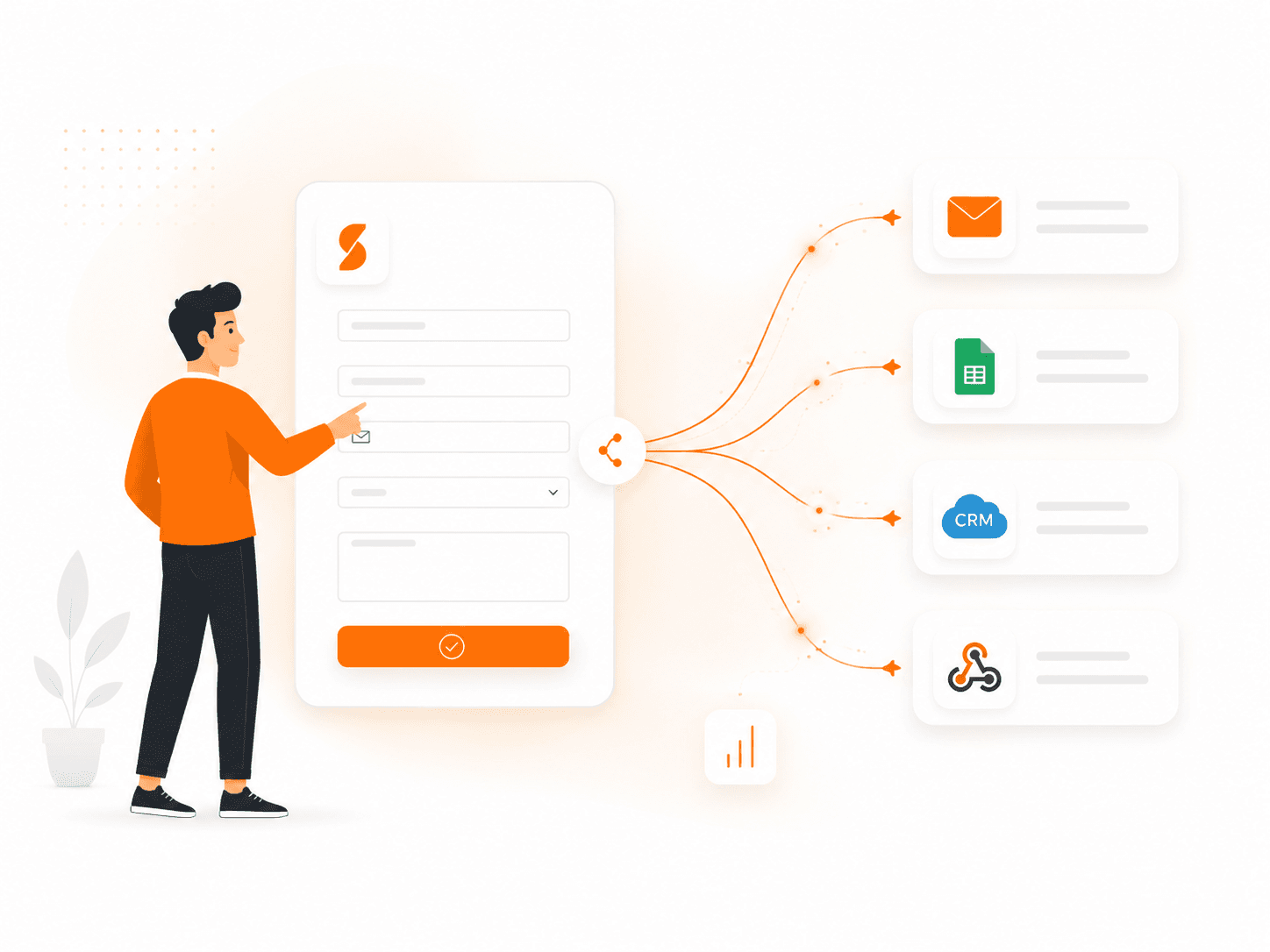
Connect your form, collect every submission, and send data where it needs to go — without building backend infrastructure.

Point your form to your unique SplitForms endpoint. That's it.
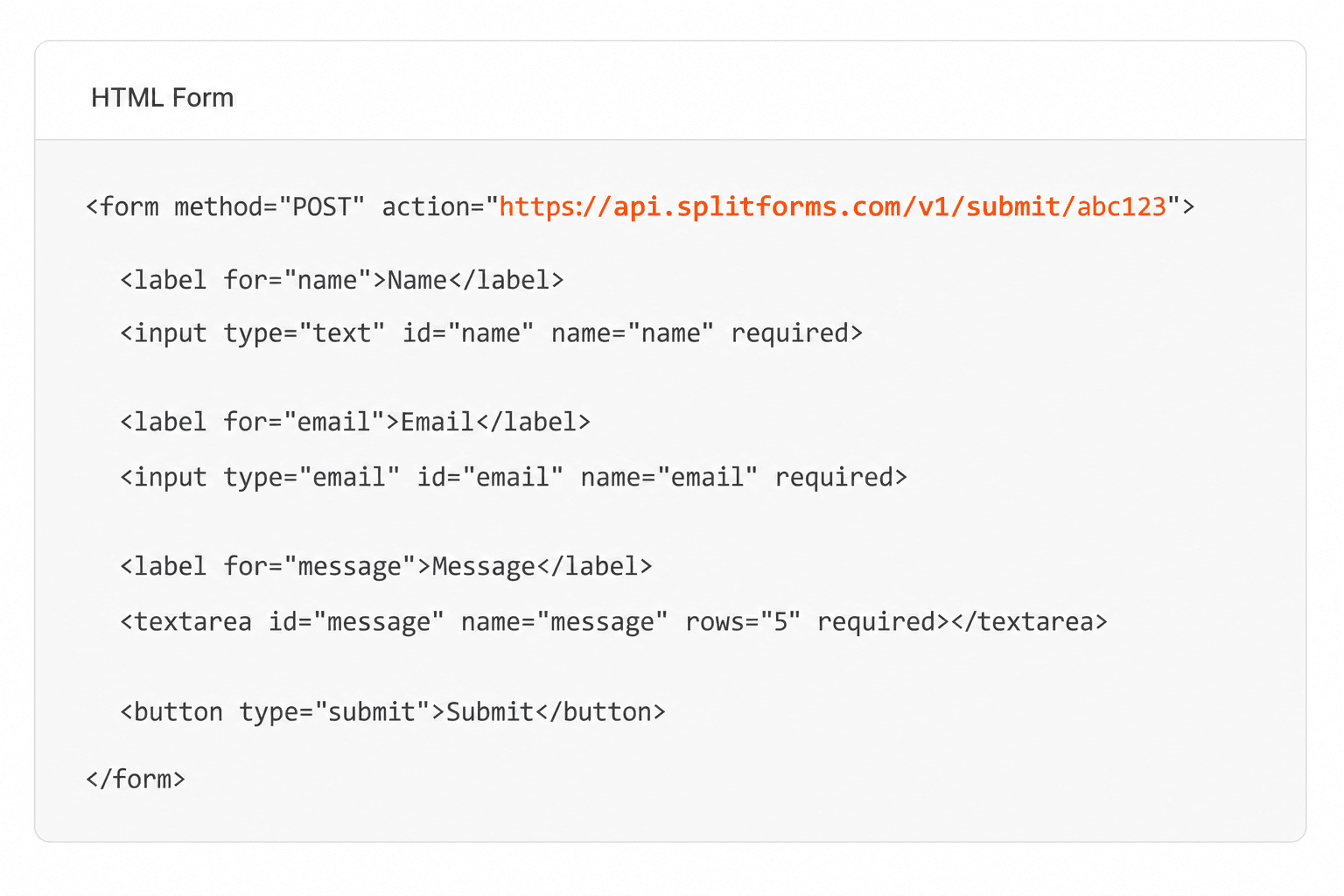
We instantly capture and organize every submission in your inbox.
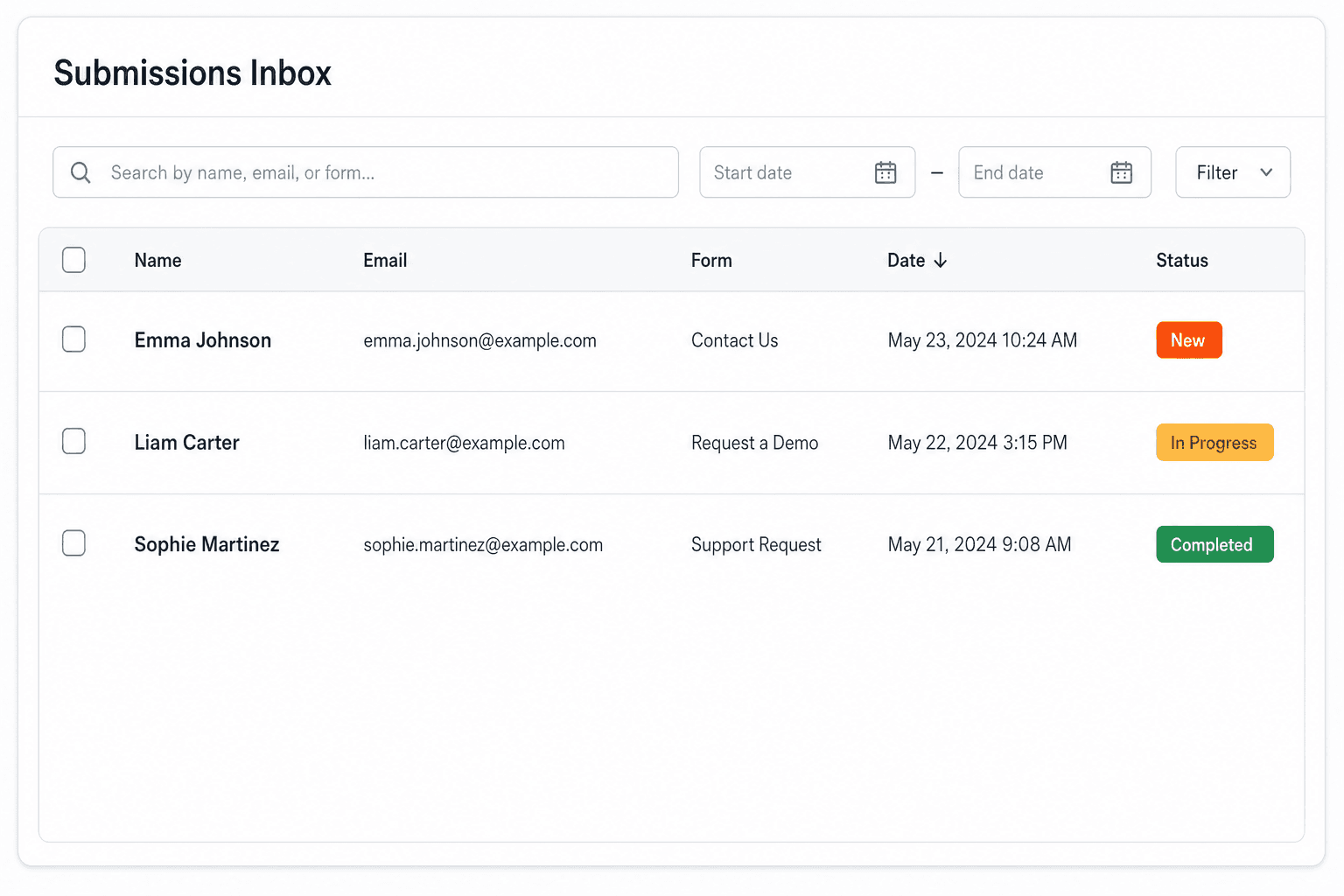
Send data to email, spreadsheets, CRMs, webhooks, and 7,000+ apps.
No credit card required. Set up in under 60 seconds.
Connect & automate
SplitForms works with the destinations you route to and the platforms you build on — from Slack and Sheets to WordPress, Shopify, and Next.js.
Trusted by indie teams and agencies shipping forms worldwide
Testimonials
40 quotes on record — from indie hacks to agency migrations.
“I replaced a Lambda + DynamoDB + SES contact form with six lines of HTML. It took eleven minutes, and the dashboard is better than what I was going to build.”
“We migrated 14 client sites off Formspree in a single weekend. The price is a third of what we paid, the API is more honest, and the spam filter actually works.”
“The webhook payload is signed, idempotent, and well-shaped. It reads like code from a competent team, not a CRUD app held together with duct tape.”
“I stopped reaching for Typeform on small marketing sites. splitforms covers 90% of the use case at none of the bloat.”
“I onboarded our whole agency in an afternoon. The MCP integration meant Cursor literally dropped the form straight into our client repos for us.”
“The free plan gave me 500 submissions before I paid a cent, and Pro is five dollars a month. I've spent more on coffee deciding which backend to use.”
“Spam went from forty junk entries a day to zero, with no reCAPTCHA puzzle ruining the form. The honeypot and time-trap just quietly do their job.”
“Point the form action at one endpoint and you're done. No SDK, no client library, no build step. This is how a form backend should feel.”
“Leads land in Slack the second someone submits, and a copy goes to Google Sheets for the sales team. I wired both up in under ten minutes.”
“I run a static Hugo site on a five-dollar VPS. splitforms gave it a real contact form without me standing up a single server.”
Common questions
Yes. The form is plain HTML with a single POST endpoint, so it runs on any Webflow site without server-side code, plugins, or SDKs. Drop the snippet into a Webflow page or component and submissions land in your splitforms dashboard.
Free for 500 submissions per month — no credit card, no trial. Pro is $5/mo for 5,000 submissions, and there's a one-time $59 3-year plan (15,000 submissions/mo for 36 months). The same pricing applies regardless of which framework hosts the form.
Yes. The template ships with sensible defaults (your name, email, phone (for urgent issues), order / account id (optional)…) — add, remove, or rename any of them. Splitforms accepts whatever fields you POST.
A hidden honeypot field catches dumb bots, and a tuned classifier scores the rest. You only see real submissions in your dashboard. No CAPTCHA, no friction for human users — and it works the same on Webflow as on any other framework.
Yes. Webhooks are available on paid plans, with auto-formatted payloads for Slack, Discord, and WhatsApp (via CallMeBot). Or send raw signed JSON to any URL — Zapier, n8n, your own server. Configure in the splitforms dashboard.
Yes — the form posts directly to splitforms from the browser, so no server is involved. Works on Vercel, Netlify, GitHub Pages, Cloudflare Pages, S3, or any plain Apache host.
When ticket volume crosses ~50/week, the dedicated tool's UX (queue management, canned responses, customer history) starts paying back the subscription. Below that, webhooks into Linear or Slack handle volume cheaper. Switch when you outgrow the simpler tools, not before.
splitforms timestamps every submission. A daily Zapier / Make automation flags any unresponded submission older than your SLA threshold and pings the owning team in Slack. Crude but effective for small teams. At scale, switch to a tool that tracks time-to-first-response natively.
Yes — webhook the JSON. Linear and Notion both accept issue / database creation via API. Productboard accepts feature requests via Zapier. Routing categories to the right tool (bugs to Linear, features to Productboard) means each gets triaged in the place that team works.
Simple pricing
Choose a plan that fits your workflow — from a free form endpoint to full automations, exports, and higher submission limits.
Free forever
For side projects and indie devs.
For agencies and growing products.
Pay $59. 3 years sorted.
No credit card required on Free • Cancel anytime


